Social Icons

Showing posts with label Apple Store. Show all posts

Tuesday, 23 October 2012

Download Safari Browser for Windows and Apple


Apple was wildly criticized when it launched Safari for Windows. That first version was so unstable and buggy it didn't cause the best of impressions.
Things have changed a lot since then however and Safari 5 sees some exciting introductions such as a new Reader icon for easier reading in one page, faster page load times and vastly improved HTML5 support. All of the previous features such as tabs on top for easier page management and Cover Flow to flip through your bookmarked sites iTunes style have been retained too.
If you're new to Safari, the first thing you'll notice is how clean it feels compared to many other browsers. There are no annoying toolbars or plugins installed and the result of this is that Safari looks trim and loads pages very quickly. The other benefit is that maximum space is given to the contents of your page rather than a chunky browser.
Before Safari, browsers were an afterthought. Something you put up with if you wanted to surf the Internet. One browser looked and felt just like another, so you chose the one that worked the best and crashed the least. They were ugly, cluttered affairs, whose interfaces competed for your attention and made browsing — the very purpose for which they were created — more difficult. Safari changes all that.
DOWNLOAD LINK FOR APPLE
DOWNLOAD LINK FOR XP

Friday, 5 October 2012

Speed up Apple Time Capsule


I recently purchased a 1 TB Time Capsule and was very excited to get home to hook it up. After the initial set up, which didn't go as smoothly as every other Apple product I've set up, I was extremely disappointed with the slow file transfer and constant disconnects I was encountering. I couldn't even stream my iTunes library (which is why I got it).

Here are some tweaks I've done:
  • Reduce Interference:
    • Connect the Time Capsule directly to your router with a LAN cable, then log into it via the Airport utility. Click on the manual set up button, then the wireless tab to disable wireless and give her a reboot. When the Time Capsule restarts it should now say "Wired" in the connection status. - Please note, I live in an apartment with 20 or so wireless networks around me, which was causing major interference. After hard wiring the Time Capsule I no longer have drop outs.
    • Rename your Time Capsule to a single word, mine is named Tera. Don't use weird symbols either, straight up letters and numbers here folks.
  • Speed her up!
    • Disable searchlight indexing. Go into system preferences, spotlight, privacy and add your time capsule to the list "Prevent Spolight from Searching these Locations"
    • Following suite, I removed the Time capsule from Quicksilver's catalog - before I did this Quicksilver would crash or freeze when I tried to use it when my Time Capsule was connected, now I can use both in harmony
After performing all my tweaks, I can now stream iTunes music and videos and quickly update my iPhone and iPods! I haven't had any disconnects either.

Please post any other tweaks to the comments.

Shared Multiple User Accounts on Apple iPad


In the Enterprise, several people would like to use sharing one iPad in the office to set up their own Exchange mail account or use own Apple iTunes store ID to download apps. Primarily the tablet is only supporting a single user account and can't create separate user accounts to log in, like Mac or Windows computer.

Lots of users keep asking for this capability. Apple's developer team have said a suggestion for getting multiple user profiles on iPad for other users in the house. Maybe the feature will be included in iOS 6.

With the "Our Pad (for iPad ONLY)" By Ghori Networks, you are able to let multiple users access a single iPad using separate password-protected account. Very good for IT manager.  The app supports Gmail, Hotmail, Twitter, and Facebook, and automatically signs out while in sleep mode.

Friday, 28 September 2012

Downgrade from iOS 6 beta Firmware to iOS 5.1.1 for iPhone 4S/4, 3GS, iPad 3/2, iPad, iPod 4G & 3G.

Apple iOS 6 beta Firmware many iOS device users upgrades their iOS Firmware version from old iOS Firmware iOS 5.1.1 to the new iOS 6 beta Firmware and many of them are happy using iOS 6 beta Firmware on their iPhone 4S, iPhone 4, iPhone 3GS, iPad 1, iPad 2, The New iPad 3, iPod 3G Touch, iPod 4G Touch, Apple TV 3/2 and for all A4 and A5 chipset iOS Devices but some iOS users are facing some problem with iOS 6 beta Firmware, it’s because beta software's and firmware's always has bugs and compatibility issues with devices. So if you're one of them and not satisfy with your Apple device performance of iPhone 4S, iPhone 4, iPhone 3GS, iPad 1, iPad 2, The New iPad 3, iPod 3G Touch, iPod 4G Touch and Apple TV 3/2 after upgrading from old iOS firmware to the latest iOS 6 beta firmware and wants to switch back and Downgrade your Apple device Software and Firmware from latest iOS 6 beta to old iOS 5.1.1 Firmware of iPhone 4S, iPhone 4, iPhone 3GS, iPad 1, iPad 2, The New iPad 3, iPod 3G Touch, iPod 4G Touch, Apple TV 3/2 and for all A4 and A5 chipset iOS Devices than you can do this by yourself with easy steps and procedure.


Downgrade iOS 6 to iOS 5.1.1

If you have updated and upgraded your Apple iPhone, iPad, iPod to check out the new features in iOS 6 beta or updated your idevice mistakenly, it’s surely breaks your Untethered Jailbreak of your iDevice and it won't let you install it again in new iOS 6 beta. So in this tutorial we will show you How to Downgrade from iOS 6 beta Firmware/Software to iOS 5.1.1 Firmware/Software for iPhone 4S, iPhone 4, iPhone 3GS, iPad 1, iPad 2, The New iPad 3, iPod 3G Touch, iPod 4G Touch and Apple TV 3/2 devices. Now let’s start the Tutorial and Guidelines to Downgrade your Apple device Firmware/Software from latest iOS 6 beta to iOS 5.1.1 Firmware of iPhone 4S, iPhone 4, iPhone 3GS, iPad 1, iPad 2, The New iPad 3, iPod 3G Touch, iPod 4G Touch, Apple TV 3/2 and for all A4 and A5 chipset iOS Devices.
Supportive devices for Apple iOS 6 beta Firmware Downgrading:
  • Apple iPhone 4S
  • Apple iPhone 4
  • Apple iPhone 3GS
  • Apple iPad 3
  • Apple iPad 2
  • Apple iPad
  • Apple iPod 4G Touch
  • Apple iPod 3G Touch
  • Apple TV 3
  • Apple TV2
Download Requirements for Apple iOS 6 beta Firmware Downgrading:
How to Downgrade iOS Firmware from iOS 6 Beta to iOS 5.1.1 for iPhone, iPad, iPod and Apple TV?
Download the tool package provided above and then follow the following simple steps to Downgrade iOS Firmware from iOS 6 Beta to iOS 5.1.1 for iPhone 4S, iPhone 4, iPhone 3GS, iPad 1, iPad 2, The New iPad 3, iPod 3G Touch, iPod 4G Touch, Apple TV 3/2 and for all A4 and A5 chipset iOS Devices.

Step 1: Download iOS 5.1.1 IPSW Firmware for your iDevice from above mentioned link.

Step 2: Connect your iDevice with PC via USB, and launch iTunes.

Step 3: Put you iDevice in DFU mode:
  • Press and hold the Home button and the Power button at the same time. 
  • After exactly 10 seconds release the Power button. Continue holding the home button until you iTunes pops up a message telling you that it has detected an iPhone in recovery mode.
Step 4: Select your iDevice from iTunes sidebar, then hold down (Shift for Window) Or (Alt for Mac) and click on the ‘Restore’ button, then point it to iOS 5.1.1 ipsw file. Wait for between 10 and 15 minutes. Congratulations!! You have now successfully Downgraded iOS 6 beta Firmware to iOS 5.1.1 Firmware on your iDevice.

Thursday, 20 September 2012

Download Latest Apple iTunes 10.6.3 for Windows XP, Vista and Windows 7 2012

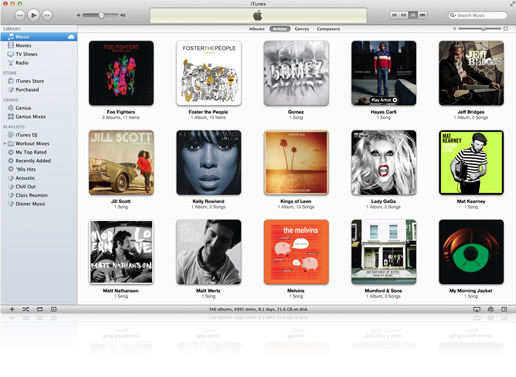
iTunes is a free application for Mac and PC. It plays all your digital music and video. It syncs content to your iPod, iPhone, and Apple TV.

Your music, movies, TV shows, apps, and more. The best way to follow your favorite artists and friends — and discover the music they’re talking about, listening to, and downloading. iTunes is home to everything that entertains you
Features:
Forget rifling through stacks of CDs or flipping through channels. iTunes puts your entire music and video collection a mere click away, giving you an all-access pass to thousands of hours of digital entertainment. Browse. Organize. Play. All from your Mac or PC.
View your library by artist, album, episode, year, rating — any way you want. Find what you’re looking for with a quick search that reveals results as you type.
Turn CDs into digital music by importing them to iTunes. Organize your entire collection with custom playlists.
Shuffle songs to mix up your groove. Listen to music from other computers on your network. Play video using onscreen controls.
iTtunes | Infolane
iTunes Match
If you want the benefits of iTunes in the Cloud for music you haven’t purchased from iTunes, iTunes Match is the perfect solution. It’s built right into the iTunes app on your Mac or PC and the Music app on your iOS devices. And it lets you store your entire collection, including music you’ve imported from CDs or purchased somewhere other than iTunes. For just $24.99 a year.
Here’s how it works: iTunes determines which songs in your collection are available in the iTunes Store. Any music with a match is automatically added to iCloud. Since there are more than 20 million songs in the iTunes Store, most of your music is probably already in iCloud. All you have to upload is what iTunes can’t match. Which is much faster than starting from scratch. Once your music is in iCloud, you can stream and store it on any of your devices. Even better, all the music iTunes matches plays back from iCloud at 256-Kbps AAC DRM-free quality — even if your original copy was of lower quality.
What's New:
  • iTunes 10.6 adds the ability to play 1080p HD movies and TV shows from the iTunes Store.
  • This release also includes many improvements for iTunes Match including:
    • Improved song matching
    • Improved album artwork handling, downloading, and displya
    • Addresses an issue where songs may skip when playing from iCloud
  • For information on the security content of this update please visit: http://support.apple.com/kb/HT1222
What's New in Previous Versions:
  • iTunes in the Cloud. iTunes now stores your music and TV purchases in iCloud and makes them available on your devices anywhere, any time, at no additional cost.
    • Automatic Downloads. Purchase music from any device or computer and automatically download a copy to your Mac and iOS devices.
    • Download Previous Purchases. Download your past music, TV, app, and book purchases again, at no additional cost. Previous purchases may be unavailable if they are no longer on the iTunes Store.
  • Sync with your iPhone, iPad, or iPod touch with iOS 5.
  • Wi-Fi Syncing. Automatically sync your iPhone, iPad, or iPod touch with iTunes any time they're both on the same Wi-Fi network.
  • Addresses an issue where iTunes may become unresponsive when syncing an iPad.
  • Resolves an issue which may cause syncing photos with iPhone, iPad, or iPod touch to take longer than necessary.
  • Fixes a problem where video previews on the iTunes Store may skip while playing.
  • Addresses other issues that improve stability and performance.
  • iTunes gets a speed boost. Now when it comes to loading large libraries, browsing the iTunes Store, and syncing your devices, iTunes responds faster than before.
  • Now the convenience of Autofill works with any iPod. Let iTunes choose what songs fill your pocket and enjoy your music at random.
  • Automatically import music from your CDs as higher quality, 256-Kbps iTunes Plus files. Watch a tutorial to find out how to import music from CDs.

Sunday, 16 September 2012

Apple iPod Nano 7G and iPod Touch 5G Specifications, Review, and Details

Apple on its main iPhone 5 event held on 12th September, 2012 has announced its next generation iPod Media Players devices with some hardware and software upgrades and named its 5th Generation iPod Touch and 7th Generation iPod Nano with some advanced features and specs. Apple has introduced a revamp version of iPod Media Players with big screens and redesigned models with colorful outfit. The Apple iPod Nano gets the biggest change as compare to its previous small and square model with a video support and a taller version with a 2.5 inch video screen. The all new iPod Nano is almost 40 percent thinner than the its previous sixth generation iPod Nano. It is even much thinner as compare to iPhone 5 and has only 5.4mm thickness. It can not only play music and video (in widescreen) but it also has an FM tuner, Bluetooth wireless and more, the amazing thing is that it even got a small home button. iPod Nano comes in eight colorful models. Apple iPod Nano has play, pause and even the volume controllers on the sides of the iPod Nano device. Users can even browse the photos and videos on 7th Generation of iPod Nano and it also has the smaller dock same as that of iPhone 5, it has also get the ability of Multi-touch and tasking. Apple iPod Nano will be shipped with the all new Apple "EarPods" (the most advanced audio media device with ease of comfort and streaming).


On the other side, Apple iPod Touch is the 5th Generation iPod device having the same display screen size of 4.0 inch Retina Display like in iPhone 5 which makes better gaming experience and watching movies but it’s just 6.1 mm thick, making it the thinnest version of the iPod Touch of its kind. iPod Touch has a faster A5 processor and can access 175,000 iOS apps. It also supports 5 megapixel camera with support for 1080ps video, along with Bluetooth 4.0 support. The iPod Touch will also come in various different colors and outfits. iPod Touch has improved Battery life, just like the new iPhone has 8 hours of Video playback time. The 5th Generation of iPod Touch will also integrated with most advanced mobile operating system iOS 6 pre-installed to take full advantage of the hardware it has to offer and it has also get Siri feature, the virtual assistant which we all love and have fun talking to like in iPhone 4S and iPhone 5. Apple iPod Touch will be shipped with the all new Apple "EarPods" (the most advanced audio media device with ease of comfort and streaming). There is good news for Apple iPod Shuffle users that iPod Shuffle will also get new colors and outfits to match those available for the new iPod Nanos and iPod Touch devices but there will be no other hardware and software changes at all.

Apple 7th Gen. iPod Nano Pictures and Screenshots:


Apple 5th Gen. iPod Touch Pictures and Screenshots:


Apple 7th Gen. iPod Nano Price and Availability:

The all new Apple iPod Nano 7th Gen. will be publicly available worldwide in October, 2012 with the price tag of just $149 with the storage capacity of 16GB. The price tag of old version of iPod Shuffle with brand new colors and outfits will be cost just $49 with the storage capacity of 2GB.

Apple 5th Gen. iPod Touch Price and Availability:

The all new Apple iPod Touch 5th Gen. will be publicly available worldwide in October, 2012 with the price tag of just $299 with the storage capacity of 32GB and the price tag of just $399 with the storage capacity of 64GB and the older version of iPod Touch will still be sold with the 16GB storage selling for $199 and the 32GB storage for $249 only.

Price Comparison Between iPod Touch, iPod Nano and iPod Shuffle Media Player devices:

Friday, 14 September 2012

How to Install Mac OS X on any Intel Based PC By iBoot and MultiBeast

Any OSx86 installation guide can seem daunting at first glance, especially when trying to remember cryptic terminal commands and sorting through volumes of misinformation on the web. This guide requires no coding, terminal work, or Mac experience of any kind. You will not need access to a Mac. In fact, it's easier and faster for me to install Snow Leopard with fully working components on my system than it is to install Windows 7. And more fun.

The iBoot + MultiBeast method is designed and tested for any desktop or laptop running the latest line of Intel processors, the Core i3/i5/i7s. I have had reports of success with older machines as well including CoreDuo, Core2Duo, and even Pentium 4. However, AMD processors are not supported.

YOU WILL NEED

  • A computer running an Intel Processor
  • A blank CD
  • A Mac OS X Snow Leopard Retail DVD
  • To leave any fear of your computer at the door.
  • Patience and humility- it may not work out perfectly the first time- but with enough tenacity and grit, you'll reach the promised land. It's easy to get frustrated, but don't give up! There are a community of users with similar hardware in the tonymacx86 Forum to provide support if you get stuck.
BEFORE YOU BEGIN
  • If you have greater than 4gb of RAM, remove the extra RAM for a maximum of 4gb. You can put back any extra RAM in after the installation process.
  • Use only 1 graphics card in the 1st PCIe slot with 1 monitor plugged in.
  • Remove any hard drives besides the blank drive being used for OS X.
  • Remove any USB peripherals besides keyboard and mouse.
  • Remove any PCI cards besides graphics- they may not be Mac compatible.
  • If using a Gigabyte 1156 board, use the blue Intel SATA ports- not the white Gigabyte SATA ports.
  • It's best to use an empty hard drive- you will have to partition and format the drive.
  • Always back up any of your important data.
STEP 1: BIOS SETTINGS
You will need to set your BIOS to ACHI mode and your Boot Priority to boot from CD-ROM first. This is the most important step, and one many people overlook. Make sure your bios settings match these. It's not difficult- the only thing I did on my Gigabyte board besides setting Boot Priority to CD/DVD first was set Optimized Defaults, change SATA to AHCI mode, and set HPET to 64-bit mode.

STEP 2: INSTALL MAC OS X

In order to boot the Mac OS X Retail DVD, you'll need to download and burn iBoot. For desktops and laptops using unsupported Intel CPUs and graphics, a legacy version of iBoot can be downloaded here.

  1. Download iBoot
  2. Burn the image to CD
  3. Place iBoot in CD/DVD drive
  4. Restart computer
  5. At boot prompt, eject iBoot


  6. Insert your Mac OS X Snow Leopard Retail DVD and press F5
  7. When you see the screen below, press enter to begin the boot process
  8. When you get to the installation screen, open Utilities/Disk Utility. NOTE: If you cannot get to the installation screen, retry from Step 4, type PCIRootUID=1 before hitting enter. If that doesn't work then try PCIRootUID=1 -x or just -x which will enter Mac OS X Safe Mode and will allow you to proceed. For some graphics cards, use GraphicsEnabler=No boot flag to proceed.
  9. Partition your hard drive to GUID Partition Table
  10. Format your hard drive to Mac OS Extended (Journaled). NOTE: The bootloader can only boot from a disk or partition of 1 TB or less. Partition larger drives.
  11. For the purposes of this guide, name it Snow Leopard. You can rename it later.
  12. Close Disk Utility
  13. When the installer asks you where to install, choose Snow Leopard
  14. Choose Customize‚ and uncheck additional options. This will hasten the install process. You can always install this stuff later.
  15. Restart computer.
  16. Place iBoot back in drive.
  17. When you get to the boot selection screen, choose your new Snow Leopard installation.
  18. View the super-cool Mac OS X Snow Leopard Welcome Video, and set up your computer!

STEP 3: UPDATE TO 10.6.8
If you have a Sandy Bridge system, please follow these specialized instructions to update to 10.6.8.
  1. Open Finder and navigate to your Snow Leopard drive.
  2. Download the Mac OS X 10.6.8 Combo Update
  3. Download MultiBeast
  4. Open MultiBeast- don't run it yet, just leave it open. Set up windows as shown.
  5. Mount MacOSXUpdCombo10.6.8.dmg
  6. Install MacOSXUpdCombo10.6.8.pkg
  7. Upon completion, the installer will ask you to reboot. DO NOT REBOOT.
  8. Switch to the already open MultiBeast. If it closes, just re-open it.
STEP 4: MULTIBEAST
MultiBeast is an all-in-one post-installation tool designed to enable boot from hard drive, and install support for Audio, Network, and Graphics. It contains two different complete post-installation solutions: EasyBeast and UserDSDT. In addition it includes System Utilities to rebuild caches and repair permissions and a collection of drivers, boot loaders, boot time config files and handy software.

Choose one of the following options directly following a fresh installation and update:

EasyBeast is a DSDT-free solution for any Core/Core2/Core i system. It installs all of the essentials to allow your system to boot from the hard drive. Audio, Graphics and Network will have to be enabled separately.

UserDSDT is a bare-minimum solution for those who have their own pre-edited DSDT. Place your DSDT.aml on the desktop before install. Audio, Graphics and Network will have to be enabled separately. HINT: Check the DSDT Database for a pre-edited DSDT.
  1. Run MultiBeast.
  2. If you have a custom DSDT that's been edited, place the file on your desktop and choose UserDSDT.
  3. All others select EasyBeast
  4. Select System Utilities.
  5. Optionally, you may install further drivers via Advanced Options to enable ethernet, sound, graphics, etc... Be sure to read the documentation provided about each installation option. NOTE: EasyBeast, and UserDSDT install the bootloader by default, so you'll not need to check that option.
  6. MultiBeast Demo Videos
  7. Install to Snow Leopard- it should take about 4 minutes to run scripts.
  8. Eject iBoot.
  9. Reboot- from your new Snow Leopard installation drive.
If your drive doesn't boot on its own, and you get an error referencing boot0, fix it using the methods listed here.


Congratulations! You're done!!

Your PC is now fully operational, while running the latest version of Mac OS X Snow Leopard! And you have a nice Boot CD to get into your system in case things go awry. Boot your system from iBoot if you have issues. You may run MultiBeast as often as you like.

If you can't boot, try typing -x at the boot prompt to enter safe mode, or just boot with iBoot. When you get to the desktop, you can make all of the changes you need to. The best way to start fresh is delete whatever you're trying to get rid of- including the whole /Extra folder, as most kexts are installed there. Then you can re-run MultiBeast. As long as you rebuild caches and repair permissions after you're done, you can do just about anything you want to /Extra/Extensions and /System/Library/Extensions. Anything can be tweaked and enabled upon subsequent uses of MultiBeast.

If you've had success using iBoot + MultiBeast, consider a contribution to help keep the sites going. We're constantly updating and tweaking our tools to help you.

Thanks in advance!

-tonymacx86 & MacMan
For our most current workarounds and solutions for issues such as USB and audio, check out the Mac OS X 10.6.3 Update, Mac OS X 10.6.4 Update, Mac OS X 10.6.5 Update, Mac OS X 10.6.6 Update, Mac OS X 10.6.7 Update, and Mac OS X 10.6.8 Update articles. Good luck, and see you on the forum!

Wednesday, 12 September 2012

Apple TV Run Full Screen iOS Applications - Unofficially

Apple TV is one of the low budget Apple iOS device from a company which provides total entertainment to its users. The price of the Apple TV is low as $99.00 contains powerful hardware specification includes Apple A4 chipset with a PowerVR SGX535 and 256 megabytes of RAM, running modified iOS builds from those on iPods touch, iPhone touch, and iPad touch. Apple TV exists as a media center settop box officially but users can also Run any iOS Applications including apps from iPhone, iPod and iPad on jailbroken Apple TV unofficially.
There is one video available on internet which provides you an evidence of running iOS Apps on Apple TV. The video shows demo of some iOS Apps like Facebook, Maps, Safari and YouTube on a jailbroken Apple TV. This is not AirPlay, the apps are running directly from the Apple TV and scaling to 720p.

According to MacDaddy News, MobileX is a window manager for iOS that replaces Springboard, letting iPhone and iPad apps run on the Apple TV. Since the Apple TV doesn’t have a touch screen, they are using a combination of VNC, SSH and the Apple Remote to launch and navigate apps. Once the app progress finalized by two developers, you will be able to launch apps using only the remote. I think its one of the cheapest way to run

Sunday, 9 September 2012

What to Expected Apple's iPhone 5 Model, Size and Body Look Screenshots

As we all know iPhone Smartphone's are now world's most popular and successful Smartphone ever introduced from Apple and after the success of old iPhone models starts from iPhone to iPhone 4S now everybody is seems to be waiting for next generation iPhone model iPhone 5. So today we are going to reveal the Expected iPhone 5 Model, Size and Body Look Screenshots so that general public can think how next generation iPhone 5 will be look and feel. According to the recent rumors iPhone 5 will have bigger screen, improved processor and even better cameras. However, according to the recent blog post on a famous tech blog, iLounge the next-generation iPhone 5 will have 4.0 inch display screen, metal body and the small dock connector.


According to the iLounge blog post, iPhone 5 will be slightly larger than the current version of iPhone series and it will also have a metallic body from back and will be 20% thinner than the current iPhone 4 and iPhone 4S Smartphones. Currently, the iPhone 4 and iPhone 4S has a perfect size and one of the attractive and best designs in the whole smartphone market today, but due to large screen size demand, Apple will probably release an iPhone with 4.0 inch screen as you can see in screenshot of iPhone 5.

iPhone 5 Body
(Expected iPhone 5 Body Look) Click to Enlarge Image!

Moreover, iPhone 5 will also probably have 16 pin dock connector as compare to the current iPhone, iPod Touch or iPad devices which have 30 pin dock connector. According to the rumors next generation iPhone 5 will have a new dock design which will be small with fewer pins, however, it will be universal across all devices. You can also expect that iPhone 5 will be soon released in this fall.

iPhone 5 Design
(Expected iPhone 5 Design)

Friday, 7 September 2012

Apple iCloud


Nobody knows for sure what Apple has in store Monday when it introduces, iCloud, the company's newest cloud service offering. Will iCloud absorb MobileMe--Apple's calendar, e-mail, and contacts sync service -- or will it stand alone? Does Apple have plans for a new file sync feature that will seamlessly unify files on your iOS devices with your Mac or Windows PC?

Thursday, 6 September 2012

ow to Fix the Apple Keyboard with Numeric Keypad Problems

If you are unable to type letters, numbers, or symbols, you may have Mouse Keys enabled on a keyboard that has no numeric keypad or Num Lock key.


It happen to me this week, I was entering a password which had numerical numbers and I was using the numerical pad on the right side of my keyboard and I kept getting the wrong password message. I used the numbers above the letters on the keyboard and they worked.


So I thought I had a bad keyboard, until I did a simple search and there it was at Apple support, "Unable to type while Mouse Keys is enabled in Mac OS X"

Seams like I wasn't the only one having this problem.


How to Fix:


  1. Choose System Preferences from the Apple menu.
  2. Choose Universal Access from the View menu.
  3. Click the Mouse tab or in Lion Click Mouse & Trackpad
  4. Click Off, next to Mouse Keys. If you have already logged in as a different user where Mouse Keys is disabled, click On and then click Off next to Mouse Keys, to return the keyboard to normal operation.
Note: You may also check/uncheck the box for "Press Option key five times to turn Mouse Keys on or off".

Note: If you are logged on to a user where Mouse Keys is already disabled, but your keyboard is not responding properly, toggle the radio buttons for Mouse Keys "On" then "Off" to restore normal functionality.


Sunday, 2 September 2012

How to Solve "Apple iCloud Verification Email Problem" Fix

Apple recently launched its cloud storage service, iCloud. When I tried setting up iCloud on my iPhone4, I was stuck with the verification email problem. The set up wizard kept asking for iCloud email verification but I couldn’t find any option to send or resend iCloud verification email to my email address so that I can verify it. On further research I found that Apple has changed the way it handles Apple ID. Your email address and Apple ID now have to be same; this is unlike how Apple used to handle Apple ID and email address. Till now you could create multiple Apple IDs with one email address or, in other words, a single email address could have been associated with multiple Apple IDs. This got me to the root of the problem why I was not receiving the iCloud verification email. If you are facing the same problem, please follow the steps below to receive iCloud verification email:

1. Go to https://appleid.apple.com/

2. Click on “Find out” link under “Not sure if you have an Apple ID?”


3. Fill out your first name, last name and the email address that you want to use for receiving iCloud verification email.

4. On the next screen, select “Email Authentication” option and click “Next”.

5. Now, go to your Email Inbox and you will find an email from Apple on how to reset the Apple ID password. Click on the “Reset your Apple ID password” link in the email.

6. You will be shown more than one Apple IDs that are associated with your email address.


7. Now, choose the Apple ID that you would NOT like to use for receiving iCloud verification email and click “Next”.

8. Reset the password for this account by providing a new password.

9. Login to Apple ID by visiting https://appleid.apple.com/ and clicking “Manage your account” link. Use the Apple ID that you would NOT like to use for receiving iCloud verification email and the password that you had just set.

10. Click on “Edit” link under “Primary Email Address” section, provide a new email address. Click “Save”.

11. Click Sign Out.

Once you have changed the email address for the Apple ID that you would NOT like to use for receiving iCloud verification email, it’s time to set things right in the Apple ID that you would like to use for iCloud services. Just log in to your account https://appleid.apple.com/with Apple ID that you would like to use for receiving iCloud verification email. You should now see the link to resend verification email under your email address. Click on that link, confirm your email address and you will be all set to use iCloud.

This information is for Education Purpose .

Saturday, 18 August 2012

Download Apple iOS 6, 5.1.1 Beta IPSW Firmware for iPhone, iPad & iPod - Direct Download Links

Apple has already announced the new and most advanced mobile operating system iOS 6 for iPhone, iPad, iPod, Apple TV and for other Apple iOS products today at Worldwide Developer’s Conference 2012 (WWDC). The features of Apple iOS 6 we had already discussed in our previous post. Click here if you want to know everything, anything and what iOS 6 is offering for users. The next generation of mobile operating system iOS 6 betas is now officially available for general public and for iOS developers. WWDC 2012 is already going on at WWDC 2012 with Apple's CEO Tim Cook so soon the iOS developer betas are likely to be release for general public in the next few hours or so (similar to what happened with iOS 5 released). Download and install iOS 6 beta IPSW Firmware Software Update on your iPhone 4, iPhone 4S, iPhone 3GS, iPad, iPad 2, The New iPad 3, iPod 4G/3G Touch devices, Apple TV, Safari 6 and other iOS 6 softwares for better improvement on your iDevices. (Direct Download Links of iOS 6 IPSW Firmwares are Available). Latest iOS 6 Beta 4 for iPhone, iPad, iPod and Apple TV is now officially available for download.

Apple iOS 6 for iPhone, iPad and iPod

A very well-known and authentic Chinese forum has leaked the Official Links of iOS 6 beta IPSW Firmware Software Update for all iDevices including iPhone 4, iPhone 4S, iPhone 3GS, iPad, iPad 2, The New iPad 3, iPod 4G/3G Touch devices, Apple TV, Safari 6 and other iOS 6 softwares. These iOS 6 leaked links have already spread on internet because after the few hours it will automatically get active for general public and iOS developers and iOS users will be able to download iOS 6 beta IPSW Firmware Software Update files directly from Apple servers. According to sources Apple iOS Developers will have access to the first beta on iOS 6 later this afternoon and iOS customers can expect to see iOS 6 Software Updates directly from Apple iDevices through OTA (Over-the-Air) Wirelessly in Fall of this year or users can also download and install iOS 6 from their PC desktop via iTunes. The whole iOS 6 IPSW Firmware setup files are divided into two separate versions, one is Consumer Version and other is Enterprise Version. iOS Developers can start using and developing iOS 6 from today with the first iOS 6 beta. If you are not an iOS Developer so don’t worry you can still download and install iOS 6 in your Apple iDevices. First get full backup of your recent iOS software version with iTunes, but keep in mind that beta software always has bugs and compatibility issues.

External Download Links of Apple iOS 6 beta IPSW Firmware:

Currently only external unofficial download links are activated and available for iOS 6 beta IPSW Firmwares. iOS users and developers can download iOS 6 setup files from the following external unofficial activated and working mirrors and links, soon you will get official links working and activated on this page. Following download links are also iOS 6 IPSW Firmware setups files leaked directly from Apple's servers in working condition. We have got the following links from here. Apple iOS 6 Beta 1, Beta 2 & Beta 3 has expired and no more working for iOS users and developers, you need to download Latest iOS 6 Beta 4 Firmware for iDevices so please Download and Install Latest Apple iOS 6 Beta 4 IPSW Firmware from this Link.
  • Apple iOS 6 beta for iPhone 4S (Size: 875.89 MB)
  • Apple iOS 6 beta for iPhone 4 CDMA (Size: 846.17 MB)
  • Apple iOS 6 beta for iPhone 4 GSM (Size: 849.44 MB)
  • Apple iOS 6 beta for iPhone 3GS (Size: 761.40 MB)
  • Apple iOS 6 beta for iPod Touch 4G (Size: 807.67 MB)
  • Apple iOS 6 beta for iPad 3 WiFi + Celluar (Size: 1.07 GB)
  • Apple iOS 6 beta for iPad 3 WiFi (Size: 1.04 GB)
  • Apple iOS 6 beta for iPad 2 CDMA (Size: 783.31 MB)
  • Apple iOS 6 beta for iPad 2 GSM (Size: 785.61 MB)
  • Apple iOS 6 beta for iPad 2 WiFi (Size: 769.44 MB)
  • Apple iOS 6 beta for Apple TV 3 (Size: 586.92 MB)
  • Apple iOS 6 beta for Apple TV 2 (Size: 542.22 MB)
Torrent Download Links of Apple iOS 6 beta IPSW Firmware:

Apple iOS users and developers can also download iOS 6 beta IPSW Firmware setups files directly from Torrents server. Following iOS 6 beta Torrents Links are activated and in fully working condition. Get your iOS 6 beta torrent files now. We have got the following links from here. Apple iOS 6 Beta 1, Beta 2 & Beta 3 has expired and no more working for iOS users and developers, you need to download Latest iOS 6 Beta 4 Firmware for iDevices so please Download and Install Latest Apple iOS 6 Beta 4 IPSW Firmware from this Link.
  • Apple iOS 6 beta for iPhone 4S (Size: 875.89 MB) - Torrent Link
  • Apple iOS 6 beta for iPhone 4 CDMA (Size: 846.17 MB) - Torrent Link
  • Apple iOS 6 beta for iPhone 4 GSM (Size: 849.44 MB) - Torrent Link
  • Apple iOS 6 beta for iPhone 3GS (Size: 761.40 MB) - Torrent Link
  • Apple iOS 6 beta for iPod Touch 4G (Size: 807.67 MB) - Torrent Link
  • Apple iOS 6 beta for iPad 3 WiFi + Celluar (AT&T) (Size: 1.07 GB) - Torrent Link
  • Apple iOS 6 beta for iPad 3 WiFi + Cellular (Verizon) (Size: 1.07 GB) - Torrent Link
  • Apple iOS 6 beta for iPad 3 WiFi (Size: 1.04 GB) - Torrent Link
  • Apple iOS 6 beta for iPad 2 Rev A (Size: 769.16 MB) - Torrent Link
  • Apple iOS 6 beta for iPad 2 CDMA (Size: 783.31 MB) - Torrent Link
  • Apple iOS 6 beta for iPad 2 GSM (Size: 785.61 MB) - Torrent Link
  • Apple iOS 6 beta for iPad 2 WiFi (Size: 769.44 MB) - Torrent Link
  • Apple iOS 6 beta for Apple TV 3 (Size: 586.92 MB) - Torrent Link
  • Apple iOS 6 beta for Apple TV 2 (Size: 542.22 MB) - Torrent Link
Official Direct Download Links of Apple iOS 6 IPSW Firmware:

Apple iOS Users and iOS Developers can download iOS 6 beta setups files from the following official mirrors and links directly from Apple's server. Apple iOS 6 Beta 1, Beta 2 & Beta 3 has expired and no more working for iOS users and developers, you need to download Latest iOS 6 Beta 4 Firmware for iDevices so please Download and Install Latest Apple iOS 6 Beta 4 IPSW Firmware from this Link.
make-money-468x60