Social Icons

Showing posts with label Technology. Show all posts

Thursday, 18 October 2012

PTCL 3G EVO Tab | First Pakistani Tablet PC | PTCL 3G EVO Tab Specification

PTCL has introduced first Pakistani 3G enabled smartphone Android Tablet. The PTCL 3G EVO Tab is powered by Google Android Froyo2.2 OS, EVO Tab is a 7″ capacitive multi gestures touch screen tablet packed with features of both a tablet and a GSM phone that lets you surf, talk, tweet & do a lot more simultaneously o-the-go in more than 100 cities nationwide.
PTCL’s EVO Tab also supports GSM network and you can use cellular Sim and use it as your phone to make voice calls. Evo Tab is available in two different colors i.e. Grey Stone & Ivory White.
PTCL Tablet


3G EVO Tab Black and White Color

PTCL 3G EVO Tab Specifications:

PTCL 3G EVO Tab Size & Weight:
  •     Size: 199*114*12mm
  •     Weight: 429g
PTCL 3G EVO Tab Display:
  •     7” screen
  •     WVGA LCD 800X480 resolution
  •     Capacitive touch screen
  •     Multi-Touch
PTCL 3G EVO Tab Memory:
  •     512 MB (RAM) & 512 MB (ROM)
  •     Micro Slot up to 32 GB
PTCL 3G EVO Tab Cellular & Wireless:
  •     Support EVDO/CDMA 1X 1900Mhz,
  •     GSM/GPRS/ EDGE/UMTS Quad-band: 850/900/1800/1900/ UMTS 2100Mhz
  •     Dual Mode: EVDO or UMTS
PTCL 3G EVO Tab Processor:
  •     Qualcomm MSM7627T (Turbo) 800Mhz
PTCL 3G EVO Tab Operating System:
  •     Android Froyo OS Smartphone 2.2
PTCL 3G EVO Tab Sensors:
  •     G-Sensor
  •     Light Sensor
  •     Wi-Fi
  •     Bluetooth EDR 2.1
PTCL 3G EVO Tab Camera
  •     5 Megapixel rear Auto Focus,
  •     VGA Secondary front Camera
PTCL 3G EVO Tab Input/output:
  •     USB Port
  •     Ear phone port
  •     TF card slot
  •     SD card Slots
PTCL 3G EVO Tab Battery
  •     3500 mAh internal Battery
  •     7hours usage
  •     140hours standby time
PTCL 3G EVO Tab In the Box:
  •     3G Evo Tab
  •     Stereo Earphones with Mic
  •     Micro USB Cable
  •     USB Power Adapter
  •     Free Sleeve Pouch
  •     Documentation
  •     Warranty Card
PTCL 3G EVO Tab Warranty
PTCL Evo Tab comes with 1 Year after sales & service warranty. Please refer to limited warranty statement on Warranty Card placed inside the box for complete terms & conditions.

PTCL TABLET PC : Pakistan Telecommunication Company Limited (PTCL) just launched 3G Enabled Smartphone Android Tablet

PTCL 3G EVO TAB - PAKISTAN'S FIRST 3G ENABLED ANDROID TABLET


Pakistan Telecommunication Company Limited (PTCL) just launched Pakistan’s First 3G Enabled Smartphone Android Tablet, powered by 800MHz Multicore Processors with Google Android Froyo 2.2 Operating System.


This PTCL 3G EVO Tablet has 7’’ capacitive multi gestures touch screen packed with features of both a tablet and a GSM phone that lets you surf, talk, tweet & do a lot more simultaneously on-the-go.Ptcl Evo Tab
First ever tablet
Tablet PC are new in Pakistan and this tablet from PTCL is the first product of this kind.
The features of Tablet From PTCL are:
Operating System: Android 201 Froyo
Memory: 512 mb
Internal storage; 512 MB
Connectivity: Wifi
Display: 7 Inches
Touch Screen: Yes
Touch Type: Capacitive Multi Touch
camera: 5MP rare and VGA Front end


PTCL EVO TAB REVIEW - 7" 3G ANDROID 

TABLET INTRODUCED BY PTCL

HANDS-ON REVIEW - 7" DISPLAY 3G ANDROID

 TABLET INTRODUCED BY PTCL

NEW SOFTWARE UPDATE FOR PTCL EVO TABLET


Pakistan Telecommunication Company announced new software update for their newly launched PTCL EVO TABLET. This software upgrade fix the issues which are faced by early users of the tablet. 

PTCL EVO TAB INTERNET SHARING / USB TETHERING - PTCL EVO TAB AS WIRELESS HOTSPOT / ROUTER

Monday, 15 October 2012

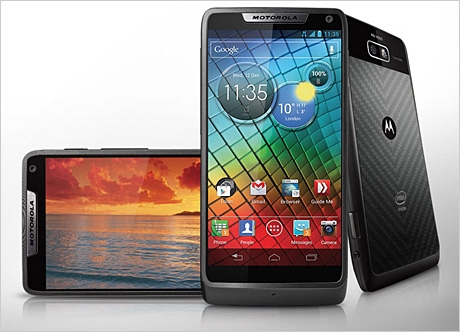
Motorola RAZR i XT890 Smartphone Review, Price Details and Specifications Details

Motorola RAZR i XT890
Motorola RAZR i XT890 Smartphone. Besides the embedded Intel chipset, this stylish handset boasts many other commendable features that are bound to catch your "eye." A closer look will reveal much more:


External Aspects of Motorola RAZR i XT890 Smartphone:
The first glance itself manifests that the Motorola RAZR i XT890 is neatly constructed and looks sleek. The chassis is composed of a relatively slim 122.5 by 60.9 by 8.3-millimeter (length, width, depth) frame weighing 126 grams. These dimensions are enviable considering that the phone embeds a sizeable screen. Solidity is furnished thanks to the largely aluminum components that make the phone sturdy and free of discernible squeaks. Further, the back panel is covered by Motorola’s innovative Kevlar scratch-resistant layer imparting increased ruggedness. 
The 4.3-inch display is the dominant design aspect. The screen comprises a capacitive multi-touch LCD touchscreen harnessing the Super AMOLED technology and a top resolution of 960 by 540 pixels. Furthermore, the display has a density of 256 pixels per inch and supports 16 million colors. All these features assure vibrant colors, bright visuals, and sharp detailing albeit with some disappointing white contrasts. The sheathing of Corning Gorilla Glass 2, the presence of a very thin bezel, and good overall viewing angles also strengthen the screen and viewing experience. The screen encompasses a VGA camera over it and 3 touch-receptive navigational buttons below. 
The Motorola RAZR i XT890 will be available in white and black shades. 
Operating Highlights of Motorola RAZR i XT890 Smartphone:
  • As stated earlier, the Motorola RAZR i XT890 is outfitted with an Intel chipset with hyper threading knowhow – a rarity for a full-fledged Android Smartphone. This technology, along with embedded 1GB of RAM, lends potency to the 2.0 GHz single core Atom processor resulting in an impressively fast and versatile machine with fine multitasking faculties.  
  • The smartphone exudes excellent network capabilities – it supports quad-band GSM as also quad-band 3G, the latter at speeds up to 21 megabits per second.  As a consequence, phone calling is a facile affair with heightened clarity and connectivity. The built-in HTML 5 (Chrome) web browser too, as a result, assures breezy surfing and downloads facilities.
  • The inbuilt Android Ice Cream Sandwich operating system, with its smooth running and suite of applications, elevates the user experience. A further bonus is the ability to upgrade to the newest Android Jelly Bean adaptation. 
  • The Motorola RAZR i XT890 provides an 8-GB internal storage that is expandable to 32 GB by means of the included memory card slot.   
  • The high-powered 2000 mAh Li-Ion battery furnishes close to 20 hours of talk time on a single charge. Sadly, though, the battery cannot be replaced by the user.   
Camera and Other Features of Motorola RAZR i XT890 Smartphone:
The Motorola RAZR i XT890 is armed with a competent 8-megapixel rear camera with LED flash and autofocus abilities. Thanks to a maximum resolution of 3264 by 2448 pixels, the camera generates high-quality photographs though with considerable shutter sound. The numerous settings include geo-tagging, face discovery, image steadiness control, and high dynamic range imaging.
The camcorder function can generate 1080-pixel movies at 30 frames per second. There is significant video codec backing too.

Other noteworthy functionalities include:
  • Document viewer
  • Inbuilt accelerometer
  • Micro USB 2.0 
  • Amazon apps
  • Push email
  • Wi-Fi with DLNA
  • Music player 
  • Headphone jack
  • Assisted GPS with GLONASS
  • SNS integration
  • NFC
Closing Remarks:
Given its all-round feature set, the Motorola RAZR i XT890 should prove a hit with all Smartphone enthusiasts.


Author Bio: - The above content and topic was provided by Carlene Masker, who is a technology enthusiast and who is fond of writing helpful tips and fresh tidbits of information about the different fields in technology and innovation. She is currently working with Telco Services where you can find the latest information on Verizon FiOS deals.

Friday, 28 September 2012

Samsung PN43E450 Plasma HDTV Television Review, Spec & Price

electronic technologies to get an image and transfer it over distances to be displayed on screens. With time, the mechanical aspect was dropped and optical and electronic technologies could be more relied on. As early as 1936, the Olympic Games were conveyed through cable to the television stations in Berlin and other cities where people could watch the games live. That in itself was a commendable achievement, given the technology available at that time.


It was much later in the late 1980s and early 90s that technology came up with LCD or Liquid Crystal Display that ensured sharper pictures with unbelievable crispness. The bulky and unwieldy television sets were replaced with slim light ones. The technology helped produce black and colored images by a special process that filtered light that was provided by several CCFLs or cold cathode fluorescent lamps. Though the pictures produced were brilliant, the technology was not very efficient and consumed a lot of power as only a small quantity of the produced light reaches the viewer and the major portion of it is blocked.

The very first plasma display television was produced in 1992 by the Japanese company Fujitsu. It was a 21 inch full-color hybrid display. This was soon followed by Panasonic’s offering in 1994. Again in 1997 Fujitsu came out with its 42 inch plasma display that had 852 X 480 resolution and Philips followed with their 42 inch plasma display the same year. Around 2006 the LCDs outsold the plasmas in the larger sizes category. Until late 2000 it was the plasma televisions that were very popular because of the clarity and crispness.

The latest offering in Plasma display televisions is the PN43E450 from Samsung. Competitively priced and proving it to be a great performer with the highlight being the vivid color. It is also known to draw less power than most other television sets in the same range. Just over an inch in thickness and in a sleek black finish, it has a real black panel. Armed with an Eco Sensor, it is mounted on a rectangular stand and does not have a swivel which is a minor drawback for the price you are paying.  The 1 year for parts and 1year for labor warranties make it all the more attractive. The remote control is quite small and fits into your hand perfectly and is armed with a backlight that is really handy during the night or in darkened rooms.

Wednesday, 19 September 2012

How to Make Web Site

Step 1: Choosing A Domain Name

The first step is to choose the domain name for your website, which is nothing more than its address (e.g., google.com, cocacola.com, soccerblog.net and so on).

Identifying A Good Domain Name

If you are not sure what you should look for in a domain name, here are 4 guidelines that will help you pick a good one:
1. Good domains are short. The shorter your domain, the better. Consider that one word domains like Mobiles.com or Pizza.com are worth millions of dollars. You wont find any one-word domains available, however, so aim to get a domain with two words, like MobilesHub.com or SleekPizza.net. Choosing a domain with three or more words is fine as long as the domain makes sense.
2. Good domains are easy to spell. Your domain needs to be easy to spell, or else your visitors will end up on some other website. This means that you should avoid tricky and foreign words if possible. For example, the domain CappuccinoBar.com might be problematic for English speaking visitors. Cappuccino is an Italian word, and not everyone is aware where the doubles are placed.
3. Good domains are descriptive. Your domain must indicate to visitors what your website is about. Why? Because most people will use your domain when linking to your website, and if the domain itself is descriptive, people will be more likely to click on it and to visit your website. For example, FitnessCentral.com tells people what the website is about right away, while MrJones.com doesn't.
4. Good domains have a .com, .net or .org extension. When purchasing a domain name you'll be able to choose from many different extensions. However, there are only three that you should consider. The first one is the .com, which should always be your first call. If you can't get the .com version of the domain you want, then going with .net or .org should be fine. Just stay away from extensions such as .biz, .us and .info because most spam and malicious websites use these extensions, meaning that both human visitors and search bots will get suspicious when visiting your site.

A Brainstorming Strategy

If you are having a hard time coming up with domains that respect all the guidelines above, here is a simple strategy you can use: come up with a list of main keywords related to the topic of your website, and then add prefixes (e.g., super, mega, fast, quick, hot) and suffixes (e.g., central, spot, corner, zone, bay, hub, home) to these keywords. For example, if you want to start a website about computers, your main keywords could be computer, computers, pc, tech and so on. By adding prefixes and suffixes you would then have SuperComputer.com, SuperComputers.com, EasyPC.com, ComputersHub.com, PCZone.com, ComputersCentral.com, TechBay.com and so on. You can change the extension on each domain too, from .com to .net or .org.

How To Find If the Domains Are Available

By now you should have a list of potential domain names for your website. But how do you find if these domains have already been registered by someone else, or if they are still available? You need a whois tool for that, which is basically a website that will access the database of registered domains for you.
Screenshot of AjaxWhois
A very simple and user friendly whois tool can be found at AjaxWhois.com. The tool will tell you whether the domains you are looking for are available or not in real time, as you type them.

How To Buy the Domain Name

Once you have found a domain name that you like and that is available, you'll just need to buy it (or register it, as the process is called). The easiest way to do this is by simply getting a hosting plan, as most hosting companies will give you the option to register a new domain name on the fly. In other words, you just need to sign-up for a hosting plan and they will register and configure your domain for you. In the next step we talk about how to choose a good hosting plan.

Step 2: Getting A Hosting Plan

The second step is to choose a hosting plan for your website. You'll basically be renting a web server (i.e., a computer that has always-on Internet access) from a hosting company, and they'll host your website for you, making it accessible for any Internet user around the world. Choosing the right hosting plan is important, because it will have a direct impact on the performance of your website. Here are some guidelines you should follow:

1. Do not use a free or a cheap hosting company. While it is possible to host your website for free, we highly recommend that you don't do it. Why? Because free web hosts usually display their own ads on your website (they need to make money somewhere after all), and because the service quality is usually terrible. Choosing a hosting company that costs only $1.99 or so would be an bad idea, too. Remember that you get what you pay for, and most reliable companies charge at least $7 per month.
2. Choose a Linux-based hosting plan. When signing up for a hosting plan you'll notice that the two main options you have are Windows based plans and Linux based plans. Does it make a difference which one you pick? Absolutely! You should go with a Linux based plan. Note that this has nothing to do with the operating system you use in your computer. A Linux based hosting means that your web server will be using Linux, regardless of your own OS. Linux based hosting plans are superior because they are more secure and have more features available.
3. Make sure your plan uses cPanel. The last point you need to pay attention to when choosing a hosting plan is the control panel. Some companies use their own control panel software. You should avoid them. Instead look for a company that uses cPanel, which is the industry standard. Apart from having more features, cPanel allows you to easily backup and restore your website, and it also comes with many pre-installed software packages.
Screenshot of HostGator
If you want a recommendation for a hosting company that meets all the guidelines mentioned above, check HostGator.com. It is one of the largest and most reliable companies on the Internet, and yes, we use their services too.
Once on their homepage, click on "View Web Hosting Plans," and then choose the "Hatchling Plan." It is the smallest plan, but it is good enough for anyone starting out. Plus it only costs $8.95 monthly (or $6.95 if you pay annually). On the next page you'll be asked if you want to register a new domain, or if you already have one. Choose the "Register A New Domain" option on the left, and simply put the domain you have chosen there, as the image below illustrates:
Screenshot of HostGator Domain
On that same screen you'll be able to enter coupon code at the bottom. You can use the coupon "makeawebsite" (without the quotation marks) to get a discount of $10 on your order. After that you'll just need to complete your personal details and pay (either with Paypal or with a credit card). Your hosting plan should be active after one hour, and you'll receive an email confirmation with all the details.

Step 3: Installing WordPress

If you try to open your website at this point (by typing your domain in the address bar of your browser) you'll just see a white page with the specifications of your web server, as the image below illustrates.
Screenshot of blank website page
The next step is to install a content management system (CMS) on your site. The CMS makes managing your site, its design and internal pages a very simple task. We highly recommend that you use a CMS called WordPress. It is an open source software, meaning that it is free and supported by a very large community of website owners. Secondly, most hosting plans come with an automatic installation script for WordPress, so getting it up and running will be straight forward. We use WordPress to power this website too.
First of all log into your cPanel (the control panel of your website). You can do this by typing www.yourdomain.com/cpanel on your browser, and then by entering your username and password (you'll find this information in the email you received from the hosting company).
Screenshot cPanel
Now scroll down until you find the "Software/Services" box, and click on on the "Fantastico De Luxe" icon. On the next page click on "WordPress." You'll find it on the left menu, under "Blogs." After that click on "New Installation."
On that new page you'll need to fill in the details about your site. You don't need to change anything in the "Installation location" section. Your domain should already be selected there, and the "Install in directory" field should be left blank, because we don't want to install WordPress in a directory (e.g., www.yourdomain/blog/) but rather in the root of your domain (e.g., www.domain.com).
Below that you'll find the "Admin access data," where you'll put your admin username and password. Finally, there is the "Base configuration" section, where you need to put your admin nickname, your email address, the name and description of your website. The page should look like this:
Screenshot of the WordPress Install
When everything is set you can click on "Install WordPress." The next page will confirm the name of the database that will be created for your site. You can click on "Finish installation" there. On that final page you'll get the details of the installation. At the bottom you'll see a form that you can use to email yourself the details of the installation (e.g., admin username and password). It is recommended that you use it so you won't lose that data.
Type your domain name in a new browser window to see how your website looks now. It should be something like this:
Screenshot of the WordPress Default Theme

Step 4: Choosing a Template for Your Website

A big advantage of using WordPress to power your website is the fact that there are literally thousands of free templates available, created by the community of WordPress users. Note that these templates are called "themes."
You should start your search for a suitable theme at the Official Themes Directory. On the first page you'll find a list of featured themes. Alternatively you can use the "Filters and Tags" interface to narrow your search to themes specific characteristics. Finally, you can also use the search box if you are looking for something specific. For example, if you are creating a website for your company, you could search for "business" or "corporate."
Screenshot of the WordPress Themes Directory
If you can't find a good theme in the directory, try using Google. Do you want to create a blog about swimming? Search on Google for "swimming wordpress theme." Do you want to to create an online store to sell products? Search for "online store wordpress theme." So on and so forth. Remember that you'll be able to customize your theme later on, so just worry about finding something that fits your general requirements.
Depending on your budget you might also consider purchasing a premium WordPress theme. It will cost anywhere from $20 up to $60, but the quality is usually higher when compared with the free themes. One website we recommend for premium themes is ThemeForest.com. The prices are quite affordable (around $30 per theme), and they have over 2,000 themes for all sorts of purposes and requirements.
Once you find a theme that is suitable for your website (either a free or a premium one) simply download the .zip file to your computer. Now you'll need to log in the WordPress admin panel. You can do that by typing www.yourdomain.com/wp-admin into your browser. After entering your username and password you'll be redirected to the Dashboard of the admin panel, which looks like this:
Screenshot of the WordPress Dashboard
You'll have time to familiarize yourself with all the features and links you see there. For now just open the "Appearance" menu on the left, and then click on "Themes." On top of that new page you'll find a tab called "Install Themes." Go ahead and click on it. Now select "Upload", and choose the theme file you have downloaded to your computer. On the next page you'll need to put in your FTP information (you'll find this in the email you received from the hosting company as well). Click on "Proceed" and WordPress should upload and install the theme for you.
Screenshot of the WordPress FTP
If for some reason the automatic theme install fails, you can always do it manually. You'll just need to unzip the theme on your computer, and then to upload it to your server via FTP. We recommend that you use a free program called FileZilla to do that. With the program running, connect to ftp.yourdomain.com, using the FTP username and password provided by your hosting company (you can leave the "Port" field blank). Once the connection is established, open the "public_html" folder you'll find on the right side of the program, then open the "wp-content" folder, then open the "themes" folder, and finally upload your theme there (the whole folder).
Screenshot of the FileZilla
Now log back into the WordPress admin panel, click on "Themes" under the "Appearance" menu again, and you should see your theme listed there. Simply click on it to see a preview, and then click on "Activate," on the top right corner. Once your theme is active you can visit your website URL to see how it looks. Here is a screenshot of a sample theme we activated:
Screenshot of our website finished

Step 5: Customizing Your Design

Once your selected theme is active, you can start customizing your design. The first decision you must make is whether you want a static front page or a dynamic one. If your website will be a content based one, like a blog where new articles get published frequently, then you probably want to go with a dynamic front page, displaying all the latest articles and posts there. In this case you don't need to change anything, as WordPress comes with a dynamic front page by default.
If you are making a website for your company, to sell products or to offer your services, then a static front page is a better idea. You can create one by opening the "Pages" menu on the WordPress admin panel, and then by clicking on "Add New." After that simply write the title and the content of your page. You can add images, video and scripts if you want. Once you are happy with the page, click on "Publish."
Screenshot of the WordPress Static Page
The page should be live now, but it is still a normal page. In order to make it the front page you'll need to open the "Settings" menu, and then click on "Reading." Right on top you'll find a check box you can use to determine what should be used as the front page. Simply select the one you just created, and click on "Save Changes."
You can also customize any other aspect of your design by opening the "Appearance" menu and clicking on "Editor." Each file present there controls a different aspect of your theme. The "Stylesheet," for example, controls the general design settings like font size, color, theme widths, headline styles and so on. These settings apply to all pages of your website.
Screenshot of the WordPress Theme Editor
The .php files, on the other hand, control the layout of specific pages. The index.php file, for instance, controls the content of your front page. The single.php file controls the content of the single post pages. The footer.php controls the content of the footer of your website, and so on. Just remember to backup each file (i.e., copy the text to a word processor) before you start changing it, so that if anything goes wrong you can restore the working version.
Screenshot of the WordPress Widgets
Another section worth exploring is the "Widgets" one (you'll find the link inside the "Appearance" menu as well). On most WordPress themes you can add or remove design features (e.g., menus, links, search boxes) simply by dragging and dropping the widgets into your sidebar.

Sunday, 16 September 2012

Samsung's Galaxy Note 10.1 Vs Apple's New iPad 3

Smartphone's Samsung's Galaxy Note 10.1 and Apple's New iPad 3 so that you can decide yourself which one is best for your personal use and for business purpose use. Apple has recently launched its new iPad version called "The New iPad" but most people is now aware of its fully hardware and software compatibility. On other side Samsung has also launched its new Galaxy series smartphone called "Galaxy Note 10.1" which is also quite good in terms of hardware and software compatibility.


Apple's latest New iPad 3 is now become the top competitor of Samsung's Galaxy series smartphones and tablets but Samsung feels that they don't need to release something new to compete with it, according to their latest assessment of their closest rival. The Android-based Galaxy Note 10.1 is Samsung's latest tablet model, taking its design from the Galaxy Note 'phablet', which is just about the right size to be a challenge to fit into your pocket. You can check yourself the following Samsung's Galaxy Note and Apple's New iPad 3 Hardware and Software Comparison image and decide yourself which one is best in terms of features.

Wednesday, 12 September 2012

Apple TV Run Full Screen iOS Applications - Unofficially

Apple TV is one of the low budget Apple iOS device from a company which provides total entertainment to its users. The price of the Apple TV is low as $99.00 contains powerful hardware specification includes Apple A4 chipset with a PowerVR SGX535 and 256 megabytes of RAM, running modified iOS builds from those on iPods touch, iPhone touch, and iPad touch. Apple TV exists as a media center settop box officially but users can also Run any iOS Applications including apps from iPhone, iPod and iPad on jailbroken Apple TV unofficially.
There is one video available on internet which provides you an evidence of running iOS Apps on Apple TV. The video shows demo of some iOS Apps like Facebook, Maps, Safari and YouTube on a jailbroken Apple TV. This is not AirPlay, the apps are running directly from the Apple TV and scaling to 720p.

According to MacDaddy News, MobileX is a window manager for iOS that replaces Springboard, letting iPhone and iPad apps run on the Apple TV. Since the Apple TV doesn’t have a touch screen, they are using a combination of VNC, SSH and the Apple Remote to launch and navigate apps. Once the app progress finalized by two developers, you will be able to launch apps using only the remote. I think its one of the cheapest way to run

Sunday, 9 September 2012

What to Expected Apple's iPhone 5 Model, Size and Body Look Screenshots

As we all know iPhone Smartphone's are now world's most popular and successful Smartphone ever introduced from Apple and after the success of old iPhone models starts from iPhone to iPhone 4S now everybody is seems to be waiting for next generation iPhone model iPhone 5. So today we are going to reveal the Expected iPhone 5 Model, Size and Body Look Screenshots so that general public can think how next generation iPhone 5 will be look and feel. According to the recent rumors iPhone 5 will have bigger screen, improved processor and even better cameras. However, according to the recent blog post on a famous tech blog, iLounge the next-generation iPhone 5 will have 4.0 inch display screen, metal body and the small dock connector.


According to the iLounge blog post, iPhone 5 will be slightly larger than the current version of iPhone series and it will also have a metallic body from back and will be 20% thinner than the current iPhone 4 and iPhone 4S Smartphones. Currently, the iPhone 4 and iPhone 4S has a perfect size and one of the attractive and best designs in the whole smartphone market today, but due to large screen size demand, Apple will probably release an iPhone with 4.0 inch screen as you can see in screenshot of iPhone 5.

iPhone 5 Body
(Expected iPhone 5 Body Look) Click to Enlarge Image!

Moreover, iPhone 5 will also probably have 16 pin dock connector as compare to the current iPhone, iPod Touch or iPad devices which have 30 pin dock connector. According to the rumors next generation iPhone 5 will have a new dock design which will be small with fewer pins, however, it will be universal across all devices. You can also expect that iPhone 5 will be soon released in this fall.

iPhone 5 Design
(Expected iPhone 5 Design)

Nikon First Android 2.3 Gingerbread with 16 Mega-pixel Camera Coolpix S800c Review, Price & Specifications Details

Nikon's first Android 2.3 Gingerbread powered 16 Mega-pixel Digital Camera Coolpix S800c Review, Price, Availability, Screenshots, Videos and Specification Details

Nikon world's largest and Japanese camera manufacturer company has announced its first ever Android based Digital Camera for its users named "Coolpix S800c" with the advanced support of Android 2.3 Gingerbread operating system and having 16 Mega-pixel Camera. Nikon is not the only company who has built a camera having Android OS in it; previously many small companies had also introduced Digital Camera's having Android OS installed. Nikon's Coolpix S800c Digital Camera is different from others because it’s a fully loaded power packed featured camera with new point-and-shoot compact camera support. Nikon's Coolpix S800c Camera has Android 2.3 Gingerbread operating system which is older version of Android OS but it’s perfect for any Digital Camera with the impressive 16 MP shoot.

Nikon Coolpix Android S800c Camera

Nikon's Coolpix S800c is also a social networking supportive device having built-in social media support for sharing Videos and Images through Wi-Fi Connectivity. Nikon's Coolpix S800c has 1/2.3 CMOS sensor with 10x Optical Cyber Zoom, image stabilization, GPS and 1080p Full HD video recording feature. The camera has a 3.5 inch OLED touchscreen display with a respectable resolution of 854 x 480. The camera support up to 16 Mega-pixel of shoot in day and night. Nikon's Coolpix S800c Camera have also got ability to run and load camera without Android OS, it means users can use the camera even when Android OS is not running through which users can save time and battery on loading at start-up of device. Nikon's Coolpix S800c has 1.7 GB of storage space for photos & videos and 680 MB for Android Apps and it’s also expandable. The battery life of Coolpix S800c is also impressive which provides you ability to take 160+ photos with a single charge by its 1,050 mAh battery. Users can also edit and include effects in images by its photo editing tool and can also share videos and images through its Wi-Fi connectivity, Sharing videos and photos with your families and friends will be quicker and easier than ever if you are in any Wi-Fi range places. Nikon's Coolpix S800c doesn't support 2G or 3G services but only Wi-Fi connectivity with GPS support. Nikon's Coolpix S800c Camera users can also Download and Install Android Apps directly from Google Play Store since the operating system is running Android 2.3 Gingerbread, you can play your any favorite Apps and Games supporting Android 2.3 in Nikon's Coolpix S800c Digital Camera.

Nikon's Coolpix S800c Camera Availability and Price Details:

The official Release Date of Nikon's Coolpix S800c is September, 2012 and after that it will be available in Black and White colors in all over the world. Users can get and purchase the Nikon's Coolpix S800c Camera after due date with the official price of $350 USD Dollars in U.S.A. and £379 Euro in UK.

Nikon's Coolpix S800c Camera Screenshots and Images:
Following is the official Screenshots and Images of Nikon's Coolpix S800c Digital Camera.


Nikon's Coolpix S800c Camera Video Review:
Following is the Video Review of Nikon's Coolpix S800c Digital Camera running Android 2.3 Gingerbread operating system.

Tuesday, 4 September 2012

Top and Best Internet Browser

Browser Competition- Top Tricks and Tips

1) Google Chrome
Google Chrome is Unquestionably the Best Overall Internet Browser in the Web Browser Market. Chrome’s Features provide you with Rich Convenience Features, a Clean Layout for Intuitive Navigation and Security Functions that Enable Safe Browsing.

Furthermore, the Internet Browser’s Top Speeds and Standards Compliance Render Chrome’s Performance Unrivaled and Substantiates its Rapidly growing user base. With Chrome Originating from an Open Source Project, we look Forward to What the Internet Browser will offer in the Future. No doubt Google Chrome will Continue to Lead the Pack in Terms of Innovation, Security and Usability.

After Using Google Chrome We Rate and give it 9.85 out of 10.

2) Mozilla Firefox
Mozilla Firefox is an Early Adopter if not an Innovator of Advanced Web Browsing, evidenced by the Browser’s Latest Release. It is a Simple, User-Friendly Browser, with numerous Add-Ons for Advanced Users looking for a Fully Customized Browsing Experience as well as a Basic, Hassle-Free Interface for more casual Browsers.

The Internet Browser Trails a Few Competitors on some Benchmarks, but the differences are nominal and Mozilla Firefox proves to be one of the Top Internet Browsers around.

After Using Mozilla Firefox We Rate and give it 9.33 out of 10.

3) Internet Explorer
There’s No denying that Internet Explorer has been Plagued with more Security Vulnerabilities than most of its Competitors, its Large Percentage of Usage Share makes it a Lucrative Target for Hackers and Cyber Thieves. However, the Latest Version of the Internet Browser Includes effective Updates designed to Tighten Security Loopholes, and its Utilization of Sandboxing and other methods greatly reduces Security Threats.

Additionally, Internet Explorer is fast and Highly usable, providing rich, pragmatic features and a User-Friendly Interface. The World’s most Popular Internet Browser may not change the way we Interact Online but it sure makes it more Convenient.

After Using Internet Explorer We Rate and give it 9.03 out of 10.

4) Opera Browser
Opera’s Compatibility issues are likely to be the deciding factor for many Prospective Users, but more and more Websites become Compatible with the Browser each day. And while Opera may not have the Firm Backing of a major corporation like our other Top Ranked Internet Browsers, it manages to stay on par with the Competition with its Robust Feature Set, Advanced Security Protocols and Rapid Speeds. Opera Browser and Internet Explorer both Rank same as per our Review.

So after Using Opera Browser We Rate and give it 9.03 out of 10.

5) Safari Browser
Safari is a Solid Web Browser and has the majority of the Basic Features any Competitive Browser should. It’s Easy to Use and Extremely Fast. You may find its Lack of Customization Options a bit Hindering, but for those seeking a Basic, No-Frills Browser that allows you to Browse the Web Securely, Safari is the way to go.

After Using Safari Browser We Rate and give it 8.70 out of 10.

6) Maxthon Browser
Maxthon doesn’t have all of the Features we looked for in Internet Browsers, but it does provide the Fundamental Features needed for Web Browsing. It also has Tight Security and Comprehensive Help and Support if you Run into any Issues. While Maxthon isn’t the Fastest or Most Feature-Rich Internet Browser on the Web Browser Market, it does constitute a good Option if you are looking for a change of Pace.

After Using Maxthon Browser We Rate and give it 8.03 out of 10.

7) RockMelt Browser
RockMelt is certainly Not for Everyone. This Internet Browser delivers useful Features and Superior Security, but its Social Media Integration is not as Seamless or Smooth as it should be. It is a Neat Idea Theoretically, but Poor Execution Hinders Rockmelt’s ability to contend as a Primary Web Browser for most Users.

That said, the Web Browser will likely appeal to Social Media Fanatics, and if RockMelt can make some Significant Improvements in terms of Usability, it has a good chance of becoming the Default Internet Browser for more and more users.

After Using Rockmelt Browser We Rate and give it 7.38 out of 10.

8) SeaMonkey Browser
SeaMonkey is a Good, but far from great, Internet Browser. Its features are Practical, albeit basic, and it provides protection from Dangerous Internet Threats. Many users will also find its All-in-One Functionality Convenient.

However, SeaMonkey desperately needs a Facelift and Improved Browsing Speeds in Order to Compete with the more Widely used Internet Browsers in the Web Browser Market.

After Using SeaMonkey Browser We Rate and give it 6.95 out of 10.

9) Deepnet Explorer
Deepnet Explorer offers some useful Features but Lacks the Full Feature set many of its Competitors have. Additionally, the Internet Browser Boasts Impressive Speeds and Decent Help and Support Options but Fails to Impress in terms of Security and Ease of Use. Subsequently, we would Recommend Opting for one of our Higher-Ranked Internet Browsers.

After Using Deepnet Explorer We Rate and give it 6.83 out of 10.


10) Avant Browser
Avant Browser is a Mediocre Browser with some Nice Built-In Features and Customization Options for a Personalized Interface. However, its Lack of Versatility, Compatibility and Comprehensive Security can Hinder Usability and Contributes to the Browser’s Lagging behind the Competition. The Avant Browser seems best suited for users who want a Microsoft-based internet browser but are unimpressed with Internet Explorer’s current offerings.

1) Google Chrome Google Chrome is Unquestionably the Best Overall Internet Browser in the Web Browser Market. Chrome’s Features provide you with Rich Convenience Features, a Clean Layout for Intuitive Navigation and Security Functions that Enable Safe Browsing. Furthermore, the Internet Browser’s Top Speeds and Standards Compliance Render Chrome’s Performance Unrivaled and Substantiates its Rapidly growing user base. With Chrome Originating from an Open Source Project, we look Forward to What the Internet Browser will offer in the Future. No doubt Google Chrome will Continue to Lead the Pack in Terms of Innovation, Security and Usability. After Using Google Chrome We Rate and give it 9.85 out of 10. 2) Mozilla Firefox Mozilla Firefox is an Early Adopter if not an Innovator of Advanced Web Browsing, evidenced by the Browser’s Latest Release. It is a Simple, User-Friendly Browser, with numerous Add-Ons for Advanced Users looking for a Fully Customized Browsing Experience as well as a Basic, Hassle-Free Interface for more casual Browsers. The Internet Browser Trails a Few Competitors on some Benchmarks, but the differences are nominal and Mozilla Firefox proves to be one of the Top Internet Browsers around. After Using Mozilla Firefox We Rate and give it 9.33 out of 10. 3) Internet Explorer There’s No denying that Internet Explorer has been Plagued with more Security Vulnerabilities than most of its Competitors, its Large Percentage of Usage Share makes it a Lucrative Target for Hackers and Cyber Thieves. However, the Latest Version of the Internet Browser Includes effective Updates designed to Tighten Security Loopholes, and its Utilization of Sandboxing and other methods greatly reduces Security Threats. Additionally, Internet Explorer is fast and Highly usable, providing rich, pragmatic features and a User-Friendly Interface. The World’s most Popular Internet Browser may not change the way we Interact Online but it sure makes it more Convenient. After Using Internet Explorer We Rate and give it 9.03 out of 10. 4) Opera Browser Opera’s Compatibility issues are likely to be the deciding factor for many Prospective Users, but more and more Websites become Compatible with the Browser each day. And while Opera may not have the Firm Backing of a major corporation like our other Top Ranked Internet Browsers, it manages to stay on par with the Competition with its Robust Feature Set, Advanced Security Protocols and Rapid Speeds. Opera Browser and Internet Explorer both Rank same as per our Review. So after Using Opera Browser We Rate and give it 9.03 out of 10. 5) Safari Browser Safari is a Solid Web Browser and has the majority of the Basic Features any Competitive Browser should. It’s Easy to Use and Extremely Fast. You may find its Lack of Customization Options a bit Hindering, but for those seeking a Basic, No-Frills Browser that allows you to Browse the Web Securely, Safari is the way to go. After Using Safari Browser We Rate and give it 8.70 out of 10. 6) Maxthon Browser Maxthon doesn’t have all of the Features we looked for in Internet Browsers, but it does provide the Fundamental Features needed for Web Browsing. It also has Tight Security and Comprehensive Help and Support if you Run into any Issues. While Maxthon isn’t the Fastest or Most Feature-Rich Internet Browser on the Web Browser Market, it does constitute a good Option if you are looking for a change of Pace. After Using Maxthon Browser We Rate and give it 8.03 out of 10. 7) RockMelt Browser RockMelt is certainly Not for Everyone. This Internet Browser delivers useful Features and Superior Security, but its Social Media Integration is not as Seamless or Smooth as it should be. It is a Neat Idea Theoretically, but Poor Execution Hinders Rockmelt’s ability to contend as a Primary Web Browser for most Users. That said, the Web Browser will likely appeal to Social Media Fanatics, and if RockMelt can make some Significant Improvements in terms of Usability, it has a good chance of becoming the Default Internet Browser for more and more users. After Using Rockmelt Browser We Rate and give it 7.38 out of 10. 8) SeaMonkey Browser SeaMonkey is a Good, but far from great, Internet Browser. Its features are Practical, albeit basic, and it provides protection from Dangerous Internet Threats. Many users will also find its All-in-One Functionality Convenient. However, SeaMonkey desperately needs a Facelift and Improved Browsing Speeds in Order to Compete with the more Widely used Internet Browsers in the Web Browser Market. After Using SeaMonkey Browser We Rate and give it 6.95 out of 10. 9) Deepnet Explorer Deepnet Explorer offers some useful Features but Lacks the Full Feature set many of its Competitors have. Additionally, the Internet Browser Boasts Impressive Speeds and Decent Help and Support Options but Fails to Impress in terms of Security and Ease of Use. Subsequently, we would Recommend Opting for one of our Higher-Ranked Internet Browsers. After Using Deepnet Explorer We Rate and give it 6.83 out of 10. 10) Avant Browser Avant Browser is a Mediocre Browser with some Nice Built-In Features and Customization Options for a Personalized Interface. However, its Lack of Versatility, Compatibility and Comprehensive Security can Hinder Usability and Contributes to the Browser’s Lagging behind the Competition. The Avant Browser seems best suited for users who want a Microsoft-based internet browser but are unimpressed with Internet Explorer’s current offerings. After Using Avant Browser We Rate and give it 6.58 out of 10.

Source : http://toptricksandtips.blogspot.com/2012/07/top-10-web-browsers-for-computers.html
Content Copyrighted to Top Tricks And Tips

Samsung Galaxy S3 Review and Full Phone Specifications

Samsung Officially Unveiled the S3 on 3 May 2012 in London. The device was released in 28 countries, including those in Europe and the Middle East, on 29 May 2012, before being rolled out in several other countries over the following few days. Prior to release, 9 million Pre-Orders were placed by more than 100 carriers globally. A US release is expected in June 2012. Based on a survey in the UK, as of June 2012, the Samsung Galaxy S3 is the most Popular Handset in the UK.

So Why is the Samsung Galaxy S3 is most Poplular now ? The only answer is its Greatness and Outstanding Features.
So now take a look at Samsung Galaxy S3 Features in Detail.

Features
Galaxy S3 uses Google's Android Mobile Operating System ( Android Version 4 ). Its TouchWiz User Interface, like most Interfaces, consists of Elements such as Sliders, Switches, and Buttons.

S Voice
Samsung Galaxy S3 - Smart Voice
S Voice is a Intelligent Personal Assistant and Knowledge Navigator which works as an Application for Samsung's Android Smart Phones ( Similar to Apple's Siri ). It responds to You, i.e. You can Tell the Phone to Wake Up, Answer an Incoming Call, or even take a Photo.
The Application uses a Natural Language User Interface to Answer Questions, make Recommendations, and Perform Actions by delegating requests to a set of Web Services.

Smart Stay
Samsung Galaxy S3 - Smart Stay
One of the other big-hitting features Samsung is talking about is the ability to Track your Eyeballs to make sure the Display Stays Lit when you're looking at it. In theory this should mean that you can keep the Screen Timeout to a minimum of Fifteen Seconds and then Never have to Worry about it Turning Off. A little Eye Icon ( Eyecon ) Appears in the Notification Bar when it's Tracking your Peepers. It waits till you're Asleep, the Screen maintains a bright Display as long as you're looking at it.
In practice it works around 75% of the Time, even in Bright Light it can sometimes still Turn Off the Display, despite the icon Showing up. In fact, the Icon can Pop Up even when you're Wearing Sunglasses - so it's hard to trust it.

Smart Alert
Samsung Galaxy S3 - Smart Alert
Smart alert takes the Motion Sensor in the Phone and Sends you a Vibration Notification if you have any Notifications that you haven’t Cleared yet. What is most likely happening here, if the phone picks and chooses what notifications to tell you about via Smart Alert, there is likely a White-List of sorts that allows you to set notification type for Smart Alert.It knows when you've been away from your phone: a vibrating nudge lets you know that you have missed calls or messages.

Social Tag
Samsung Galaxy S3 - Social Tag
The most Interesting Intelligent Functions of the Galaxy S3 is the Social Tagging Feature. According to Samsung, the Galaxy S3 is capable of Identifying and Properly Tagging the people in your Photos as long as you have them added as Contacts ( with an attached picture ). If this Face Recognition Software works as Samsung claims it does, it is one of the most Interesting Smartphone Capabilities ever.
The Social Share ability takes matters one step further, by allowing you to instantly Share the Pictures with the contacts the S3 has recognized in the photo.It keeps track of your loved ones, a glance at your friend's photos will show you their current SNS status.

Direct Call
Samsung Galaxy S3- Direct Call
Direct Call allows you to make a Call simply by Lifting the Phone to your Ear while writing a Message to Someone, or while Specific Contact Details are brought up to the Display. Just lift, and Speak. It's a nice Feature to have but we can think of many Scenarios where this could Go Wrong. It knows when you want to talk.

S Beam
Samsung Galaxy S3 - S Beam
Sharing your Content with Friends nearby should be Easy, Quick, and even Fun. S Beam lets you Bond Instantly so you can Transfer Documents, Contacts, Pictures, Music, Videos, you Name it. Just put the Backs of your Phones Together, Connect, Share and Enjoy.
The biggest issue that S Beam will face initially would be with the compatibility. As Samsung rolls out more devices that are S Beam compliant, the service will become useful to anyone with multiple Samsung Devices. The Features being Implemented here will be unique to Samsung, and will further encourage users to stick with Samsung with all Devices moving forward.

AllShare Play
Samsung Galaxy S3 - All Share Play
There’s another way to Share content on various Devices. It’s called AllShare Play, and it lets you share with everyone, Access Documents and Multimedia even when you're away from your Computer. It lets us work together through the magic of DLNA and Wi-Fi Direct, giving us Remote access to Documents and Multimedia files when we Work on a different Screen somewhere else.

Buddy Photo Share
Samsung Galaxy S3 - Buddy Share Photo
It Shares with Everyone instantly. As the Phone recognizes your Friends' Faces, it can Share Photos with them instantly. It works using Facial Recognition Technology to identify each of your Subjects, then shoots the Picture to them Automatically via Email or Text Message.

Face Zoom
Samsung Galaxy S3 - Face Zoom Example
This Facial Recognition Feature Highlights Individuals Standing ( or Seated ) together in a Group, letting you simply Double Tap on a Face to Fill the Frame. It doesn't appear to be much different from the Traditional Double Tap Zoom Option, but this method Enables a Bit more Precision.

Face Slideshow
Samsung Galaxy S3 - Face Slide Show
You might find Facial Slideshow Entertaining, especially when it comes to making out Individuals in a Huge Group Shot. The Feature essentially creates a Slideshow from One Image, Cycling through Portraits of each Person in the Frame.

AllShare Cast ( Will be available soon )
Samsung Galaxy S3 - All Share Cast
It lets you play together, Beam your Photos, Videos and even the Game you're Playing onto the Big Screen while your Phone Doubles as a Controller.

Design

Samsung Galaxy S3 - Design
Inspire by Nature, the Minimal Organic Design of the Samsung GALAXY S3 is reflected in its Smooth and Gentle Curves, while its Human Centric Nature Provides an Ergonomic and Comfortable Experience with Enhanced Usability.
Samsung Galaxy S3 has Brushed Polycarbonate Body with " Marble White " and " Pebble Blue " Colours. It's Dimensions are 136.6 x 70.6 x 8.6 mm, despite still having to Pack in a 4.8-Inch Super AMOLED HD Screen. The plastic feeling of the Samsung Galaxy S3 won't appeal to all. It feels very Lightweight ( 133g ).
Samsung Galaxy S3 -  Solid Gorilla Glass 2 Front
It has got a Really Solid Gorilla Glass 2 Front, a Well Packaged Interior and a more Robust Battery Cover.Compared to rest of the Galaxy Line, the S3 has more in common with the Original Galaxy S than the S2, with Curved Edges the Theme in the Design Language.
Samsung Galaxy S3 -  Home Button
The Home Button has also been Elongated, although the same Menu and Back Buttons remain from the Prequel.The Button Design around the Phone has been well thought, as for a Phone this big it's very difficult to make all the Keys Accessible, so putting the Lock Button on the Right Hand Side rather than the Top makes a Large degree of Sense.
Samsung Galaxy S3 - Volume Keys
The Volume Up and Down Button is Parallel to the Lock key on the Left Hand Side of the Phone, and also within easy reach when Holding the Galaxy S3 in the Hand.
Samsung Galaxy S3 - MicroUSB Slot


The MicroUSB Slot is placed at the Bottom of the Phone. The Battery Cover is also made of the same Polycarbonate Material as the rest of the Body. Yes, you read that Right, the Battery cover is Removable.

Pop Up Play
Samsung Galaxy S3 - Pop Up Play
It lets you do Two things at Once i.e. Watch HD Videos as you Email or Text. Pop Up Play Lets you Play a Video anywhere on your Galaxy S3's 4.8 Inch Super AMOLED Display, on Top of Another App, that means you can watch a Video while checking your Email, and then Switch Back to Playing the Video in Full Screen Mode.
It's Picture-in-Picture, except instead of your TV it's on your Galaxy S3. We've seen some attempts at Multi Window Multitasking before from Samsung, with the " Mini Apps " on its TouchWiz Tablets, but this feature seems like it could be a big step Upward in Usefulness.

4.8" HD Super AMOLED Display
Samsung Galaxy S3 - 4.8" HD Super Amoled Display
Seeing for real, 4.8 Inches of High Definition Display, True and Perfect Color with Ultrafast Response Time. Samsung Galaxy S3 HD Video Playback is Outrageously Sharp and is Incredibly Energy Efficient and Amazingly thin.

Best photo
Samsung Galaxy S3 - Best Photo
It sees your Best Side, Picks the Best out of 8 Continuous Photos. Galaxy S3 knows your Best Look, Never Misses a Smile or Mistakenly Captures someone when they are Blinking. It Automatically takes a Burst of 8 Shots, Capturing Continuous Scenes and Chooses the Best Image for You.

LTE ( Depends on Country )
Samsung Galaxy S3 - LTE
Long Term Evolution ( LTE ), marketed as 4G LTE, is a Standard for Wireless Communication of High Speed Data for Mobile Phones and Data Terminals. It is based on the GSM / EDGE and UMTS / HSPA Network Technologies, Increasing the Capacity and Speed using New Modulation Techniques.Samsung Galaxy S3 would be available with LTE Feature. Faster Downloads Compared with Current 3G Networks. And it's only going to Get Faster.

Near Field Communication ( NFC )

Samsung Galaxy S3 - NFC
The number of Android Devices that Support Mobile Payment Systems is Increasing. Such facilities can be done through a Technology called Near Field Communication ( NFC ). Samsung Galaxy S3 have this Feature to allow users to use Mobile Payment Feature.
make-money-468x60