Social Icons

Showing posts with label USB Problems. Show all posts

Friday, 31 August 2012

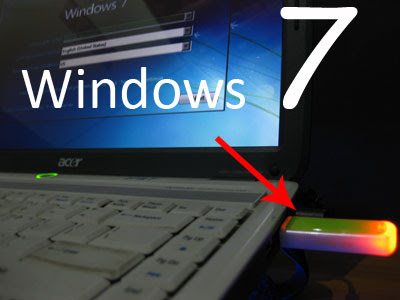
How to Install "Windows 7" From USB Flash Drive, Flash disk, Thumb Drive, Pen drive


Install Windows 7 from USB Flash drive / Flash disk /Thumb drive /Pen drive :

step 1:
Insert your Windows 7 DVD and plug in your USB flash drive.
Download newest version of WinToFlash from this link : http://wintoflash.com/download/en/
then open WinToFlash.exe
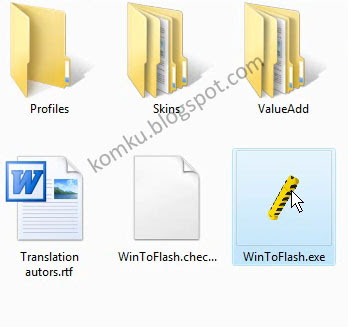


step 2:
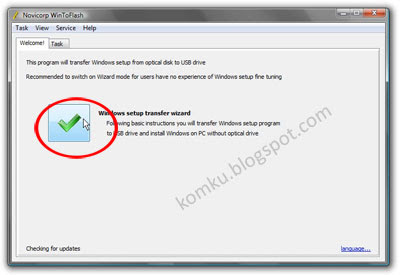
This program will transfer Windows setup from optical to USB drive Recommended to switch on Wizard mode for users have no experience of Windows setup fine tuning

click on green symbol.....
larger image


step 3:
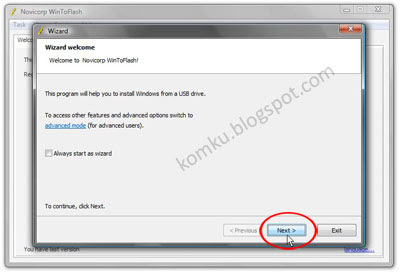
This program will help you to install Windows from a USB drive

click Next button...
larger image


step 4:
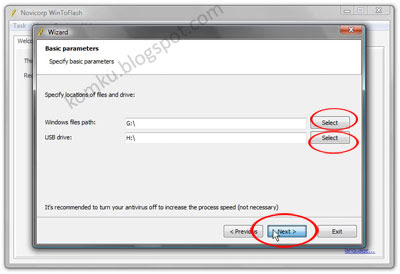
Specify the location of windows setup files and USB drive...
be careful, don't make any mistake...
in my computer, Windows file path: G:\ and USB drive: H:\
it might be different with yours...

then click Next...
larger image


step 5:
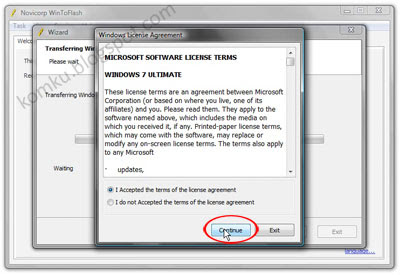
Select: "I Accepted th terms of the license agreement
and click continue...
larger image


step 6:
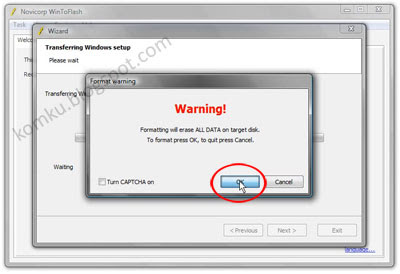
Warning! Formatting will erase ALL DATA on target disk. To format press OK, to quit press Cancel.

click OK....
larger image


step 7:
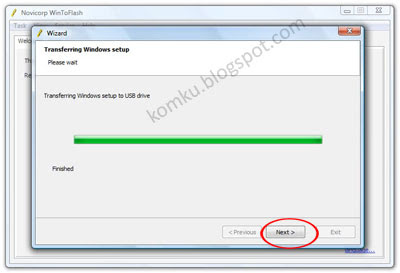
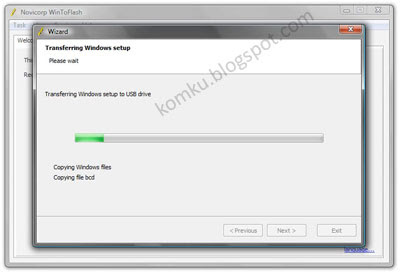
please wait while WinToFlash transferring Windows setup to USB drive...
larger image


step 8:
Click Next....


step 9:
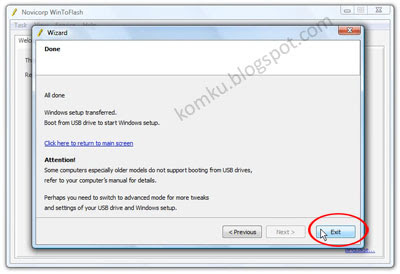
done....
click Exit
now you can install Windows 7 on any computer from USB Flash drive...
How? please read step 10....

larger image
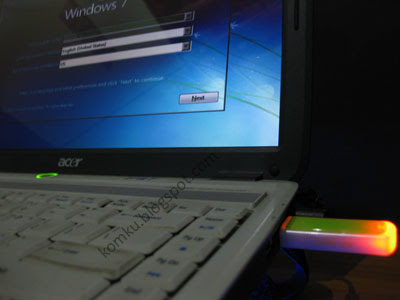

step 10:
Plug in your USB flash drive....
then turn on your computer (laptop)
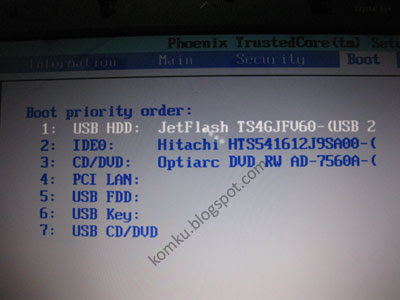
and press F2 key rapidly during the post to get the BIOS menu...
then change Boot priority order: USB flash drive as first boot option
press F10 key to save the configuration and exit....
your computer will reboot...
larger image


step 11:
then install Windows 7 as usual :)


larger image

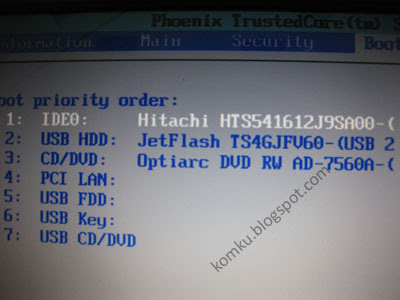
on first "restart"
you must go to BIOS again and change boot priority order: HDD as first boot option
then press F10 key to save the configurations and exit....

larger image


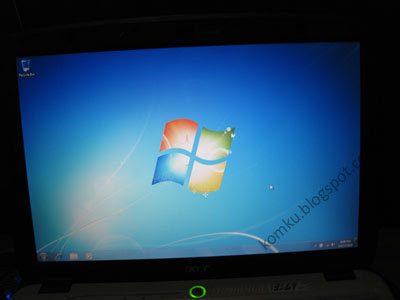
and Windows 7 Insttallation from USB Flash drive finished.....
Thursday, 12 July 2012

How to Easy Make your USB Drive Size Double 2 GB into 4 GB

How to convert 1 or 2GB memory stick into 4GB

How to convert 1 or 2GB memory stick into 4GB?

Just follow the simple instructions:

Step1: Insert your memory stick in USB port

Step 2: Open the Drive increaser software folder (download the software)

Step 3: Rename the Pendrive or memorystickimage

image

Step 4: Open Drive Increaser 2 icon from the Downloaded folder.

image

Step 5: The opened file is asks USB drive Name. (Before enter the name first Rename the Memory stick or Pen drive). Just enter the renamed pen drive name. Ex: 2341

image

Step 6: After that, it will ask USB pendrive letter (Ex: H or I or J). Repeat this two times

image

Step 7: After Drive letter entry some process will be done with Red color like this image

image

Step 8: Finally it shows Done Please enter any key to done.

image

Now your Pen drive is 4GB

image

Caution: Do not format the Pen drive. Just delete the files from pen drive if format is required.

DOWNLOAD the software folder

How to Add Background Image in Your Pen Drive / USB Drive

We all might have set background images for the Local drives in Windows Xp.But you might not have set background picture for your pendrive.It’s a very simple hack so give it a try after reading this Post,

All you need to do is, just
Copy & Paste the below code to notepad,then save it as “desktop.ini”


[.ShellClassInfo]
IconFile=%SystemRoot%\system32\SHELL32.dll
IconIndex=127
ConfirmFileOp=0
[{BE098140-A513-11D0-A3A4-00C04FD706EC}]
Attributes=1
IconArea_Image=”YourPictureName.jpg”
IconArea_Text=”0xFFFFFF”
VeBRA sources – don’t delete the tag above, it’s there for XXXXX purposes -
[ExtShellFolderViews]
{BE098140-A513-11D0-A3A4-00C04FD706EC}={BE098140-A513-11D0-A3A4-00C04FD706EC}
{5984FFE0-28D4-11CF-AE66-08002B2E1262}={5984FFE0-28D4-11CF-AE66-08002B2E1262}
[{5984FFE0-28D4-11CF-AE66-08002B2E1262}]
PersistMoniker=Folder.htt
PersistMonikerPreview=%WebDir%\folder.bmp


Some Information On Above Code:)

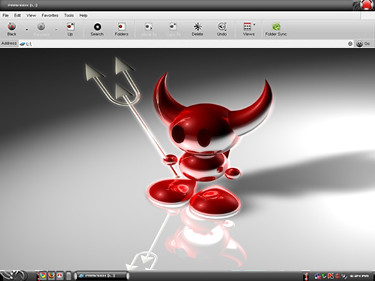
Where “YourPictureName.jpg” is, delete that and replace with your picture name, for example: “FreeBSD.bmp”


Note:

Please check that Picture format (.jpg , .bmp, .gif) properly else this hack won’t work.

** If your Picture is white colour then folder names will not be clear so change the IconArea_Text=”0xFFFFFF” to IconArea_Text=”0x000000”

** Save the notepad as “desktop.ini”.

** Place both your notepad file (i.e) desktop.ini and your picture in Pendrive.

** Set the above files attributes as Hidden.

** Refresh(F5) and Enjoy with your new background.

** You can also this on your windows Xp Local drives(C,D,E,F…).

How to Disabling USB Drives / Pen Drive / Storage Easy With Software and From Registry

locking and unlocking your USB, while still allowing the use of USB peripherals such as keyboard, mouse, printer or scanner. This can be use in preventing users from copying data from the computer or preventing them in plugging usb storage devices such as flash disk and usb hardisk.

complete

Note: This article can be applied to Windows Vista and Windows Xp Service Pack 2.

[Vista] If you don’t want to do it manually or again and again.

Download and Use WinBubble:

winbubble

Open WinBubble > Security tab > Click any options and the Apply button > Restart your computer. That's it!

Enjoy!

Disable Writing to USB Drives in Windows Vista/Xp

1. Open the Notepad, copy and paste the settings below:

Windows Registry Editor Version 5.00

[HKEY_LOCAL_MACHINE\SYSTEM\CurrentControlSet\Control\StorageDevicePolicies]


"WriteProtect"=dword:00000001

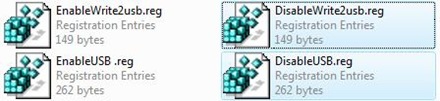
2. Open the File menu->Save As and Select "All Files (*.*)" from Save as type options. Input any file name with ".reg" extension, example "DisableWrite2USB.reg"

3. To Disable, just double click the file, click "Continue", if UAC is enabled and choose "Yes" for the confirmation.

To enable writing to usb storage, change first the value to zero and repeat the procedure above.

"WriteProtect"=dword:00000000

Disable plugging of USB storage such as flash drives/USB hardisks in Windows Vista/Xp

1. Open the Notepad, copy and paste the settings below:

Windows Registry Editor Version 5.00

[HKEY_LOCAL_MACHINE\SYSTEM\CurrentControlSet\Services\USBSTOR]


"Start"=dword:00000004

2. Open the File menu->Save As and Select "All Files (*.*)" from Save as type options. Input any file name with ".reg" extension, example "DisableUSB.reg"

3. To Disable, just double click the file, click "Continue", if UAC is enabled and choose "Yes" for the confirmation.

To enable usb storage, change first the value to 3 and repeat the procedure above.

"Start"=dword:00000003

Wednesday, 4 July 2012

How To Set Password On Your USB Pen Drive Easy


USB Flash drives are one of the easiest ways to transfer data. But what happens when you lost your USB drive which has some important files which you don’t want to share. Or forget your USB on your office desk and worried about the data that you save on your USB pen drive. Data in a USB Flash Drive is protected by a password. All you need a free USB security app USB Flash Security, which allows you to protect the data inside your USB flash drive with a password.


Use of this app is so simple just download the app on your Windows PC and install the app. After the installation a new dialog box appears on your Windows screen asking you to connect the USB flash drive to the computer.

"USB Flash Security" makes the following two areas in USB Flash Drive:
Small area about 0.5MB to save "Release tool"
Area to save data that you want to protect
The application has both free and paid version and available for both 32-bit and 64-bit versions of Windows XP, Windows Vista, Windows 7 and Windows 8. All in all, USB Flash Security is a simple and effective solution to lock your USB Flash Drive.


Download USB Flash Security

Tuesday, 3 July 2012

How to Easy Disabel Your Network User USB, CDROM, CONTROL PANEL By Intelli Admin Network Administrator 3.0


Network Administrator allows you to make tweaks, changes, and updates across your network. It has an amazing plugin system that is packed full of actions. Want to switch 1000 hosts to DHCP? Have new DNS servers? No problem, with this plugin you can change them in a few clicks.

Daylight Saving Time Update
Network Administrator 3 Daylight Saving Time Update
Easily update those older NT 4.1, Windows 2000, and XP machines to the latest DST settings without being forced to purchase a $5000 patch from Microsoft.

Disable CDROM and DVD Drives
Network Administrator 3 Disable CDROM
Keep users from installing unwanted software. Disable and enable their CDROM / DVD drives with ease.

Download Link:
- IntelliAdmin Network Administrator v2010.3.0.111 + Keygen

USB Pen Drive Not Detecting In Vista - Fix it Easy

You are using Windows Vista and pen drive is not detecting in Vista, the solution to fix the problem is below.

This problems arises when the service called “IDriverT”, which is responsible for detecting your newly attached devices and Install drivers for them somehow stops to work.
Lets see how to fix it.
To enable this service, follow these simple steps:
1. Press “Window Key + R”, this will open run prompt, type “msconfig” in it and press enter.


2. Above step will open System Configuration Window as seen below, on this windows press on Services tab.


3. In this windows Check the Service called “InstallDriver Table Manager” , click Apply and Ok. It may ask you to re-start your computer, restart it if it asks.

4. After restart, plug in the USB drive and give it a minute or so, it will recognize the pen-drive and will install it. If it does to install it even now, then follow the step 5 below to re-start the “IDriverT” service from task manager.

5. Press Shift+CTRL+ESC key together, it will open Task-Manager for you, on task manager, click on services Tab and locate the service named “IDriverT”, Right Click on it and Click Start Service.


The above method will fix the problem. If any doubt please use the "ASK any Question or Doubt" link at the top of the page for a quick reply to your email.
make-money-468x60