Social Icons

Showing posts with label Applications. Show all posts

Monday, 13 May 2013

How To Install Windows 7 On MacBook Pro Using Boot Camp | Installation Guide Step By Step


Hello To All Friends Today i am going to show you how can you install windows 7 on Macbook Pro Using Boot Camp. First You Need To Some Requirements For Install Windows 
Requirements To Install Windows 7

1. Windows 7 can be installed on Mac OS X V 10.5 Leopard,V 10.6 Snow Leopard And Mac OS X v 10.7 Lion Which Has In Built Apple's Boot Camp With 3.1 Update.

2. ISO Image Of Windows 7 

3. At Lease You Have 16 GB Free Space For 32 Bit And 20 GB Free Space For 64 Bit Windows 7 On The Hard Disk. 

Now Follow Steps For Install Windows 7 On MacBook Pro Using Boot Camp

1. Now You From The Menu Bard , Navigate To GO -> Utilities


2. Now You Select Boot Camp Assistant From The Utilities Menu Bar.


3. Now Click On Continue Button


4. Now You Allocate The Size To Windows 7 (Atleast 20 GB For 64 Bit Or 16 GB For 32 Bit ) And Now You Click On  Partition Button.


5. Now You Insert Your Windows 7 DVD And Click On Start Installation Button.


6. Now You Need To Wait For Sometime . After Sometime You Will Prompt To Windows 7 Partition Window. From Here Select Boocamp Partition And Format The Drive Under The Advanced Drive Option.


7. Now You Click On Next Button

8. Now It's Will Take Some Time For Install Windows 7 On Your Own MacBook. Once It  Installed , Eject Windows 7 DVD.

9. Now You Insert Mac OS X Disc , Navigate To Boot Camp Folder And Click On Run Setup.exe

10.. Now You Boot Camp Installer Windows Will Be Open , Click On Next Button To Install Windows Drivers On Your  MacBook And Follow The Simple Instructions On The Screen.


11. After The Installation Of Your Drivers , Just Restart Your Computer To Effect Changes.

12. To Switch Between The Windows 7 And Max OS X , Hold The Option Key During The System Boot, Boot Menu Will Be Open You Can Select Your Desired OS To Boot.


That's It :) 

I Hope You Enjoy This Trick .  

Tuesday, 20 November 2012

Download and Install Android Apps Directly from Google+ Plus Post Stream


Android Apps from Google Plus

Google is now allowing its Android Smartphone, Tablet and Desktop device users to Download and Install Android Apps Directly from Google+ Plus Post Stream instead of visiting Google Play or Android Market for the installation of Android Applications. Whenever a Google+ Plus user (a Social Networking Website from Google) pasted a Google Play Application link as a new post or status into its Google+ Plus Stream, an 'Install' or 'Buy' Button will be placed and visible to that particular Google+ Plus Post and whenever any user clicked on that post or link it will take a user to Google Play store with a prompt to Purchase or Directly Install the app to an Android device.

Tuesday, 16 October 2012

iPad Application : Maths Learning iPad Application


Pi Cubed: $9.99
visual math application designed from the ground up for a touch-based interface. Unlike traditional calculators, Pi Cubed lets you construct, typeset, and instantly evaluate mathematical expressions using an interactive menu system. 
Quick Graph : FREE
This is a powerful graphic calculator that takes full advantage of the multitouch display and the powerful graphic capabilities of the iPad and iPhone, both in 2D and 3D. A simple, yet intuitive interface that makes it easy to enter and edit equations and visualize them.
Equation Genius: FREE
Equation Genius will help you do you math in seconds. It supports: 1st degree equations (ax + b = c), Quadratic (2nd degree) equations (ax^2 + bx + c = 0), Cubic (3rd degree) equations (ax^3 + bx^2 + cx + d = 0), System of two unknowns (2 variables), System of three unknowns (3 variables).
MyCalculator $1.99
A scientific calculator for iPad and iPhone that solves as you type! MyCalculator also features an innovative memory system to store and recall answers. Simply touch answers to store them in multiple memory slots.
Scientific Calculator: $ 1.99
Solve is an Touch calculator replacement designed with simplicity, usability, and beauty in mind...Once you try Solve you never go back. Access to 4 different calculators: 1- Handwriting calculator 2- Scientific calculator, 3- Quadratic equation solver 4- Linear equations.
Maths Ref: $2.99
With over 250 equations it will be tough to find the one you need. In 3.1, we added super smart search bar to aid your searching. Just pull down the list to reveal the bar and start typing. If you have sinh() in mind, type sinh or hyperbolic. You will be amazed how useful it is.
iFormulas: FREE
is a clean, simple, easy to use mathematical formula application. Provides basics to survive your Algebra, Calculus, Geometry or Trigonometry class. It does not give you answers but provides an easy navigational guide. Over 330 different formulas, definitions, laws, properties, etc.
Formulus: $1.99
A perfect study tool. It is a simple, easy to use, easy to navigate collection of the most important formulas and topics for high school and college students taking Calculus and Differential Equations. 
Equation Solver: FREE
Math Homework Solver (MHS) is making math easy. Get solutions to dozens of problems in various topics such as: Arithmetic or Geometric sequence, Line problems, Equations, Proportions, Percentages, Complex Numbers, Inequalities, Vectors etc,
Fractions Calculator: $ 0.99
Just type in the fractions you want using the keypad. Select any of the editable fields and the keypad appears. The field being editing is shown with a yellow background. You can change more than one number at a time by selecting each field and typing the number. When you have set the fractions as you want then select 'OK'. 
DiaMath: $0.99
 configurable to quiz you with 10, 20 or 30 problems. All the problems are generated by the iPhone and randomized so there is a virtual unlimited set of possibilities. DiaMath provides three different levels of difficulty as well as allowing you to choose a range of numbers from 1 to 99. Additionally, DiaMath has a timer.
Talking Calculator: $0.99
Hear all of your numbers and results announced as they appear on the screen! Great for visually impaired or for anyone who wants to verify accuracy without looking back at the screen. Also a wonderful educational app for children who are learning math because it gives them audible reinforcement.
Trigonometry Calculator: $2.99
Interactive Trigonometry Calculator contains all Trigonometry functions and formulas. Users can solve any triangles, circles and unit circles problems very easily using this calculator. No more trying to grab your calculator or trying to recall the sin, cos & tan rules. This is the only trigonometry calculator you will ever need.
Mathsmagic: $0.99
Amaze and delight others as you multiply, divide, and square at lightning fast speed. Learn and practice the tricks of mental math calculation in a fun and engaging application. Study any of the math tricks and then practice them as you progress through various levels of proficiency. 
Maths Plus: $0.99
by presenting you with randomly selected simple maths problems that require combining basic arithmetic knowledge, helps you to develop your problem solving skills, and by allowing you to play with others, it adds a level of fun and challenge to this process. 
TanZen: $1.99
Tangrams have been challenging minds for centuries, with the deceptively simple goal of combining seven geometric pieces into a shape. Choose a puzzle to solve, and try to fit all seven game pieces within the shaded puzzle area without overlapping. TanZen will recognize when the puzzle is finished.
Symbolic Calculator: $0.99
With full-featured algebra capabilites on par with high-end scientific calculators this applications lets you perform all kind of different operations from the simplest multiplications to computing the integrals of the most complicated functions.
Alegbra Solver: $0.99
This program is NOT just a flash card application. Algebra Solver SOLVES math formulas and equations; after you solve them, you can even EMAIL them to others using the built-in email button. From simple formulas, to more complex physics problems,.
My Formulas: $0.99
Fully customizable formula calculator. Keeping ease of use in mind, myFormulas provides a new and intuitive way of creating, editing and calculating diverse formulas. You can make a wide variety of formulas which can be as simple as a tip calculator and a unit converter, or as sophisticated as an electronic engineering calculator.
The Mathmaster: $0.99
Need more help with your math facts? Chances are yes, and that's exactly why there is MathMaster. MathMaster also includes a powerful settings page allowing you to fully customize which problems it generates. MathMaster supports a variety of mathematical operations.

Friday, 5 October 2012

How to Convert DOC to PDF in Apple iMac, Apple Mac Book Pro, Apple Mac Book Air

You might be wondering if you can easily turn your Microsoft Document files into PDFs on the Mac. But, it turns out that there's an easy way of converting your microsoft .doc files to the PDF format natively in OS X.

1: Open your Microsoft Document file with TextEdit.


2: Type Command + P, or go to File and select Print.

3: Look to the lower left of the Print pane and you will see a "PDF" button. Click on it to see a drop-down menu.


4: Choose "Save as PDF...".

5: Choose where you would like to save your new PDF file.

Shared Multiple User Accounts on Apple iPad


In the Enterprise, several people would like to use sharing one iPad in the office to set up their own Exchange mail account or use own Apple iTunes store ID to download apps. Primarily the tablet is only supporting a single user account and can't create separate user accounts to log in, like Mac or Windows computer.

Lots of users keep asking for this capability. Apple's developer team have said a suggestion for getting multiple user profiles on iPad for other users in the house. Maybe the feature will be included in iOS 6.

With the "Our Pad (for iPad ONLY)" By Ghori Networks, you are able to let multiple users access a single iPad using separate password-protected account. Very good for IT manager.  The app supports Gmail, Hotmail, Twitter, and Facebook, and automatically signs out while in sleep mode.

Thursday, 20 September 2012

Download Latest Apple iTunes 10.6.3 for Windows XP, Vista and Windows 7 2012

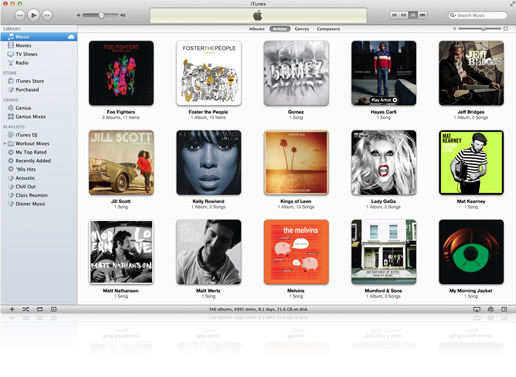
iTunes is a free application for Mac and PC. It plays all your digital music and video. It syncs content to your iPod, iPhone, and Apple TV.

Your music, movies, TV shows, apps, and more. The best way to follow your favorite artists and friends — and discover the music they’re talking about, listening to, and downloading. iTunes is home to everything that entertains you
Features:
Forget rifling through stacks of CDs or flipping through channels. iTunes puts your entire music and video collection a mere click away, giving you an all-access pass to thousands of hours of digital entertainment. Browse. Organize. Play. All from your Mac or PC.
View your library by artist, album, episode, year, rating — any way you want. Find what you’re looking for with a quick search that reveals results as you type.
Turn CDs into digital music by importing them to iTunes. Organize your entire collection with custom playlists.
Shuffle songs to mix up your groove. Listen to music from other computers on your network. Play video using onscreen controls.
iTtunes | Infolane
iTunes Match
If you want the benefits of iTunes in the Cloud for music you haven’t purchased from iTunes, iTunes Match is the perfect solution. It’s built right into the iTunes app on your Mac or PC and the Music app on your iOS devices. And it lets you store your entire collection, including music you’ve imported from CDs or purchased somewhere other than iTunes. For just $24.99 a year.
Here’s how it works: iTunes determines which songs in your collection are available in the iTunes Store. Any music with a match is automatically added to iCloud. Since there are more than 20 million songs in the iTunes Store, most of your music is probably already in iCloud. All you have to upload is what iTunes can’t match. Which is much faster than starting from scratch. Once your music is in iCloud, you can stream and store it on any of your devices. Even better, all the music iTunes matches plays back from iCloud at 256-Kbps AAC DRM-free quality — even if your original copy was of lower quality.
What's New:
  • iTunes 10.6 adds the ability to play 1080p HD movies and TV shows from the iTunes Store.
  • This release also includes many improvements for iTunes Match including:
    • Improved song matching
    • Improved album artwork handling, downloading, and displya
    • Addresses an issue where songs may skip when playing from iCloud
  • For information on the security content of this update please visit: http://support.apple.com/kb/HT1222
What's New in Previous Versions:
  • iTunes in the Cloud. iTunes now stores your music and TV purchases in iCloud and makes them available on your devices anywhere, any time, at no additional cost.
    • Automatic Downloads. Purchase music from any device or computer and automatically download a copy to your Mac and iOS devices.
    • Download Previous Purchases. Download your past music, TV, app, and book purchases again, at no additional cost. Previous purchases may be unavailable if they are no longer on the iTunes Store.
  • Sync with your iPhone, iPad, or iPod touch with iOS 5.
  • Wi-Fi Syncing. Automatically sync your iPhone, iPad, or iPod touch with iTunes any time they're both on the same Wi-Fi network.
  • Addresses an issue where iTunes may become unresponsive when syncing an iPad.
  • Resolves an issue which may cause syncing photos with iPhone, iPad, or iPod touch to take longer than necessary.
  • Fixes a problem where video previews on the iTunes Store may skip while playing.
  • Addresses other issues that improve stability and performance.
  • iTunes gets a speed boost. Now when it comes to loading large libraries, browsing the iTunes Store, and syncing your devices, iTunes responds faster than before.
  • Now the convenience of Autofill works with any iPod. Let iTunes choose what songs fill your pocket and enjoy your music at random.
  • Automatically import music from your CDs as higher quality, 256-Kbps iTunes Plus files. Watch a tutorial to find out how to import music from CDs.

Friday, 14 September 2012

The Ultimate Post Installation Utility for Apple, Mac Book

MultiBeast is an all-in-one post-installation tool designed to enable boot from hard drive, and install support for Audio, Network, and Graphics. It contains two different complete post-installation solutions: EasyBeast and UserDSDT. In addition it includes System Utilities to rebuild caches and repair permissions and a collection of drivers, boot loaders, boot time config files and handy software.

Choose one of the following options directly following a fresh installation and update:

EasyBeast is a DSDT-free solution for any Core/Core2/Core i system. It installs all of the essentials to allow your system to boot from the hard drive. Audio, Graphics and Network will have to be enabled separately.

UserDSDT is a bare-minimum solution for those who have their own pre-edited DSDT. Place your DSDT.aml on the desktop before install. Audio, Graphics and Network will have to be enabled separately.

For full guide and method, check out iBoot + MultiBeast.

For demonstration videos and updates, check out MultiBeast 2.0.

How to Install Mac OS X on any Intel Based PC By iBoot and MultiBeast

Any OSx86 installation guide can seem daunting at first glance, especially when trying to remember cryptic terminal commands and sorting through volumes of misinformation on the web. This guide requires no coding, terminal work, or Mac experience of any kind. You will not need access to a Mac. In fact, it's easier and faster for me to install Snow Leopard with fully working components on my system than it is to install Windows 7. And more fun.

The iBoot + MultiBeast method is designed and tested for any desktop or laptop running the latest line of Intel processors, the Core i3/i5/i7s. I have had reports of success with older machines as well including CoreDuo, Core2Duo, and even Pentium 4. However, AMD processors are not supported.

YOU WILL NEED

  • A computer running an Intel Processor
  • A blank CD
  • A Mac OS X Snow Leopard Retail DVD
  • To leave any fear of your computer at the door.
  • Patience and humility- it may not work out perfectly the first time- but with enough tenacity and grit, you'll reach the promised land. It's easy to get frustrated, but don't give up! There are a community of users with similar hardware in the tonymacx86 Forum to provide support if you get stuck.
BEFORE YOU BEGIN
  • If you have greater than 4gb of RAM, remove the extra RAM for a maximum of 4gb. You can put back any extra RAM in after the installation process.
  • Use only 1 graphics card in the 1st PCIe slot with 1 monitor plugged in.
  • Remove any hard drives besides the blank drive being used for OS X.
  • Remove any USB peripherals besides keyboard and mouse.
  • Remove any PCI cards besides graphics- they may not be Mac compatible.
  • If using a Gigabyte 1156 board, use the blue Intel SATA ports- not the white Gigabyte SATA ports.
  • It's best to use an empty hard drive- you will have to partition and format the drive.
  • Always back up any of your important data.
STEP 1: BIOS SETTINGS
You will need to set your BIOS to ACHI mode and your Boot Priority to boot from CD-ROM first. This is the most important step, and one many people overlook. Make sure your bios settings match these. It's not difficult- the only thing I did on my Gigabyte board besides setting Boot Priority to CD/DVD first was set Optimized Defaults, change SATA to AHCI mode, and set HPET to 64-bit mode.

STEP 2: INSTALL MAC OS X

In order to boot the Mac OS X Retail DVD, you'll need to download and burn iBoot. For desktops and laptops using unsupported Intel CPUs and graphics, a legacy version of iBoot can be downloaded here.

  1. Download iBoot
  2. Burn the image to CD
  3. Place iBoot in CD/DVD drive
  4. Restart computer
  5. At boot prompt, eject iBoot


  6. Insert your Mac OS X Snow Leopard Retail DVD and press F5
  7. When you see the screen below, press enter to begin the boot process
  8. When you get to the installation screen, open Utilities/Disk Utility. NOTE: If you cannot get to the installation screen, retry from Step 4, type PCIRootUID=1 before hitting enter. If that doesn't work then try PCIRootUID=1 -x or just -x which will enter Mac OS X Safe Mode and will allow you to proceed. For some graphics cards, use GraphicsEnabler=No boot flag to proceed.
  9. Partition your hard drive to GUID Partition Table
  10. Format your hard drive to Mac OS Extended (Journaled). NOTE: The bootloader can only boot from a disk or partition of 1 TB or less. Partition larger drives.
  11. For the purposes of this guide, name it Snow Leopard. You can rename it later.
  12. Close Disk Utility
  13. When the installer asks you where to install, choose Snow Leopard
  14. Choose Customize‚ and uncheck additional options. This will hasten the install process. You can always install this stuff later.
  15. Restart computer.
  16. Place iBoot back in drive.
  17. When you get to the boot selection screen, choose your new Snow Leopard installation.
  18. View the super-cool Mac OS X Snow Leopard Welcome Video, and set up your computer!

STEP 3: UPDATE TO 10.6.8
If you have a Sandy Bridge system, please follow these specialized instructions to update to 10.6.8.
  1. Open Finder and navigate to your Snow Leopard drive.
  2. Download the Mac OS X 10.6.8 Combo Update
  3. Download MultiBeast
  4. Open MultiBeast- don't run it yet, just leave it open. Set up windows as shown.
  5. Mount MacOSXUpdCombo10.6.8.dmg
  6. Install MacOSXUpdCombo10.6.8.pkg
  7. Upon completion, the installer will ask you to reboot. DO NOT REBOOT.
  8. Switch to the already open MultiBeast. If it closes, just re-open it.
STEP 4: MULTIBEAST
MultiBeast is an all-in-one post-installation tool designed to enable boot from hard drive, and install support for Audio, Network, and Graphics. It contains two different complete post-installation solutions: EasyBeast and UserDSDT. In addition it includes System Utilities to rebuild caches and repair permissions and a collection of drivers, boot loaders, boot time config files and handy software.

Choose one of the following options directly following a fresh installation and update:

EasyBeast is a DSDT-free solution for any Core/Core2/Core i system. It installs all of the essentials to allow your system to boot from the hard drive. Audio, Graphics and Network will have to be enabled separately.

UserDSDT is a bare-minimum solution for those who have their own pre-edited DSDT. Place your DSDT.aml on the desktop before install. Audio, Graphics and Network will have to be enabled separately. HINT: Check the DSDT Database for a pre-edited DSDT.
  1. Run MultiBeast.
  2. If you have a custom DSDT that's been edited, place the file on your desktop and choose UserDSDT.
  3. All others select EasyBeast
  4. Select System Utilities.
  5. Optionally, you may install further drivers via Advanced Options to enable ethernet, sound, graphics, etc... Be sure to read the documentation provided about each installation option. NOTE: EasyBeast, and UserDSDT install the bootloader by default, so you'll not need to check that option.
  6. MultiBeast Demo Videos
  7. Install to Snow Leopard- it should take about 4 minutes to run scripts.
  8. Eject iBoot.
  9. Reboot- from your new Snow Leopard installation drive.
If your drive doesn't boot on its own, and you get an error referencing boot0, fix it using the methods listed here.


Congratulations! You're done!!

Your PC is now fully operational, while running the latest version of Mac OS X Snow Leopard! And you have a nice Boot CD to get into your system in case things go awry. Boot your system from iBoot if you have issues. You may run MultiBeast as often as you like.

If you can't boot, try typing -x at the boot prompt to enter safe mode, or just boot with iBoot. When you get to the desktop, you can make all of the changes you need to. The best way to start fresh is delete whatever you're trying to get rid of- including the whole /Extra folder, as most kexts are installed there. Then you can re-run MultiBeast. As long as you rebuild caches and repair permissions after you're done, you can do just about anything you want to /Extra/Extensions and /System/Library/Extensions. Anything can be tweaked and enabled upon subsequent uses of MultiBeast.

If you've had success using iBoot + MultiBeast, consider a contribution to help keep the sites going. We're constantly updating and tweaking our tools to help you.

Thanks in advance!

-tonymacx86 & MacMan
For our most current workarounds and solutions for issues such as USB and audio, check out the Mac OS X 10.6.3 Update, Mac OS X 10.6.4 Update, Mac OS X 10.6.5 Update, Mac OS X 10.6.6 Update, Mac OS X 10.6.7 Update, and Mac OS X 10.6.8 Update articles. Good luck, and see you on the forum!
make-money-468x60