Social Icons

Showing posts with label MS Outlook. Show all posts

Saturday, 20 October 2012

How to Setup Yahoo! Mail in Android Device

Yahoo! Mail in Android 
1. Open the email app.
Open the android email app 
Select add account 
Select Others as the email server provider
4. Enter your Yahoo! Mail address and password. Check the “Send email from this account by default option” if you want to send email using this account by default. You can click Next and let the mail app to detect the settings. But in this guide, I’ll set it up using the manual method. So, click on “Manual setup” button.
Enter your Yahoo username and password and select Manual Setup
5. In the Incoming server settings screen, fill in your username (full email address) and password. The POP3 server is pop.mail.yahoo.com and the port is 995. For security type, select SSL.
Enter the Yahoo! Mail server details 
Keeping or not keeping your Yahoo! Mail after download 
6.  Next, enter the details of the SMTP server. This is the server that you’ll use for sending emails. The SMTP server is smtp.mail.yahoo.com, port is 465, security type is SSL and check the Require sign-in checkbox. Then enter your username (full email address) and password. Click Next.
Enter Yahoo! Mail SMTP server details 
Select your email checking frequency 
Give the email account a name and your name 
Yahoo! Mail in your android phone!

How to Setup Hotmail in Outlook 2007 by Outlook Connector

Outlook and Hotmail/Windows Live
There are two methods that you can use to setup your Hotmail account in Outlook 2007. The method that I’m showing in this post is by using the Outlook Connector. The Outlook Connector is a plugin for Outlook 2003 and 2007. The plugin will enable you to retrieve your mail from your Hotmail account using Outlook. Please note that this method will only work with Microsoft Office Outlook, and not Outlook Express!

Step 1: The first step that you need to do is to download the Outlook Connector from Microsoft website. You can get it here: Microsoft Office Outlook Connector (Choose the OutlookConnector.exe at the bottom of the page)
Download Outlook Connector
Step 2: After you downloaded the installer, run it and follow the steps in the wizard. It should be pretty straight forward.
Step 3: Once the installation is complete, open your Outlook. You should be able to see the “Outlook Connector” in your menu bar.
Outlook Connector in the menu bar
Step 4: Click on the “Outlook Connector” menu and select “Add New Account
Outlook Connector - Add a New Account
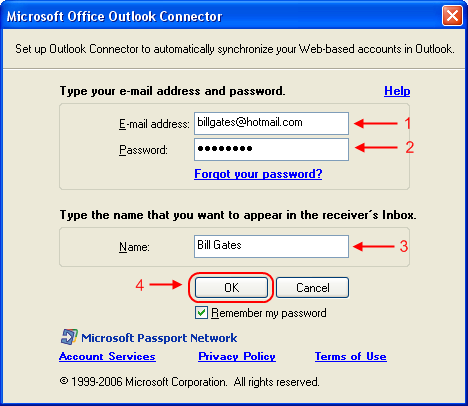
Step 5: You should be seeing the window in the screen shot above. Fill in your Hotmail/Windows Live email address and the password in the field provided. The name field is for you to specify the name you want to be displayed when you send an email. After you completed all the fields, click OK.
Account settings
Step 6: After adding the email account, you need to restart Outlook. Once you restarted your Outlook, you can start using your Hotmail account using Outlook! It will take some time for Outlook to download all your emails to your PC, so please be patience.
The other method that you can use to download your mail to Outlook is by using POP3. I will post another guide for that. But, there are some other features that you can use if you use the Outlook Connector. These features are managing your contacts and calendar using Outlook! You can’t do that if you are using POP3. The disadvantage of using the Connector plugin is that it only works with Outlook and not other email client. And it is only compatible with Outlook 2003 and above. In my opinion, if you have Outlook installed, go ahead and use the connector. If not, you can still use the POP3 method.

Friday, 12 October 2012

Open Office 2007 Xlsx Files in MS Office 2003 / XP / 2000

Open Office 2007 files in MS Office 2003/ XP/2000

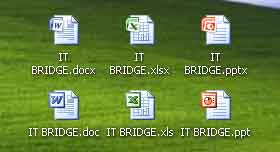
Most of the users get the problem that he is not able to open Microsoft office 2007 files with extensions “.docx” – Word Document, “.xlsx” – MS excel file and “.pptx” – Powerpoint presentations in office 2003 or lower versions.


This is a common problem with many users who use MS office versions which are older than MS office 2007. The documents saved by the new office software are not backward compatible directly. But there is a very useful and easy add-on available from Microsoft itself.

Also we will tell you a workaround to save your documents in such a way that will open it on any computer with older version of Microsoft office.

Way 01:
Install the compatibility pack on a computer that is running Microsoft Office 2003 programs, Microsoft Office XP programs, or Microsoft Office 2000 programs

Way 02:
Save Files In Compatible Format

Way 01 : Download Compatibility Pack

Microsoft has added the new Office Open XML Formats to the following 2007 Microsoft Office programs:
  • Microsoft Office Excel 2007
  • Microsoft Office PowerPoint 2007
  • Microsoft Office Word 2007
A compatibility pack is available to make sure that you can open and save Office Open XML Formats (Office 2007) in earlier versions of Microsoft Office (Office 2003, 2000 or XP).

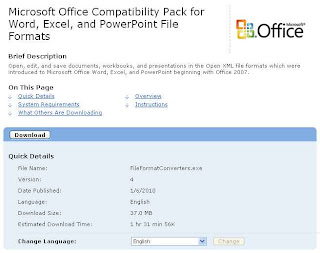
Follow the given steps to download free Microsoft compatibility pack and install it.

To use this feature, you will need to be logged into your computer with administrative rights.


When you have downloaded the file, double click on FileFormatConveter.exe file to start installation.

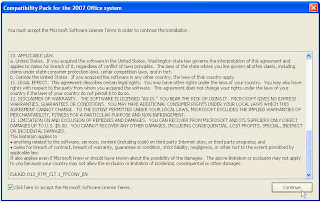
Now here it’s simply a case of pretending you’ve read the license terms and clicking continue


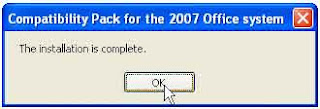
Now Click OK to Complete Installation.

Once the process is done, you can open new Office files in older version.


Way 02: Save Files In Compatible Format

You can install this compatibility pack in your computer, but if you need to send your document to a client or a friend or anyone else who does not have this compatibility pack, then you will still be in trouble. To avoid such trouble we give you a very useful tip, because we always believe “Prevention is better than cure”.

We will tell you how you can save the documents in older formats which will open the documents with the new as well as old versions of MS office, without any problem.

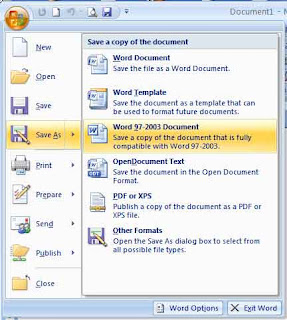
To save it in compatible format, simply click on the circular office logo at the top left corner of MS word / or Excel or PowerPoint > click on Save As arrow > and select the MS office 97-2003 compatible version as shown in images below.


Or else you can change the saving option permanently in new Office option.

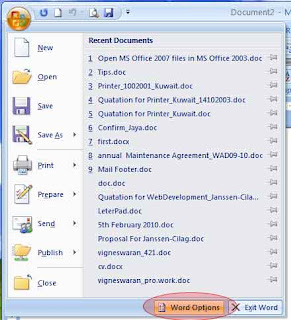
Click Office Button >> Word Options


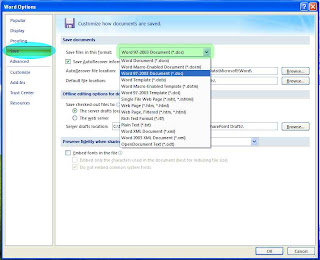
Select older extension as a default saving option.


Now you can enjoy.

Friday, 5 October 2012

How to Import a .PST ( Email ) File From Windows Outlook To Outlook 2011 for iMac

  • Start Outlook 2011 for Mac
  • Go to File and than click Import
  • Select Outlook Data File (pst or olm) and click on the next arrow
  • Select Outlook for Windows Data File (.pst) and click on the next arrow
  • Locate the PST file. Outlook will now import the PST file
  • Click Done to close the import process
  • The PST file will be available now in the left side of the screen “ON MY COMPUTER”

Thursday, 6 September 2012

How to Set Your MS Outlook to Auto Send and Recive Mail

Microsoft Outlook will check for new emails or send any emails in your outbox every 30 minutes. There might be a very important email coming in and need your action, I would say immediately but since new emails will only come in every 30 minutes, it might be too late for you to react on the email received.

You can actually change the setting to read new emails from as frequent as every 1 minute to maximum of every 120 minutes.
  1. Go to Tools menu, select Option....
  2. On the Options dialog box, go to Mail Setup tab and click Send/Recieve... button.


  3. On the Send/Recieve Groups dialog box, change the value (default is 30) for Schedule an automatic send/receive every ... minutes field under Setting for group "All Accounts" (or any other account you may have in your Group Name field.


  4. Once done, click Close and then click OK to close the Options dialog box.

Don't set it to 1 minute of your internet connection speed is poor. Maybe you can reduce it to 5 minutes.

How to View Your Web Mail In Your MS Outlook

organisations mostly offers access to thier emails for their personnels via webmails. For these users, all they need is a computer with internet access and of course an internet browser.
For Microsoft Outlook users... you can actually access your webmail without using any internet browser.
Here's how to do it...
Step 1: Create a folder under your account.
  1. From the Standard Toolbar, click the New pull-down button and select Folder... .


  2. Type a name in the field under Name: and make sure you select the root of your email account for the Select where to place the folder: list.


Step 2: Convert the folder to view your webmail.

  1. Right-click on folder you've just created and select Properties.


  2. On the folder's properties dialog box (mine is showing "Webmail Properties" as I've named my folder as "Webmail"), go to Homepage tab.
  3. Type the website address you usually use in your internet browser, starting with http:// in the Address: field.


  4. Click to enable the checkbox for Show home page by default for this folder.
  5. Click OK.

Now you can access your webmail from Outlook just by selecting the folder you've created and then login to your webmail account but make sure you are currently online to view it, just like you would do when viewing with the internet browser.


You can actually use this method to view any website you want like I do to view my training schedule.


How to Create Drawings and Shapes By Changing Standard Shape in PowerPoint 2007

create our own shapes by changing standard shape with PowerPoint 2007.
  1. Select a shape and place it on your slide (I selected an oval). Resize it as you want.
  2. With the shape selected, go to Drawing Tools ribbon, Format tab.
  3. Click Edit Shape from Insert Shapes group and select Convert to Freeform.


  4. Repeat step 3 but this time select Edit Points. You will see the shape will have multiple points for you to adjust.


  5. Now you can drag any edge of your shape to form a new shape of your own.


    (Sample of a new shape made of two circles. One as the body and the other as the head, grouped together as one shape)

How to Create Email Template In MS Office 2007

Sometimes, you may find that you will be sending emails of the same content again and again (maybe to send monthly report, etc...) and you'll find that you have to type same sentances for these emails again and again.

If that's the case, try saving the email message as a template and later you can reuse it.
  1. Compose new email as you usually do with normal emails. Put in the subject and if you are going to always send to the same receipient, you can put the receipient email addresses in the To, CC or BCC field.
  2. Once complete, click the Office Button and select Save As.


  3. In the Save As dialog box, change the Save as type: to Outlook Template.
  4. Name the file and select your file location if you want to save it in different location or just leave it in the default template location as it is.

For earlier version users, you must first disable the Use Microsoft Office Word 2003 to edit e-mail messages feature found in Tools > Options menu under the Mail Format tab of the Options dialog box.

Follow the steps 2 to 4 as stated above (slight difference in step 2 where you should click File menu instead of Office Button).

To use the template (same process for Outlook 2007 or earlier):

  1. From Tools menu, go to Forms and select Choose Form... .


  2. In the Choose Form dialog box, select User Templates in File System from Look In: combo box.


  3. Select the template listed or click the Browse button if the template is in other location.
  4. Click Open.

Now you can continue to add attachment(s) or amend the template as required.

- MRBAR

Monday, 3 September 2012

How to Import Multiple vCards in Outlook 2007 and above Version

import multiple vcards into outlook

There has been a lot of said and done about this issue, but fact is Outlook would still not allow you to import multiple vCards: yes, even the latest version 2010. I found this especially disturbing when I attempted to import my iPhone contacts to Outlook. All I could do was to import the vCard files I exported from my iPhone to my PC one by one : try that for 500 contacts!

However, using a 3rd party tool to export my iPhone contacts, I found a quicker method to import multiple vCard contacts into Outlook for free using your iPhone.

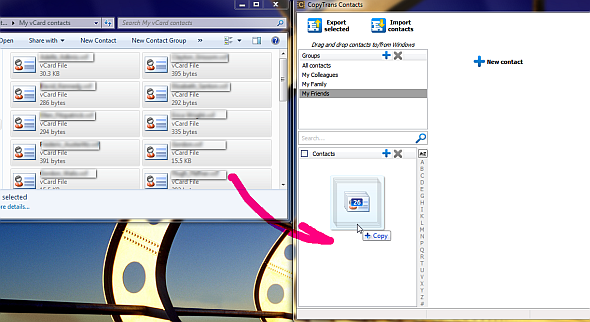
1. Have your iPhone ready, download and run the following app: import iPhone contacts, connect your iPhone to your computer and import all of your vCard files from your computer to your iPhone by dragging/dropping the entries directly to the main program window

vcard into outlook

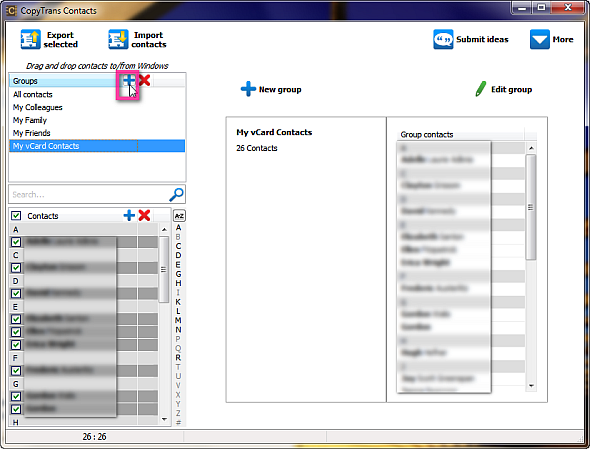
Note: to set the newly imported contacts from the contacts you already have on your iPhone, you can create a new contact group on your iPhone and drag/drop the vCard entries there. To set up a new group using the Contacts program, click on the “+” sign in the Groups pane

outlook import vcard

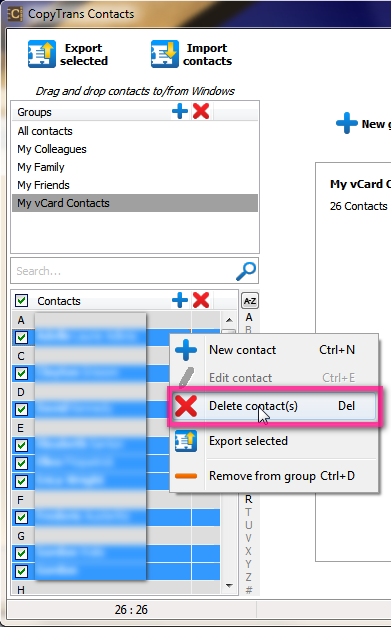
You can later delete the newly-imported contact entries if you wish to.

outlook import contacts

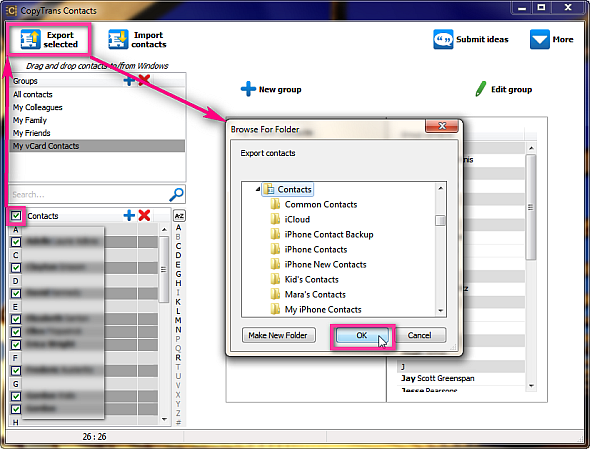
2. Now that all the information from the vCard entries has been successfully loaded to your iPhone in the form of iPhone contacts, select all the iPhone contact entries originating from your vCard files and hit the “Export selected” button

3. Navigate to the folder where you would normally have your Windows Contacts and hit OK. In Windows 7, it is normally found here:

C:\Users\YourUsername\Contacts

multiple import vcf outlook

Note: if you are on Windows XP, navigate to your Windows Address book instead which is found here:

C:\Documents and Settings\Your Username\Application Data\Microsoft\Address Book\

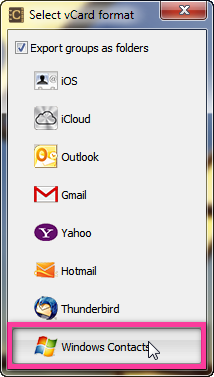
4. Upon prompt by the program, select “Windows Contacts”

vcard import outlook

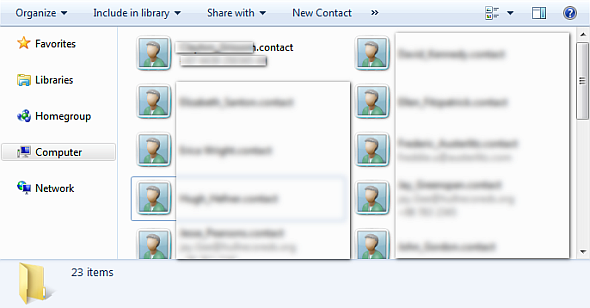
5. This will make sure that your vCard contact entries are now loaded directly into your Windows Contacts in the form of *.contact entries

vcf import outlook multiple

Importing multiple contacts to Outlook:

With Outlook 2007 and 2010, it is easy to import all your Windows Contacts to Outlook at once. To do so:

1. In Outlook 2007 go to File > Import and Export; in Outlook 2010, go to File > Open > Import

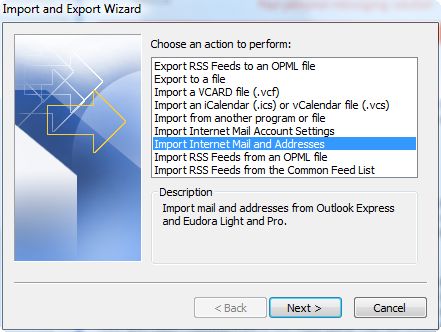
2. You will see the “Import and Export Wizard” load. Select “Import internet Mail and Addresses” and click Next

outlook vcf import

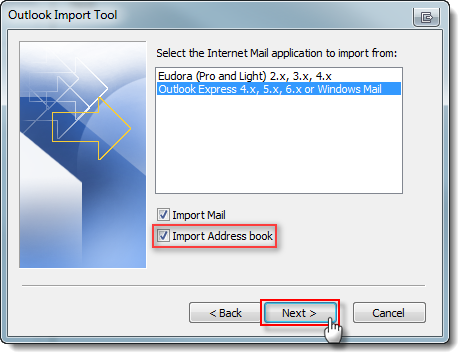
3. Next, choose “Outlook Express 4.x, 5.x, 6.x or Windows Mail”

import multiple vcards into outlook

4. Make sure to only have the “Import Address book” option selected and deselect the rest

5. From the next screen select “Do not import duplicates” and click “Finish”

6. All your contacts originating from vCard entries are now successfully imported in your Outlook

This is one of the easier methods I found to import multiple vCards into Outlook via your iPhone and a third party iPhone contacts exporter tool.

make-money-468x60