Social Icons

Showing posts with label Default Browser. Show all posts

Tuesday, 23 October 2012

Download Safari Browser for Windows and Apple


Apple was wildly criticized when it launched Safari for Windows. That first version was so unstable and buggy it didn't cause the best of impressions.
Things have changed a lot since then however and Safari 5 sees some exciting introductions such as a new Reader icon for easier reading in one page, faster page load times and vastly improved HTML5 support. All of the previous features such as tabs on top for easier page management and Cover Flow to flip through your bookmarked sites iTunes style have been retained too.
If you're new to Safari, the first thing you'll notice is how clean it feels compared to many other browsers. There are no annoying toolbars or plugins installed and the result of this is that Safari looks trim and loads pages very quickly. The other benefit is that maximum space is given to the contents of your page rather than a chunky browser.
Before Safari, browsers were an afterthought. Something you put up with if you wanted to surf the Internet. One browser looked and felt just like another, so you chose the one that worked the best and crashed the least. They were ugly, cluttered affairs, whose interfaces competed for your attention and made browsing — the very purpose for which they were created — more difficult. Safari changes all that.
DOWNLOAD LINK FOR APPLE
DOWNLOAD LINK FOR XP

Friday, 24 August 2012

How to Change Default Browser for Browsing with Mozila Firefox,Chrome or IE


As you install a new browser on your computer like Internet Explorer,Firefox or chrome after completing the installation there a option appear on your screen to making your browser as a default browser.

If you are working with Internet Explorer as a default browser now u want to make Firefox or Chrome as a default browser just follow the step how to make your browser default.

Make your Firefox as a default browser:

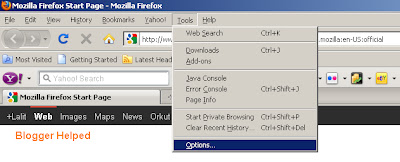
1. Double click on your Firefox after opening your Firfox just see at the top of your browser a link Tool than Click onOptions.

Or

Use these key to open the options quick Alt+T+O As you press these keys at a time the Options window will appear on your screen.see below.


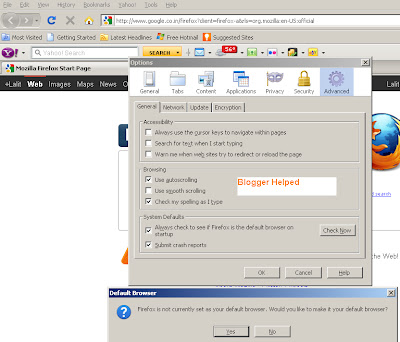
2. Click on the Advanced tab under this tab you will find another button named Check Now click on it a separate window will open which will ask for making your browser as a default browser Click on yes see picture below.


You have Done.

Make your Internet Explorer as a default browser:

Initially with your operating system Internet Explorer Installed as a default browser Unfortunately if it is not as a default just see how to make your IE Default.

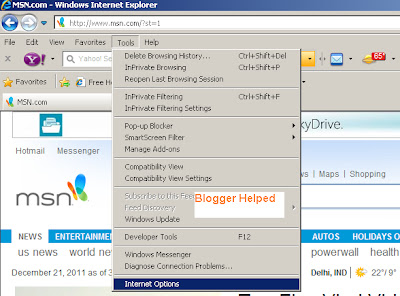
1. Double click on your IE after opening your IE just see at the top of your browser a link Tool than Click on Options.

Or

Use these key to open the options quick Alt+T+O As you press these keys at a time the Options window will appear on your screen.see below.


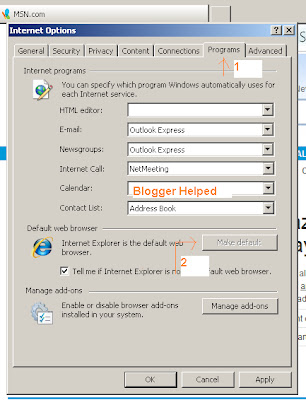
2. Click on the Programs tab under this tab you will find another button named Make Default click on it see picture below.


You have done

Make your Opera as a default browser:

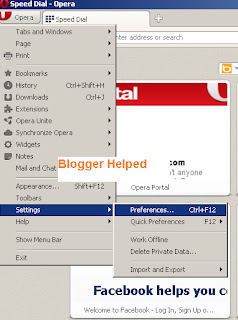
Open your Opera see at the top left side Opera button Just click over the button than follow the bellow step.

1. Go to Settings than select Preferences see picture below.


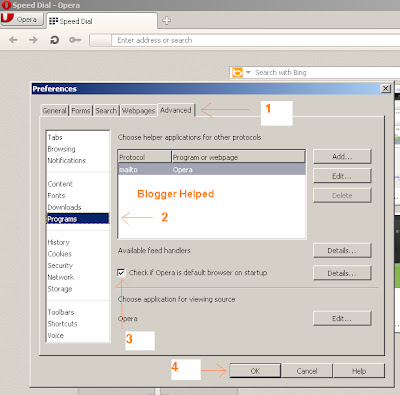
2. Than a separate window will open click on Advanced tab Than Programs.

3. Tick the checkbox for "Check if Opera is default browser on startup" see picture below.


4. Next time you start Opera, answer "Yes" when the dialog asks you if you want Opera to be the default browser on your computer.

You have done.

Make your Chrome as a default browser:

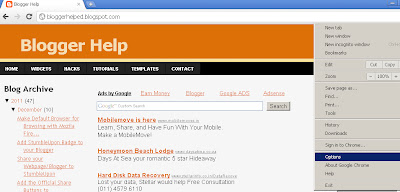
1. Click on the Chrome "wrench" icon, placed at the top right hand side of your browser window. click on it than the drop-down menu appears, select the Options see picture below.


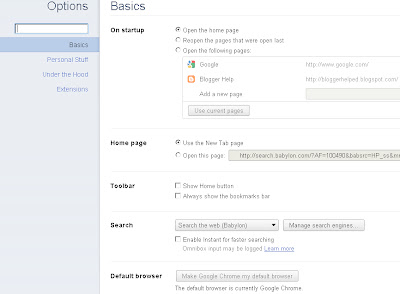
2. Click on the Basics tab if it is not already selected. At the bottom of the dialog is the Default browser section To change that setting, click on the button labeled Make Google Chrome my default browser see picture below.


You have done.

How to Set Default Browser In IE (Internet Explorer), Netscape, Mozilla and Opera Browser


Internet Explorer 6.x and 5.x:
  • Select "Tools | Internet Options" from the main menu in Explorer.
  • Change to the "Programs" tab.
  • Check the "Internet Explorer should check to see whether it is the default browser" option.
  • Click "OK".
  • Close all Explorer windows and restart the system. Once the system comes back up, restart Explorer.
  • When the "Would you like to make [Internet Explorer] your default browser?" prompt appears, click "Yes" to make Explorer the default browser.
Internet Explorer 4.x:
  • Select "View | Internet Options" from the main menu in Explorer.
  • Change to the "Programs" tab.
  • Check the "Internet Explorer should check to see whether it is the default browser" option.
  • Click "OK".
  • Close all Explorer windows and restart the system. Once the system comes back up, restart Explorer.
  • When the "Would you like to make [Internet Explorer] your default browser?" prompt appears, click "Yes" to make Explorer the default browser.
Mozilla 1.x:
  • Select "Edit | Preferences" from the main menu in Mozilla.
  • Change to the "Navigator" tab/section.
  • Click the "Set Default Browser" button.
  • Click "OK".
  • Close all Mozilla windows (for best results, restart the system). Finally, restart Mozilla.
Mozilla Firefox 1.x:
  • Select "Tools | Options" from the main menu in Firefox.
  • Change to the "General" tab/section.
  • Check the "Firefox should check to see if it is the default browser when starting" option.
  • Click "OK".
  • Close all Firefox windows (for best results, restart the system). Finally, restart Firefox.
  • When the "Would you like to make [Firefox] your default browser?" prompt appears, click "Yes" to make Firefox the default browser.
Mozilla Firebird 0.x:
  • Select "Tools | Options" from the main menu in Firebird.
  • Change to the "General" tab/section.
  • Click the "Set Default Browser" button.
  • Click "OK".
  • Close all Firebird windows (for best results, restart the system). Finally, restart Firebird.
Netscape 7.x:
  • Select "Edit | Preferences" from the main menu in Netscape.
  • Change to the "Navigator" tab/section.
  • Click the "Set Default Browser" button.
  • Click "OK".
  • Close all Netscape windows (for best results, restart the system). Finally, restart Netscape.
  • When the "Netscape 7.x is not currently set as your default browser. Would you like to make it your default browser?" prompt appears, click "Yes" to make Netscape the default browser.
Netscape Navigator/Communicator 4.x:
  • Open the prefs.js file located in [Communicator installation directory]\users\[profile name] (for example: C:\Program Files\Netscape\users\prefs.js) using a text editor.
  • Make sure that the following line exists and has the value false. If it does not exist, insert it at the end of the file.
    user_pref("browser.wfe.ignore_def_check", false);
  • Save changes to the file and close it.
  • Close all Communicator windows and restart it.
  • When the "Would you like to make [Communicator] your default browser?" prompt appears, click "Yes" to make Communicator the default browser.
Opera 7.x:
  • Select "File | Preferences" from the main menu in Opera.
  • Change to the "Default Application" tab.
  • Check the "Check if Opera is default browser on startup" option.
  • Click "OK".
  • Close all Opera windows (for best results, restart the system). Finally, restart Opera.
  • When the "Would you like to use Opera as your default application for viewing web Linkpages?" prompt appears, click "Yes" to make Opera the default browser.
make-money-468x60