Social Icons

Showing posts with label Software. Show all posts

Thursday, 20 September 2012

How to Take Backup From Computer and Network Free Backup Software

FBackup4.8 has a simple interface and guides you through the process of defining a backup job using a friendly wizard that asks you:
  • Where do you want to store the backup (the destination).
  • What do you want to backup (the sources).
  • How do you want to run the backup (using full backup that zips the files, or mirror backup that doesn't zip them).
  • When do you want to run the backup (you can schedule it to run automatically or run it manually).
FBackup
Once a backup job is defined, you can run it manually by pressing the Backup button (or F6), or if you add a scheduler it will run automatically. FBackup can easily back up sources from local drives (including USB connected drives) to destinations such as USB/Firewire connected devices or mapped network locations. It creates either standard zip files (when using "full backup"), or exact copies of the original sources without any compression (using "mirror backup").

Thursday, 13 September 2012

How To Share Scanner Remotly on Lo0cal Area Network (Lan) With BlindScanner Software

artwork.jpg

The BlindScanner software will share and open access to remote scanner on the local area network that is not directly connected to your computer, but installed on a computer located in the neighboring room, for example. Easiness of use, saving to various formats, compressing images, scanning pages automatically, scanning multiple pages, supporting an automatic feeder - these are not all program features. Now you can scan images using your favorite software, text and image editors, just select BlindScanner Pro in the list of installed scanners, specify the necessary color, resolution and size of the image.
The program will be useful not only in office where it will help you save several hundred dollars you could spend on a new scanner, but also at home for scanning from a notebook in a wireless home local area network. BlindScanner works with any flatbed TWAIN scanner and also supports scanners with automatic feeders.

Client of BlindScanner Pro

For Further Detail Visit The Official Site : BlindScanner

Sunday, 9 September 2012

Visual Studio 2012 DVD ISO Image with System Requirements & Price Details

Microsoft has finally released the Final RTM version of Visual Studio 2012 for general public and for developers worldwide. Microsoft Visual Studio 2012 is now officially available for download via MSDN Subscriptions, TechNet Subscriptions and also available via Microsoft Download Center. Microsoft has released Visual Studio 2012 in four versions named Visual Studio 2012 Ultimate, Visual Studio 2012 Professional, Visual Studio 2012 Premium and Visual Studio 2012 Test Professional (for beginners). Microsoft has also confirmed that company is going to release the Final RTM version of Windows 8 on October 26th, 2012 for retailers and general public worldwide. With the released of Visual Studio, Microsoft has also released and launched .NET Framework 4.5 via MSDN subscriptions, TechNet subscriptions and on Microsoft Download Center for general public and developers. Microsoft users can Download Microsoft Visual Studio 2012 Ultimate, Professional and Premium Versions Final DVD ISO Image File from MSDN, TechNet and MS Download Center OR you can also download it from Direct Download Links from Microsoft Servers available below with the supported architectures of 32-bit (x86) and 64-bit (x64).

Visual Studio 2012

The official Microsoft Visual Studio 2012 Virtual Launch Event is yet to be held on September 12, 2012. If you want to attend the Online Launch Event of Visual Studio 2012 than you can join it here. Microsoft has yet to reveal more details other than the date on event launch. Microsoft Visual Studio 2012 Ultimate, Professional and Premium versions are available with 90 Days trial period for Free Users. If you want to use it for lifetime than users have to get Genuine Activation Key of Microsoft Visual Studio 2012 by purchasing the product from Microsoft Store. If you want to compare the features of all these three version of Visual Studio than you can head over the Microsoft Visual Studio 2012 Ultimate, Professional and Premium Comparison Chart below for more details and information. We have also shared the minimal and estimated Retail Price of Microsoft Visual Studio 2012 Ultimate, Professional and Premium Versions in a chart below with Direct Download Links of Microsoft Visual Studio 2012 Ultimate, Professional and Premium Versions Final DVD ISO Image File with the supported architectures of 32-bit (x86) and 64-bit (x64). We have also shared the detail information covering all the possible System Requirements and Hardware Configurations required for the installation of Microsoft Visual Studio 2012. If any user wants Microsoft Visual Studio 2012 other than English version than you can also Download Visual Studio 2012 Language Pack from the link available below.

Click to Enlarge Image!
Microsoft Visual Studio 2012 Ultimate, Professional, Premium and Test Professional Comparison Chart:

Users can easily differentiate and compare the features offering from Microsoft Visual Studio 2012 Ultimate, Professional, Premium and Test Professional versions from the chart below.

Click to Enlarge Image!
Microsoft Visual Studio 2012 Ultimate, Professional, Premium and Test Professional Price Chart:

Users can easily pickup their required versions of Visual Studio 2012 with the price tag and retail cost from the chart below.

Click to Enlarge Image!
System Requirements and Hardware Config Required for Microsoft Visual Studio 2012:

Users can find the relevant system requirements and hardware config details of all three versions of Visual Studio 2012 including Visual Studio 2012 Ultimate, Professional, Premium and Test Professional from below.

Microsoft Visual Studio 2012 Ultimate System Requirements:

Supported Operating Systems
Windows 7 SP1 (x86 and x64)
Windows 8 (x86 and x64)
Windows Server 2008 R2 SP1 (x64)
Windows Server 2012 (x64)

Supported Architectures
32-bit (x86)
64-bit (x64)

Hardware Requirements
1.6 GHz or faster processor
1 GB of RAM (1.5 GB if running on a virtual machine)
10 GB of available hard disk space
600 MB of available hard disk space (language pack)
5400 RPM hard drive
DirectX 9-capable video card running at 1024 x 768 or higher display resolution

Microsoft Visual Studio 2012 Professional System Requirements:

Supported Operating Systems
Windows 7 SP1 (x86 and x64)
Windows 8 (x86 and x64)
Windows Server 2008 R2 SP1 (x64)
Windows Server 2012 (x64)

Supported Architectures
32-bit (x86)
64-bit (x64)

Hardware Requirements
1.6 GHz or faster processor
1 GB of RAM (1.5 GB if running on a virtual machine)
10 GB of available hard disk space
600 MB of available hard disk space (language pack)
5400 RPM hard drive
DirectX 9-capable video card running at 1024 x 768 or higher display resolution

Microsoft Visual Studio 2012 Premium System Requirements:

Supported Operating Systems
Windows 7 SP1 (x86 and x64)
Windows 8 (x86 and x64)
Windows Server 2008 R2 SP1 (x64)
Windows Server 2012 (x64)

Supported Architectures
32-bit (x86)
64-bit (x64)

Hardware Requirements
1.6 GHz or faster processor
1 GB of RAM (1.5 GB if running on a virtual machine)
10 GB of available hard disk space
600 MB of available hard disk space (language pack)
5400 RPM hard drive
DirectX 9-capable video card running at 1024 x 768 or higher display resolution

Microsoft Visual Studio 2012 Test Professional System Requirements:

Supported Operating Systems
Windows 7 SP1 (x86 and x64)
Windows 8 (x86 and x64)
Windows Server 2008 R2 SP1 (x64)
Windows Server 2012 (x64)

Supported Architectures
32-bit (x86)
64-bit (x64)

Hardware Requirements
1.6 GHz or faster processor
1 GB of RAM (1.5 GB if running on a virtual machine)
10 GB of available hard disk space
5400 RPM hard drive
DirectX 9-capable video card running at 1024 x 768 or higher display resolution

Tuesday, 4 September 2012

Top 10 Computer Softwares 2011-2012

Top 10 Computer Softwares that one should Install on the Computer for not only making most out of the Machine but also make it Secured and Well Maintained. SLinko just take a look at the Best List of the Computer Software Essentials everyone must have.
Note : Please Don't Ask for Download Link Because These Software are Easily Available on Internet.
1) Microsoft Security Essentials
Microsoft Security Essentials is the Best Antivirus Software available for Free from Microsoft. Antivirus Software is Software that is used to Prevent, Detect and Remove Malwares, Viruses, Adware, Backdoors, Malicious BHOs, Dialers, Fraudtools, HiJackers, Key-loggers Malicious LSPs, Root-kits, Spyware, Trojan Horses and Worms. The Antivirus Software is one of the most essential Software that must be installed on every Computer. The Security of the Machine depends upon the Quality of the Antivirus Software installed. So one must have an Antivirus Installed on his / her Computer. From our Point of View the Best Antivirus Software is Microsoft Security Essential.

You can Download Microsoft Security Essentials from here.

2) CCleaner
CCleaner is one of the Great and All in One Software which contains various Utilities necessary for the Computer Maintainence and its Performance. From Cleaning Temporary Files, to the Windows Registry, from Wiping Up Free Space, to Erasing Browsing History, from Uninstalling Programs, to Limit Start Up Programs, every Tool and Utility is Inside and Bundled with this One and Only Great Software.

CCleaner is the System Optimization, Privacy and Cleaning Tool. It Removes Unused Files from the System, Allowing Windows to Run Faster and Freeing Up Valuable Hard Disk Space. It also Cleans Traces of our Online Activities such as Internet History, etc. Additionally it contains a Fully Featured Registry Cleaner.
In short, CCleaner is the Ultimate System Cleaning and Optimizing Tool still available for Free.

You can Download CCleaner from here.

3) Recuva
We sometimes accidentally delete any of our Important File and want them Back. With Recuva, we can get them back Quickly, Safely, and Easily. Recuva is Software that is designed to be used for Recovering the Deleted Files, Emails, Music, Documents and also Recovering from the Damaged or Formatted Disk. This Compact Windows Program does all the work, Scanning the Drives for the Files needed, then Recovering them in a Flash.

Additionaly, using Recuva we can Delete the File Securely and make it unrecoverable, so that it cannot be Recovered in future by any means. Recuva understands the potential for abuse that Recovery Software has, that's why it has built in a way to Erase Traces of the Files. It's an added safeguard that only Recuva has. Recuva is also a Free Recovery Software and has much Premium Options that only the Paid Recovery Software may have.

You can Download Recuva from here.

4) Unlocker
Unlocker is a Simple and Small Tool that lets us get rid of Stubborn Files that can't be Deleted in the Standard Way. Deleting a File from the Computer isn't always as easy as it seems.
Have you ever gotten an Irritating Error Message telling something like that the File is being used by another Application and can't be erased ? Unlocker is the solution for this Error. Unlocker is Dead Easy to use, Simply Right Click the File that can't be Erased and select the Unlocker Option. Now you will be able to choose between Deleting the File, Renaming it or Moving it to another Location. If the selected task can't be Completed Immediately, it will be Finished the next time the Computer would be Restarted.

You can Download Unlocker from here.

5) VLC Media Player
VLC Media Player is Multimedia Software Program that can Play Video or Music files in just about any Format. It is the most Successful Free Open Source Multimedia Player. In particular, VLC media player is a great Alternative to Windows Media Player, iTunes, and Real Player It's Lightweight, Fast, Easy to Use and most Importantly, Plays almost anything. It is a Highly Portable Multimedia Player for various Audio and Video Formats as well as DVDs, VCDs, and various Streaming Protocols without External Codec or Program.

You can Download VLC Media Player from here.

6) 7-Zip
7-Zip is the one of the best Freeware Archive Manager available till date. There may be many more Archive Manager available but they might not be free, or if are free then cannot Compete with 7-Zip. The Free 7-Zip Unpacks a Host of Archive Formats, including ZIP, TAR, GZ, and its own 7z Format. The Program's Ability to Shrink Files is Stunning. The 7z Archives are relatively up to 40 percent smaller then their ZIP Equivalents, although Compression did take longer, and the Highest Compression settings can Hog System Resources.
7-Zip is fine for Casual Users with a Bit of Computer savvy, but it's especially well-suited for Developers and anyone else who moves between the Windows and Linux / Unix Worlds.

You can Download 7-Zip from here.

7) Download Managers

A Download Manager is a Computer Program Dedicated to the Task of Downloading possibly unrelated Stand alone Files from the Internet for Storage. The typical Download Manager at a minimum provides means to Recover from errors without Losing the Work already Completed, and can Optionally Split the File to be Downloaded into 2 or more segments, which are then moved in Parallel, potentially making the process faster within the limits of the available bandwidth.

Here we refer two of the Best Download Manager for the Computer, One is for downloading Standalone Files Directly and other on is for downloading the Torrent Files.

  • Internet Download Manager

Everyone is knows, What the Internet Download Manager is ? If not then we tell you. Internet Download Manager ( IDM ) is a Tool to Increase Download Speeds by up to 5 times, Resume and Schedule Downloads. It has Comprehensive Error Recovery and Resume Capability that can Restart Broken or Interrupted Downloads due to Lost Connections, Network Problems, Computer Shutdowns, or Unexpected Power Outages. Unlike other Download Managers and Accelerators, Internet Download Manager Segments Downloaded Files Dynamically during Download Process and Reuses available Connections without additional connect and Login Stages to achieve Best Acceleration Performance. In simple words, Internet Download Manager is one of the Best Download Manager and an Download Accelerator.

Though Internet Download Manager is not Free, so that is why we have made it available to be used for free for our Readers. You can make Internet Download Manager free for Lifetime by using out Trick. You can read our
previous post on Trick of How to Hack and Crack Internet Download Manager.

You can Download Internet Download Manager from here.

  • µTorrent

µTorrent is one of the most Popular BitTorrent Client out there for several reasons like It is Fast, LightWeight, Easy to Use and Very Efficient. uTorrent is very Tiny i.e. less than 800 KB. It Installs Ultra-Fast with a Light Footprint on the Computer, and Runs Super Efficiently. It is Expertly designed for Fast Downloads. Avoids Hogging Valuable System Resources, Runs Quietly in the Background, and doesn't Interfere with our Work, Play etc. It maximizes Bandwidth and Reduces Congestion, so as to have the Smoothest, Quickest Downloads Possible and don't make the Internet Connection Slow to a Crawl. It Auto Adjusts Bandwidth Usage Based upon the Network and the Internet.

You can Download µTorrent from here.

8) Productivity Softwares

The term Productivity is usually intended a category of Applications Dedicated to Help Accomplishing Specific Jobs such as Documents, Presentations, Spreadsheets, Databases, Charts and Graphs, Create Digital Paintings, Electronic Music, make Digital Movies, etc. The Existence of Productivity Software is one of the Reasons why people use Computers. Productivity Software help the Professional or Common User to Enhance and Complete their anyday Job. So here are two most essential and most Popular Productivity Software.

  • Microsoft Office

Microsoft is one of the most Popular Productivity Software that needs no introduction from our side. Microsoft Office is an Office Suite of Desktop Applications, Servers and Services for the Microsoft Windows and Mac OS X Operating Systems, introduced by Microsoft. Microsoft also positions Office as a Development platform for Line Of Business Software under the Office Business Applications brand. Office is reported to now be used by over a billion people worldwide.

  • Adobe Reader

Adobe Acrobat is a set of Application Software developed by Adobe Systems to View, Create, Manipulate, Print and Manage Files in Portable Document Format ( PDF ). Adobe Reader Enables us to View and Print PDF Files but has negligible PDF Creation Capabilities.

You can Download Adobe Reader from here.

9) Google Chrome
Google Chrome is a Best Web Browser available till date. A Web Browser is a Software Application for Retrieving, Presenting, and Traversing Information Resources on the World Wide Web. A web browser can also be Defined as an Application Software or Program Designed to Enable Users to Access, Retrieve and View Documents and other Resources on the Internet. So Web or Internet Browser is a most essential Software which act as Gateway for Connection to the Internet.

We have previously also discussed about the Top 10 Web Browsers for Computers, but from our Point of View, the Best Web Browser is Google Chrome.

You can Download Google Chrome from here.

10 ) TeamViewer
TeamViewer is a Remote Computing Software. A Remote computing is a Computing in which a User does not have Physical Access, but he or she can access or Manipulate into the Remote Computer via some Kind of Network. Remote Computing Software Allows a Person to Control a Computer from Another Computer. This kind of Software Application Turns One Computer into the Boss of Another or a Series of Others. We can use the Remote Computing Software for either getting the Help from any Expert or for Helping any Friend or Relative Remotely. So one of the Best and Free Remote Computing Software is TeamViewer.

Alarm-Clock Fresco-Pro-drawing-app-v1.0.4 SECuRET-SpyCam-v1.9.3 WiFi-File-Explorer-PRO-v1.7.3 For Android


4 New Cracked Apk Android Application

Alarm-Clock
Fresco-Pro-drawing-app-v1.0.4
SECuRET-SpyCam-v1.9.3
WiFi-File-Explorer-PRO-v1.7.3


Link 1


Link 2


Link 3

How To Install Alfa AWUS036 NHR on Mac OS Lion 10.7

Alfa AWUS036 NHR Drivers for Mac OSX 10.7


This is going to be a very short post


Very simple...
Extremely simple ...

How To Install Alfa AWUS036NHR on Mac OS Lion 10.7?

Like that:

Alfa AWUS036NHR Mac Drivers For Lion 10.7


Voila!

That was easy, huh?

Now something more important:
The Realtek Uninstaller provided with this package does not close "sudo" after use. As per Apple Dev. this could leave a security hole. Close sudo by opening terminal and type "sudo -k". -Without quotes

Friday, 31 August 2012

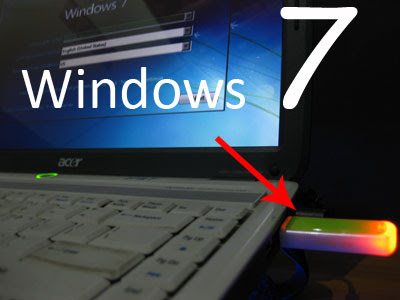
How to Install "Windows 7" From USB Flash Drive, Flash disk, Thumb Drive, Pen drive


Install Windows 7 from USB Flash drive / Flash disk /Thumb drive /Pen drive :

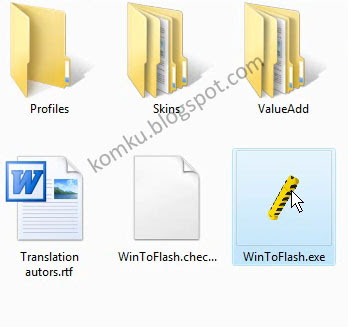
step 1:
Insert your Windows 7 DVD and plug in your USB flash drive.
Download newest version of WinToFlash from this link : http://wintoflash.com/download/en/
then open WinToFlash.exe


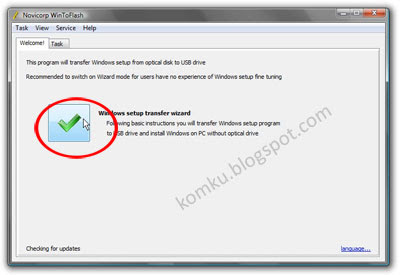
step 2:
This program will transfer Windows setup from optical to USB drive Recommended to switch on Wizard mode for users have no experience of Windows setup fine tuning

click on green symbol.....

larger image


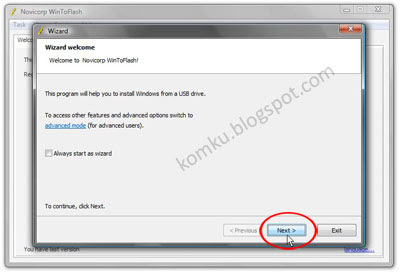
step 3:
This program will help you to install Windows from a USB drive

click Next button...

larger image


step 4:
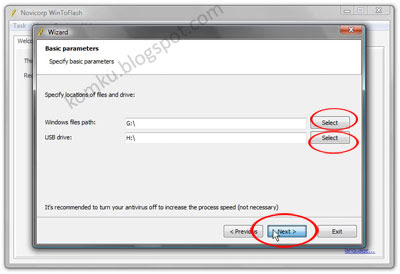
Specify the location of windows setup files and USB drive...
be careful, don't make any mistake...
in my computer, Windows file path: G:\ and USB drive: H:\
it might be different with yours...

then click Next...

larger image


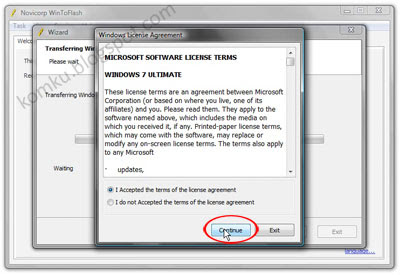
step 5:
Select: "I Accepted th terms of the license agreement
and click continue...

larger image


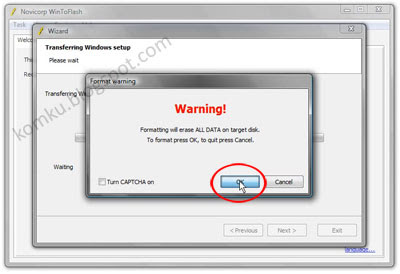
step 6:
Warning! Formatting will erase ALL DATA on target disk. To format press OK, to quit press Cancel.

click OK....

larger image


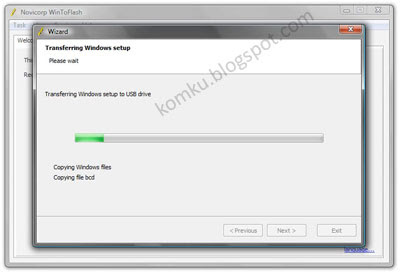
step 7:
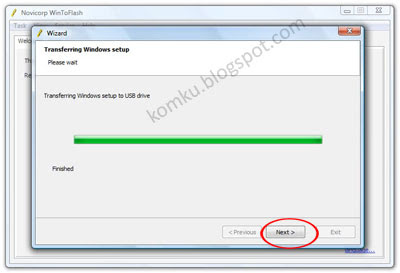
please wait while WinToFlash transferring Windows setup to USB drive...

larger image


step 8:
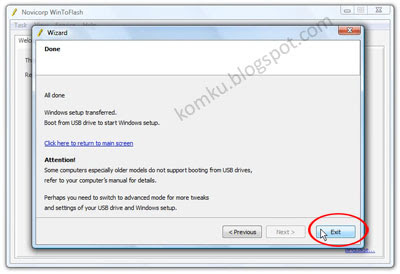
Click Next....


step 9:
done....
click Exit
now you can install Windows 7 on any computer from USB Flash drive...
How? please read step 10....

larger image


step 10:
Plug in your USB flash drive....
then turn on your computer (laptop)
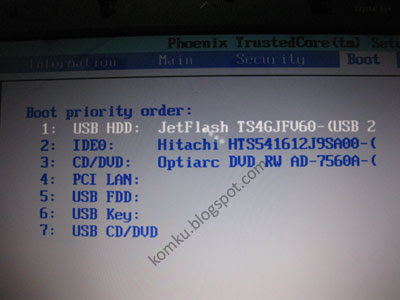
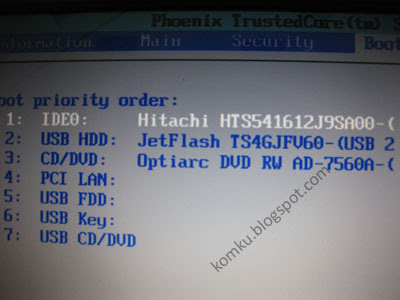
and press F2 key rapidly during the post to get the BIOS menu...
then change Boot priority order: USB flash drive as first boot option
press F10 key to save the configuration and exit....
your computer will reboot...

larger image


step 11:
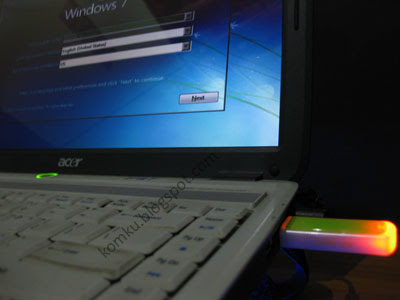
then install Windows 7 as usual :)


larger image

on first "restart"
you must go to BIOS again and change boot priority order: HDD as first boot option
then press F10 key to save the configurations and exit....


larger image


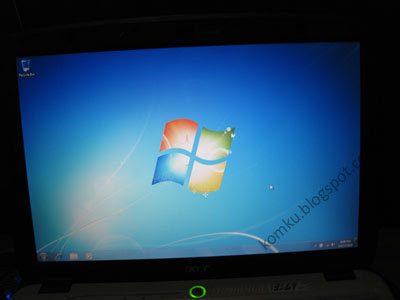
and Windows 7 Insttallation from USB Flash drive finished.....

Tuesday, 28 August 2012

Simple and Free PDF to JPG Converter 3.00

Free PDF to JPG Converter 3.00Free PDF to JPG Converter 3.00. is a small, easy to use application specially designed to help you convert PDF documents to the JPG image format. Also, Free PDF to JPG Converter supports Batch Mode that converts a lot of PDF documents into images at one time.

Basically, all that you have to do is select the file that interests you, press the Convert button and let the application take care of the rest. So, if you want to turn your PDFs to JPGs, take this tool for a spin and check out its capabilities.

Go>>>

:
Size/OS:3.2 MB / Windows XP / Vista / Vista64 / 7 / 7 x64
License:Freeware
Type of file:Zip
Date:July 31rd, 2012
Price Full Version:-
Developer:Home page

Monday, 27 August 2012

PDF to JPG Free Online Converter


convert PDF to JPG? Submit your PDF, we convert it to JPG, online! You will also have the opportunity to download the pictures as a zip file.

Our free PDF to JPG online converter is the simplest way to convert PDF to JPG. Nothing to download and to install, the whole process takes place online.

We process your PDF documents and convert them to produce high quality JPG. Using an online service help you convert your PDF to JPG quickly, without the burden of installing additional software on your PC.


Friday, 24 August 2012

Tuesday, 21 August 2012

View Your Current Location on Mobile Using Google Latitude for Mobile


Google Latitude is a location-aware mobile app developed by which allows a mobile phone user to allow certain people to view their current location. Via their own Google Account, the user’s cell phone location is mapped on Google Maps. Google Latitude is compatible with most devices running iOS, Android, BlackBerry OS, Windows Mobile, and Symbian S60.

Features

  • See where your friends are. See your friends’ locations on a map or in a list.
  • Contact your friends. Quickly contact your friends with a text message, instant message, or phone call.
  • Control your location. You can share, set, hide your location, or sign out of Google Latitude.
  • Privacy settings. Control who sees your location, and at what level of detail.

Getting started

From your phone

  1. Check that you have a Google Latitude supported phone.
  2. Install Maps for mobile version 3.0+ on supported phones, or download Google Latitude from the App Store on supported iOS devices.
  3. On Android, BlackBerry, Windows Mobile, Symbian S60, or Sony Ericsson phones, open the Google Maps main menu and select Join Latitude. If you can’t find Google Maps on your phone, look for its icon on your home screen or in a folder on your phone such as Main, Applications, Games, My Stuff, My Own, or My Downloads.
  4. Sign in to your Google Account, if necessary.
  5. Add friends from your Google Contacts or using their email addresses.
  6. Choose your privacy settings.
  7. Start sharing and updating your location from your phone.

What can I do?

  • See if any of your friends are nearby to meet up.
  • Find out if your spouse is at work or on the way home and can pick up some milk.
  • Check if your friend is at work or home before calling.
  • Follow along as a friend travels the world.

Wednesday, 18 July 2012

How To Print Two Pages On One Sheet Easy

Cutting down on the amount of paper used in printing not only saves money, but is also more environmentally friendly. Some applications offer the option of printing multiple pages per sheet of paper. In this post I will show you how to print two pages per sheet in MS Word and Adobe Acrobat Reader.

MS Word
Open the print dialogue from the 'File' menu in older versions of Word, or by clicking the Office Button in newer versions (as shown below).


Simply set 'Pages per sheet' to '2 pages' and click 'OK'.


Adobe Acrobat
Open the print dialogue from the 'File' menu.
Change 'Page Scaling' to 'Multiple pages per sheet' and 'Pages per sheet' to '2'.


OpenOffice
I found no easy way to print two pages per sheet in OpenOffice, but you can save the file as a pdf using the 'Export as PDF' tool in the 'File' menu and then open it in Adobe Acrobat and follow the above instructions.

Tuesday, 3 July 2012

How To Backup Your Email Data On Outlook 2007 | Backup MS Outlook 2007

How to backup your email data on Outlook 2007

Backup:

1. The data is saved in a Personal Folder File (.pst) only if you are not using Microsoft Exchange account or Windows Live Mail account. For Microsoft Exchange Account or Windows Live Mail account your backup data is saved locally on your computer instead of the e-mail server.

There are two .pst files, one is the personal folder file which includes all of your Outlook folders, such as the Inbox, Calendar, tasks and Contacts and the other is the Archive Folder which includes archive messages of your Outlook.


2. You can easily locate the data files in outlook 2007 using the following steps.There are two ways to access the location of your data files.
Go to Main Menu of Outlook 2007,
1. click File > Data File Management...
2. click Tools > Account Settings...


3. If "Data Files" tab is not selected, click on the "Data Files" tab. You may have a single data file or multiple data files. These "Data Files" are where you store your email messages, calendar, tasks and other items.


4. Highlight the data file that you are interested in backing up and Click on the Open Folder icon. Windows Explorer will be opened automatically and will take you to the location where this data file is stored. Now select the outlook.pst and archive.pst file you want to backup.

5. Within the folder you should find an outlook.pst file . Burn this file to a CDROM disk , Hard disk or other backup source. If you archive your email, be sure to backup the archive.pst file as well.
Note: Prior to backing up these files, Outlook will need to be closed.


The table below lists key Outlook files that you may want to back up in addition to your Personal Folder(s). You will need to completely exit Outlook prior to copying these files. Depending upon your configuration some or all of these files may be present in your Outlook directory.


Type of File Name or Extension
Personal Folders .pst files
Outlook Bar shortcuts .fav files
Rules Wizard rules .rwz files
RSS subscription names .sharing.xml.obi files
Known feed list for RSS .xml.kfl files
Nicknames .nick files
Customized toolbar settings outcmd.dat
Customized system folder views Views.dat
Macros and VBA programs VbaProject.otm
Signatures .rtf, .htm, and .txt files
Stationary .htm files
Templates .oft files
Dictionary .dic files


Restore :

If you have followed the steps above to backup your Outlook data, restoring is simple. All you do is copy the backup PST file(s) into the folder that you located when you initially backed up your work.
make-money-468x60