Social Icons

Showing posts with label Office 2007. Show all posts

Saturday, 20 October 2012

How to Setup Hotmail in Outlook 2007 by Outlook Connector

Outlook and Hotmail/Windows Live
There are two methods that you can use to setup your Hotmail account in Outlook 2007. The method that I’m showing in this post is by using the Outlook Connector. The Outlook Connector is a plugin for Outlook 2003 and 2007. The plugin will enable you to retrieve your mail from your Hotmail account using Outlook. Please note that this method will only work with Microsoft Office Outlook, and not Outlook Express!

Step 1: The first step that you need to do is to download the Outlook Connector from Microsoft website. You can get it here: Microsoft Office Outlook Connector (Choose the OutlookConnector.exe at the bottom of the page)
Download Outlook Connector
Step 2: After you downloaded the installer, run it and follow the steps in the wizard. It should be pretty straight forward.
Step 3: Once the installation is complete, open your Outlook. You should be able to see the “Outlook Connector” in your menu bar.
Outlook Connector in the menu bar
Step 4: Click on the “Outlook Connector” menu and select “Add New Account
Outlook Connector - Add a New Account
Step 5: You should be seeing the window in the screen shot above. Fill in your Hotmail/Windows Live email address and the password in the field provided. The name field is for you to specify the name you want to be displayed when you send an email. After you completed all the fields, click OK.
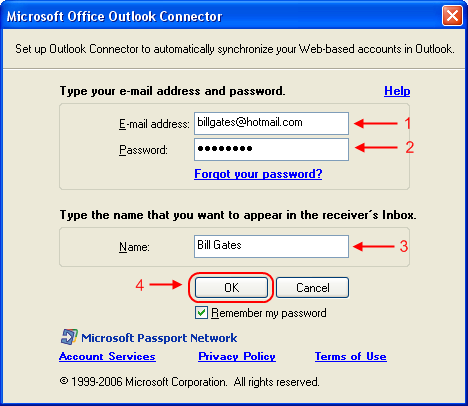
Account settings
Step 6: After adding the email account, you need to restart Outlook. Once you restarted your Outlook, you can start using your Hotmail account using Outlook! It will take some time for Outlook to download all your emails to your PC, so please be patience.
The other method that you can use to download your mail to Outlook is by using POP3. I will post another guide for that. But, there are some other features that you can use if you use the Outlook Connector. These features are managing your contacts and calendar using Outlook! You can’t do that if you are using POP3. The disadvantage of using the Connector plugin is that it only works with Outlook and not other email client. And it is only compatible with Outlook 2003 and above. In my opinion, if you have Outlook installed, go ahead and use the connector. If not, you can still use the POP3 method.

Friday, 12 October 2012

Open Office 2007 Xlsx Files in MS Office 2003 / XP / 2000

Open Office 2007 files in MS Office 2003/ XP/2000

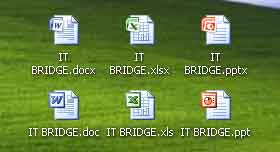
Most of the users get the problem that he is not able to open Microsoft office 2007 files with extensions “.docx” – Word Document, “.xlsx” – MS excel file and “.pptx” – Powerpoint presentations in office 2003 or lower versions.


This is a common problem with many users who use MS office versions which are older than MS office 2007. The documents saved by the new office software are not backward compatible directly. But there is a very useful and easy add-on available from Microsoft itself.

Also we will tell you a workaround to save your documents in such a way that will open it on any computer with older version of Microsoft office.

Way 01:
Install the compatibility pack on a computer that is running Microsoft Office 2003 programs, Microsoft Office XP programs, or Microsoft Office 2000 programs

Way 02:
Save Files In Compatible Format

Way 01 : Download Compatibility Pack

Microsoft has added the new Office Open XML Formats to the following 2007 Microsoft Office programs:
  • Microsoft Office Excel 2007
  • Microsoft Office PowerPoint 2007
  • Microsoft Office Word 2007
A compatibility pack is available to make sure that you can open and save Office Open XML Formats (Office 2007) in earlier versions of Microsoft Office (Office 2003, 2000 or XP).

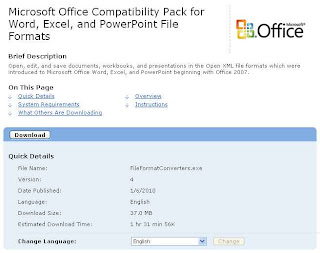
Follow the given steps to download free Microsoft compatibility pack and install it.

To use this feature, you will need to be logged into your computer with administrative rights.


When you have downloaded the file, double click on FileFormatConveter.exe file to start installation.

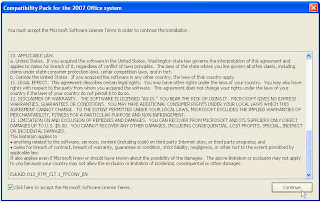
Now here it’s simply a case of pretending you’ve read the license terms and clicking continue


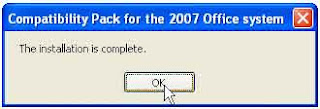
Now Click OK to Complete Installation.

Once the process is done, you can open new Office files in older version.


Way 02: Save Files In Compatible Format

You can install this compatibility pack in your computer, but if you need to send your document to a client or a friend or anyone else who does not have this compatibility pack, then you will still be in trouble. To avoid such trouble we give you a very useful tip, because we always believe “Prevention is better than cure”.

We will tell you how you can save the documents in older formats which will open the documents with the new as well as old versions of MS office, without any problem.

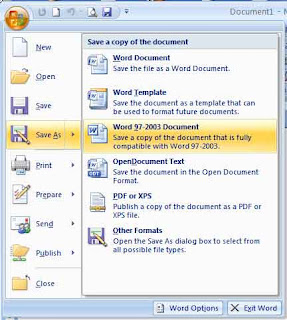
To save it in compatible format, simply click on the circular office logo at the top left corner of MS word / or Excel or PowerPoint > click on Save As arrow > and select the MS office 97-2003 compatible version as shown in images below.


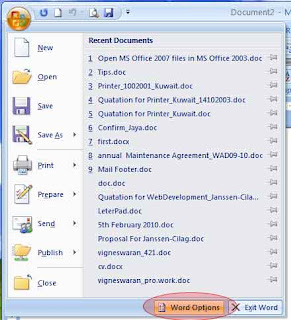
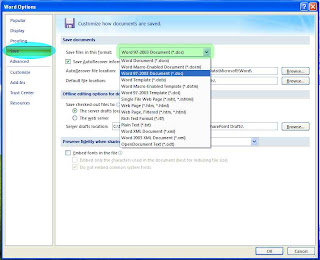
Or else you can change the saving option permanently in new Office option.

Click Office Button >> Word Options


Select older extension as a default saving option.


Now you can enjoy.

Friday, 28 September 2012

KMS Activator for Office 2010: Genuine Activation Key

Microsoft has already launched its new Office version Microsoft Office 2010 and every office users are switching to this new version and they are not aware of how to activate Microsoft Office 2010 and they are getting trial period of 30 days of product activation and also facing Microsoft Office 2010 Genuine Activation problem. So today I am going to share how you can activate Microsoft Office 2010 and avoid 30 days trial period and make your Office 2010 copy fully genuine and activate for a life time.


Now you don’t have to crack your Microsoft Office 2010 and also you don’t have to search Genuine Keys for your Microsoft Office 2010 because no serial keys and cracks will helps you to make your office 2010 copy genuine accept the license serial keys and working activation crack. After a lot of research on internet I have finally found Two Ways to Activate Microsoft Office 2010
One way is to use working genuine crack which is known as KMS Activator for Microsoft Office 2010 and the other way is to Manually Activate Microsoft Office 2010 copy and makes it permanently genuine. So I am going to share both method of activation. But in this post I will let you know how you can activate Ms. Office 2010 with KMS Activator.

How to Activate Microsoft Office 2010 by using KMS Activator:

Download KMS Activator Software for your Ms. Office 2010 Now and get rid of 30 Days trial period and make your Office 2010 fully genuine and download updates directly from Microsoft without any interruption and also bypass your activation pop-up window and get all your Office 2010 Update without any problem. Simply follow the following steps to activate your Ms. Office 2010 and make it genuine.
Installation Instruction:
  • First Disable your all kind of Anti-Virus/Security Software. (Recommended)
  • Run KMS Activator Software.
  • Click on Install/Uninstall KMService Tab.
  • Then Click on Activation Office 2010 VL.
  • Follow the instruction inside the window.
  • Your Microsoft Office 2010 is genuine now.
  • Check the status of your Ms. Office 2010 by click on Activation Check Office 2010.
  • Hurray! Enjoy Genuine Ms. Office 2010.
Note:
If above KMS Activation Method doesn't work for you, than you can also try to use Manually Activation Method of Microsoft Office 2010.
File Download Instruction:
After opening above download link Click on Slow Download Button for Free User Downloading and Don't Use Any Download Manager when downloading above File (You may face Download Interruption).

Thursday, 6 September 2012

How to Set Your MS Outlook to Auto Send and Recive Mail

Microsoft Outlook will check for new emails or send any emails in your outbox every 30 minutes. There might be a very important email coming in and need your action, I would say immediately but since new emails will only come in every 30 minutes, it might be too late for you to react on the email received.

You can actually change the setting to read new emails from as frequent as every 1 minute to maximum of every 120 minutes.
  1. Go to Tools menu, select Option....
  2. On the Options dialog box, go to Mail Setup tab and click Send/Recieve... button.


  3. On the Send/Recieve Groups dialog box, change the value (default is 30) for Schedule an automatic send/receive every ... minutes field under Setting for group "All Accounts" (or any other account you may have in your Group Name field.


  4. Once done, click Close and then click OK to close the Options dialog box.

Don't set it to 1 minute of your internet connection speed is poor. Maybe you can reduce it to 5 minutes.

How to View Your Web Mail In Your MS Outlook

organisations mostly offers access to thier emails for their personnels via webmails. For these users, all they need is a computer with internet access and of course an internet browser.
For Microsoft Outlook users... you can actually access your webmail without using any internet browser.
Here's how to do it...
Step 1: Create a folder under your account.
  1. From the Standard Toolbar, click the New pull-down button and select Folder... .


  2. Type a name in the field under Name: and make sure you select the root of your email account for the Select where to place the folder: list.


Step 2: Convert the folder to view your webmail.

  1. Right-click on folder you've just created and select Properties.


  2. On the folder's properties dialog box (mine is showing "Webmail Properties" as I've named my folder as "Webmail"), go to Homepage tab.
  3. Type the website address you usually use in your internet browser, starting with http:// in the Address: field.


  4. Click to enable the checkbox for Show home page by default for this folder.
  5. Click OK.

Now you can access your webmail from Outlook just by selecting the folder you've created and then login to your webmail account but make sure you are currently online to view it, just like you would do when viewing with the internet browser.


You can actually use this method to view any website you want like I do to view my training schedule.


How to Create Drawings and Shapes By Changing Standard Shape in PowerPoint 2007

create our own shapes by changing standard shape with PowerPoint 2007.
  1. Select a shape and place it on your slide (I selected an oval). Resize it as you want.
  2. With the shape selected, go to Drawing Tools ribbon, Format tab.
  3. Click Edit Shape from Insert Shapes group and select Convert to Freeform.


  4. Repeat step 3 but this time select Edit Points. You will see the shape will have multiple points for you to adjust.


  5. Now you can drag any edge of your shape to form a new shape of your own.


    (Sample of a new shape made of two circles. One as the body and the other as the head, grouped together as one shape)

How to Create Email Template In MS Office 2007

Sometimes, you may find that you will be sending emails of the same content again and again (maybe to send monthly report, etc...) and you'll find that you have to type same sentances for these emails again and again.

If that's the case, try saving the email message as a template and later you can reuse it.
  1. Compose new email as you usually do with normal emails. Put in the subject and if you are going to always send to the same receipient, you can put the receipient email addresses in the To, CC or BCC field.
  2. Once complete, click the Office Button and select Save As.


  3. In the Save As dialog box, change the Save as type: to Outlook Template.
  4. Name the file and select your file location if you want to save it in different location or just leave it in the default template location as it is.

For earlier version users, you must first disable the Use Microsoft Office Word 2003 to edit e-mail messages feature found in Tools > Options menu under the Mail Format tab of the Options dialog box.

Follow the steps 2 to 4 as stated above (slight difference in step 2 where you should click File menu instead of Office Button).

To use the template (same process for Outlook 2007 or earlier):

  1. From Tools menu, go to Forms and select Choose Form... .


  2. In the Choose Form dialog box, select User Templates in File System from Look In: combo box.


  3. Select the template listed or click the Browse button if the template is in other location.
  4. Click Open.

Now you can continue to add attachment(s) or amend the template as required.

- MRBAR

Saturday, 25 August 2012

How to Solve : Can't Create The Filename.ext Right-Click the folder you want to Create the file in, and than click properties on the shortcut menu


When opening an attachment directly from within Outlook you could get an error message saying that it can’t create the file and to that you need check the permissions on the folder you want to save it in. In most cases the permissions on the folder isn’t the issue but the fact that the folder is “full”. When you open an attachment directly from within Outlook it will first save a copy to a subfolder of the Temporary Internet Files folder. Cleaning out the folder will solve the issue.

Outlook Secure Temp folder

Unfortunately this is easier said than done. The subfolder name Outlook creates (on installation of Outlook) in the Temporary Internet Files folder is quite random. In Outlook 2003 and previous, the name starts with OLK and is followed by up to 4 random numbers or letters. In Outlook 2007 and Outlook 2010, this folder is called Content.Outlook and then has a subfolder which is named with with 8 random numbers and letters. In addition, by default, you cannot simply browse to the folder to clean it out. Getting to the Temporary Outlook Folder can still be accomplished in 2 easy steps though.

Step 1: Locate the folder
The folder location is stored in the registry in the following key;

Outlook 97 HKEY_CURRENT_USER\Software\Microsoft\Office\8.0\Outlook\Security
Outlook 98 HKEY_CURRENT_USER\Software\Microsoft\Office\8.5\Outlook\Security
Outlook 2000 HKEY_CURRENT_USER\Software\Microsoft\Office\9.0\Outlook\Security
Outlook 2002/XP HKEY_CURRENT_USER\Software\Microsoft\Office\10.0\Outlook\Security
Outlook 2003 HKEY_CURRENT_USER\Software\Microsoft\Office\11.0\Outlook\Security
Outlook 2007 HKEY_CURRENT_USER\Software\Microsoft\Office\12.0\Outlook\Security
Outlook 2010 HKEY_CURRENT_USER\Software\Microsoft\Office\14.0\Outlook\Security

Step 2: Get to the folder

  1. Open the OutlookSecureTempFolder registry key from the location provided in Step 1.
  2. Copy the path from the key.
  3. Open Run
  4. Paste the address in the Run and press Enter
  5. Create The New Folder with the same folder name and rename the Original Folder
  6. Thanks It Now Run MS Outlook It Done....

how to Find the Microsoft Outlook OLK Folder, OutlookSecureTempFolder

Microsoft Outlook 2007

When you open file attachments that are considered safe, Outlook places these attachments in a sub directory under the your Temporary Internet Files directory as an extra precaution. When Outlook first tries to use a temporary file, it examines the registry to determine whether or not the TEMP OLK folder has already been created. If yes, it uses the folder. If no, it creates a random folder then stores the path.

The location:

Registry key OutlookSecureTempFolder using the MAP below:

Outlook 97 HKEY_CURRENT_USER\Software\Microsoft\Office\8.0\Outlook\Security
Outlook 98 HKEY_CURRENT_USER\Software\Microsoft\Office\8.5\Outlook\Security
Outlook 2000 HKEY_CURRENT_USER\Software\Microsoft\Office\9.0\Outlook\Security
Outlook 2002/XP HKEY_CURRENT_USER\Software\Microsoft\Office\10.0\Outlook\Security
Outlook 2003 HKEY_CURRENT_USER\Software\Microsoft\Office\11.0\Outlook\Security
Outlook 2007 HKEY_CURRENT_USER\Software\Microsoft\Office\12.0\Outlook\Security
Outlook 2010 HKEY_CURRENT_USER\Software\Microsoft\Office\14.0\Outlook\Security
make-money-468x60