Many organizations use private clouds to ensure safety and easy handling
of data. However, when the number of people who control the data
increases, the risk of hackers tampering the safety measures increases
too. It is critical to form and implement foolproof strategies to
protect the data that’s on the cloud. Though there is strict monitoring
of online activities and logins, hackers break in often. There’s no
storage system that hasn't been tampered by hackers. To make cloud computing
safe, companies use private clouds but these private clouds are no
exceptions when it comes to security. All these incidents make
companies, especially those who are in the cloud, diffident about their
data storage system. There are some tips to strengthen your cloud
security.
1. Single Tenant Clouds:
Using a single tenant cloud is very important to manage your data
efficiently. Ask your service provider about the data storage location
before signing up for their service. If the physical location of data is
distributed among different servers, there are high possibilities of
tampering and you may not be able to track the online activities
effectively. Under single tenancy architecture, a single instance of
software is used to serve each client. You can customize the software as
per your needs and the data center model you want to have can be
designed without any need for changing according to vendor restrictions.
2. Classify Data:
All types of data don’t need the same security level. Confidential and
sensitive data needs a higher level of security than public data. To
make your private cloud secure, classify data based on the levels of
security needed. This will help you focus on the safety of most critical
data and implement lower levels of security strategy for other types of
data. For example, the budget for the different departments needn’t be
known to the entire organization, and so the security level of such
files should be higher than the security level of other types of files.
3. Configure Firewalls:
Configuring firewalls is as important as owning a private cloud. There
are multiple ways to configure firewalls. And the
responsibility doesn't stop with installing and configuring firewalls.
You need to try and test your firewall to detect any loopholes through
which your data may be mined out. Try penetrating your own firewall
using different methods both internally and externally. It will give you
different ideas on how you need to monitor the activities and secure
your system.
4. Encryption:
The next best thing you can do is to encrypt the data. This statement
seems like a no-brainier because almost all clouds have encryption.
However, not all the data in the cloud are encrypted. Most clouds
encrypt only data that is in transit. Other data that is stored and is
idle is not encrypted. Ensure that even the idle data is encrypted so
that you will not end up losing your data and identity.
5. Monitor and Store Logs:
You should also monitor all online activities like logins, file
transfers, file sharing, link sharing, password changes, etc. As
monitoring becomes difficult when the number of authentications to be
done in a day crosses a limit, organizations tend to give up keeping a
tight rein on authenticating. This is the most common cause of data loss
and hacking.
Implementing effective strategies and relying on good service providers
are the basic steps to safeguard your cloud. Some of the steps discussed
here seem to be complex and unnecessary but you can reap long term
benefits by following these.
Author Bio: - The above content and topic was provided by Samantha Kirk from mytechhelp.com, a site that offers savings and current information on Toshiba Support.


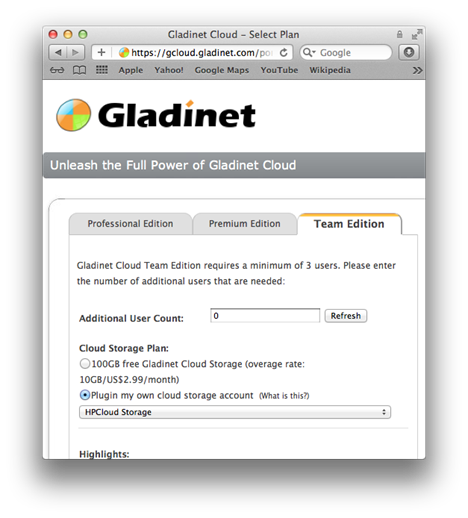
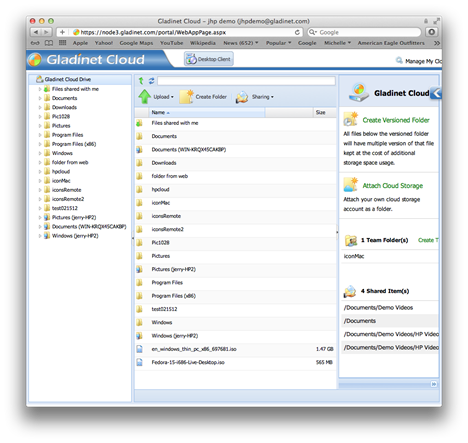
 If you have an HP Cloud account, you may be familiar with the following screen, which is the HP web based storage browser for HP Cloud Object Storage. You can upload, download and browse the files and folders in your HP Cloud Object Storage. Besides the HP Cloud Storage Web Browser access, you may also want to access the cloud storage from PC, from Mac, from mobile devices or from file servers. This is when Gladinet Cloud can help.