Social Icons

Showing posts with label iPhone. Show all posts

Monday, 15 October 2012

Unlock and Untethered Jailbreak of iOS 6 for iPhone 5, 4S, 4, 3GS, iPad 3, 2, 1 and iPod 4G, 3G will be Possible and Coming

iPhone-dev team soon iOS Community will get the latest Untethered Jailbreak of Apple iOS 6 and Cydia Installation on iPhone 5, iPhone 4S, iPhone 4, iPhone 3GS, The New iPad 3, iPad 2, iPad 1, iPod 4G Touch and other iOS devices. As we know Apple's latest iPhone 5 and iOS 6 is now publicly available for general public and iOS developers worldwide and every single user is seems to be waiting for iOS 6 Untethered Jailbreak and iPhone 5 Untethered Jailbreak. According to the member of iPhone-dev team named "Grant Paul aka Chpwn" who has recently tweeted about the Untethered Jailbreak process of iOS 6 on iPhone 5 and said that Taller Screens like Cydia Too in his status message which shows the image of Cydia icon installed on iPhone 5 home-screen. (You can see his tweeted image in screenshot below).

Untethered Jailbreak of iPhone 5
Before the release of iPhone 5 and with the released of Apple iOS 6 Firmware many iPhone and iOS hacker has developed and discovered some leaked security loop holes in the iOS 6 firmware and in A5X processor that allows them to easily install the Cydia on the latest devices which had provided them the Jailbreak mods and tricks to install Cydia Applications on iOS 6 running on iPhone 5 so we can also say that its now official that "Grant Paul aka Chpwn" had Unlock and Jailbreak iOS 6 on iPhone 5 and have successfully got Jailbroken iPhone 5 running iOS 6 Firmware. After the tweeter message from "Chpwn", many other iOS Jailbreak developer second the message of "Chpwn" and congrats him for his achievement and they also confirmed that iPhone 5 is Jailbroken. After the efforts from "Chpwn", another team member of iPhone-dev team named "Pod2g" who is the main developer behind the famous Absinthe Jailbreak Tool has also tweeted that they are struggling very hard to bring Jailbreak for iOS 6 on iPhone 5 and other idevices, "Pod2g" tweeted and said that "if what @p0sixninja pointed out is true, Apple failed again… Oh god.” This message clearly shows that "Joshua Hill aka p0sixninja" has found Vulnerability in iOS 6 to Jailbreak it Untethered. (You can see their tweeted images in screenshots below).

Friday, 5 October 2012

How to Backup or Save Your iPhone Notes

Want to have an easy way of backing up your notes from your iPhone 2.0 or 2.2.1 or any firmware prior to 3.0? Unfortunately, iTunes does not allow you to backup any of your notes you have saved to your iPhone unless you upgrade to the new 3.0 firmware. If you do not want to upgrade your firmware, but still want to have your notes saved, rather than transcribing potentially many many sticky notes, you can use this simple application instead.


It's a little app called  iPhoneNotes. All you have to do is download the file, launch the installer, copy the application to your Applications folder. Now whenever you want to backup your notes from your iPhone, just launch the application first, and then connect your iPhone via USB and the iPhoneNotes will instantly recognize all of your notes.

The application will allow you to choose where you want to save your note files. You can also restore previously saved notes and put them back on your iPhone.

*Note, this application requires OpenSSH installed on a jailbroken iPhone.

Saturday, 22 September 2012

Apple iphone 5 Launch on September 21, 2012.

Apple Store on 5th Avenue after purchasing an Apple iPhone 5 in New York, September 21, 2012. Apple fans queued around city blocks worldwide on Friday to get their hands on the new iPhone 5

Apple iPhone 5 - Stylopics

Apple iPhone 5 - Stylopics
Apple iPhone 5 Real photos, images, wallpapers, snapshots, pics, snaps and pictures, HD wallpapers, high quality, large, small and original Apple iPhone5 version.
 
http://news.cnet.com/i/tim/2011/11/28/iphone5_bezel.png
best apple iphone 5
http://pinoytutorial.com/techtorial/wp-content/uploads/2010/08/iphone-payment.jpg
Apple iphone 5 photos
http://gadgetsmarket.com/wp-content/uploads/151219-iphone5render_500.jpghttp://techngadgetz.com/wp-content/uploads/2011/04/OmniVision_New_12.6_Megapixel_Camera_Sensor_iphone5.jpg
https://blogger.googleusercontent.com/img/b/R29vZ2xl/AVvXsEiC7Q4Z9VFTRna15Si4WOvLyUhd11XbLMy1vNuzKQH47Ond0lyloPUl0gRwabQB6RkzYPIFEJnugXogokQDQtSKoTOMHvMRSmf4Fwxg7GNVNcKjaIhcpLJa1cy7DqfzY7dr0u9B7frjwYY/s1600/iPhone5_metal_backing_NFC.jpeg

Tuesday, 18 September 2012

iPhone 5 Review & Hops

 Well people, it is safe to say that Apple's iPhone 5 is sold out and its not even the been released! On Friday it was reported that in a very short times the order started kicking in once the device was presented on September the 12th. Soon enough we had reports that the iPhone 5 was sold out from the official website. This latest turn of events has made Apple's stocks sky rocket and its shares record high! Along with a series of legal deputes that Apple has won against Samsung, Motorola and Google this seems like a very good year for Apple and the iPhone 5 comes like a cherry at the top!

iphone 5 sales
The iPhone 4 standing next to the smaller iPhone 4S
 The order via the online store are closed for the time being and those who have ordered the the new iPhone 5 can expect to get their latest tech gadget on September the 28th, a full week after it gets released into the open market via carriers and shops.
"The initial batch is sold out," said Shaw Wu, an analyst at Sterne Agee & Leach Inc, indicating that there will no doubt me more goodies and offers from Apple for the iPhone 5.
 While experts are saying that the iPhone 5 isn't selling as fast as the previous model but that does not necessary mean that Apple won't be earning a lot of revenue. In fact, it is expected that 58 million of the latest iPhone 5 devices may be sold out by the end of the year. This would generate as much as $36.2 billion in sales for the mobile industry giant, Apple.
For all of the sales success that the iPhone 4 and 4S enjoyed in the past years, the iPhone 5 is set to dwarf their sales numbers — in the short-term, at least.
After the stunning push-back of the ship date for pre-ordered iPhone 5 units just 24 hours after going on sale, we’re beginning to get a clearer picture of what kinds of sales numbers Apple’s new iPhone is seeing. For as much as the sales expectations for the iPhone 5 were high before its release, the reality is that even those seemingly crazy estimates may turn out to have been conservative.

iPhone 5 Screen Size

 Screens are getting bigger on smartphones and this is no small part thanks to the Android manufactures who seem to go by the philosophy - bigger is better, even though huge screen (5 inches, really?) aren't that needed. If you really have a need for so many different medias such as video, then why not get a tablet? Settling for some sort of in between option is never a good idea in life, so why settle for it when it comes to your devices? Even so, Apple is losing market share as possible buyers choose other options over their iPhone because of the screen size. This time around, it seems that Apple wants to put their foot down and get back on the leader role on market.
Leaked render of the possible iPhone 5 screen
 For this reason, the old 3.5 inch screen size may soon be replaced with a 4.6 inch screen. A huge change to Apple's legacy and what Steve Jobs used to tell us? Perhaps, but maybe this new change is better. Fans of Apple's products will probably not mind the bigger screen sizes, and if they stated their disappointment then Apple could easily come up with a 3.5 inch model of the product as well. One of the more interesting things is that the new screen size would certainly bring a brand new design that would step away from the classic minimalism design of the iPhone we are used to. So what will the iPhone 5 look like, any ideas? Well, only a few...

What Users Think of the iPhone 5 Screen Size

 The general opinion is that while it there isn't any harm to getting a larger screen, it really isn't that big of deal to get it in the first place. A majority of users

Sunday, 16 September 2012

How To: Charge Batteries of iPhone 4S, iPhone 4, iPhone 3GS, iPod 4G Touch, iPod 3G Touch, The New iPad 3, iPad 2 and iPad 1 Devices Wirelessly

How To: Charge Batteries of iPhone 4S, iPhone 4, iPhone 3GS, iPod 4G Touch, iPod 3G Touch, The New iPad 3, iPad 2 and iPad 1 Devices Wirelessly - Full Video Tutorial Guide

If you're an Apple iPhone, iPad and iPod idevices users than you must be aware of the concept of Wireless Access of iTunes via iPhone, iPad and iPod devices on previous version of iOS 5 but now the new way has been introduced which provide an option to iPhone 4S, iPhone 4, iPhone 3GS, iPod 4G Touch, iPod 3G Touch, The New iPad 3, iPad 2 and iPad 1 devices owners to Wirelessly Charge Batteries of iDevices. The new amazing technology has been introduced which provides an opportunity to Charge iPhone 4S, iPhone 4, iPhone 3GS, iPod 4G Touch, iPod 3G Touch, The New iPad 3, iPad 2 and iPad 1 Devices Wirelessly and without the use of any cord and adapters. This amazing technology and idea has been introduced for the next generation of iPhone, iPad and iPod devices.

Charge iPhone iPad iPod Wirelessly

In this post we will show you How to Charge Batteries of iPhone 4S, iPhone 4, iPhone 3GS, iPod 4G Touch, iPod 3G Touch, The New iPad 3, iPad 2 and iPad 1 Devices Wirelessly without the use of cord, adapters and other wire oriented gadgets. To Charge iPhone 4S, iPhone 4, iPhone 3GS, iPod 4G Touch, iPod 3G Touch, The New iPad 3, iPad 2 and iPad 1 Wirelessly is an easy task for any users and owners but for developing it is quite a risky and hard procedure and it may be dangerous way which will cause a bad effect on your iPhone, iPad and iPod devices permanently and may voids your warranty period as well. So iDevice users should be beware before trying or implementing the following video tutorial, try it only when you can afford this risk. You can follow the following simple Steps, Guidelines and Video Tutorial to Charge Batteries of iPhone 4S, iPhone 4, iPhone 3GS, iPod 4G Touch, iPod 3G Touch, The New iPad 3, iPad 2 and iPad 1 Devices Wirelessly.

Important Instructions for iPhone, iPad and iPod Devices:
  • Pin 25 is Data-
  • Pin 27 is Data+
  • Pin 16 is 0v or Ground
  • Pin 23 is +5v
Video Tutorial to Charge iPhone 4S, iPhone 4, iPhone 3GS, iPod 4G Touch, iPod 3G Touch, The New iPad 3, iPad 2 and iPad 1 Devices Wirelessly:

Before watching the following video tutorial you need a special expertise and techniques about electric circuits as well as the soldering knowledge. Additionally, a spare charging assembly, an extra Apple iPhone’s, iPad's and iPod's back cover and a very thin gauge wire and a wireless charger circuit like one used in video. You can find all the mentioned gadgets requirements from here. Let’s Start Now.

Sunday, 9 September 2012

What to Expected Apple's iPhone 5 Model, Size and Body Look Screenshots

As we all know iPhone Smartphone's are now world's most popular and successful Smartphone ever introduced from Apple and after the success of old iPhone models starts from iPhone to iPhone 4S now everybody is seems to be waiting for next generation iPhone model iPhone 5. So today we are going to reveal the Expected iPhone 5 Model, Size and Body Look Screenshots so that general public can think how next generation iPhone 5 will be look and feel. According to the recent rumors iPhone 5 will have bigger screen, improved processor and even better cameras. However, according to the recent blog post on a famous tech blog, iLounge the next-generation iPhone 5 will have 4.0 inch display screen, metal body and the small dock connector.


According to the iLounge blog post, iPhone 5 will be slightly larger than the current version of iPhone series and it will also have a metallic body from back and will be 20% thinner than the current iPhone 4 and iPhone 4S Smartphones. Currently, the iPhone 4 and iPhone 4S has a perfect size and one of the attractive and best designs in the whole smartphone market today, but due to large screen size demand, Apple will probably release an iPhone with 4.0 inch screen as you can see in screenshot of iPhone 5.

iPhone 5 Body
(Expected iPhone 5 Body Look) Click to Enlarge Image!

Moreover, iPhone 5 will also probably have 16 pin dock connector as compare to the current iPhone, iPod Touch or iPad devices which have 30 pin dock connector. According to the rumors next generation iPhone 5 will have a new dock design which will be small with fewer pins, however, it will be universal across all devices. You can also expect that iPhone 5 will be soon released in this fall.

iPhone 5 Design
(Expected iPhone 5 Design)

Thursday, 6 September 2012

How to Close Your iPad Open Apps At Ones on 1 Click

Since the introduction of Multitasking to iOS, you can now run more than one program on your iDevice at the same time. That doesn’t mean you always want them open though – so this will show you how to close (or quit) any program running on your iPad, iPhone or iPod Touch.
  1. Start out by “double-clicking” the Home button on your iPad, iPhone or iPod Touch. The Home button is the one at the bottom of your iDevice, as illustrated in the image below.
  2. the ipad iphone and ipod touch home button
  3. This will bring up the ‘list’ of currently running Apps – by way of an “App bar” at the bottom of your screen. Tap and hold down on any one of the currently running Apps (even if it’s not the one you want to close).
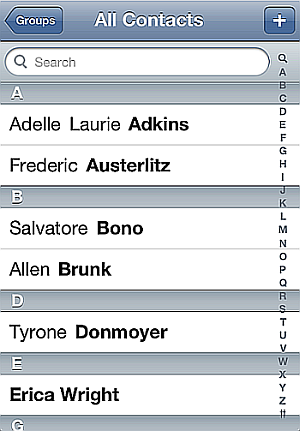
  4. You’ll notice that each App will start to “wiggle” and now has a small “minus sign” circle in the upper left corner. Tap the “minus sign” of the App you want to close/quit.
  5. That App will now close. NOTE: This will close the App, not delete it.
  6. You can continue tapping the “minus signs” to close all open Apps, if needed.

How to Close Your iPad Open Apps At Ones on 1 Click

Since the introduction of Multitasking to iOS, you can now run more than one program on your iDevice at the same time. That doesn’t mean you always want them open though – so this will show you how to close (or quit) any program running on your iPad, iPhone or iPod Touch.
  1. Start out by “double-clicking” the Home button on your iPad, iPhone or iPod Touch. The Home button is the one at the bottom of your iDevice, as illustrated in the image below.
  2. the ipad iphone and ipod touch home button
  3. This will bring up the ‘list’ of currently running Apps – by way of an “App bar” at the bottom of your screen. Tap and hold down on any one of the currently running Apps (even if it’s not the one you want to close).
  4. You’ll notice that each App will start to “wiggle” and now has a small “minus sign” circle in the upper left corner. Tap the “minus sign” of the App you want to close/quit.
  5. That App will now close. NOTE: This will close the App, not delete it.
  6. You can continue tapping the “minus signs” to close all open Apps, if needed.

Monday, 3 September 2012

How to Copy iPhone Contacts

copy iphone contacts

iPhone Contacts management made easy...

This quick guide will summarize some easy ways to copy iPhone contacts. The links below provide a more detailed look of iPhone contact copy methods. Feel free to explore the various opportunities you can use in order to copy iPhone contacts.

  • New: Copy iPhone contacts via contact management application
  • iPhone copy contacts via iCloud
  • iPhone contacts copy and sync via Gmail


How to Sync iPhone Contacts

Having a quick and easy iPhone contacts sync on your iPhone is a must. Why? Imagine you have access to all your friends' family and colleagues' details at a click at a button. To sync iPhone contacts also ensures that your iPhone contacts come with you wherever you go: even if you buy a new iPhone!

sync iphone contacts

Syncing iPhone contacts usually involves services such as your email provider, i.e. Gmail or Yahoo, or even Outlook. However, there is a big chance that you do not have all of your iPhone contacts in one place, say in your Yahoo email account. You most probably have your contacts and bits and pieces of details for your friends scattered across your iPhone SIM card, your Yahoo account and iPhone contacts saved in a rush directly on your phone.

How do you keep track of your iPhone contacts and all these scattered bits and pieces? More importantly, think about your backup habits, should you need to switch to a new iPhone now, how many of your recent contacts could you salvage through your iOS backups offered via iTunes or the iCloud? How much of the old and unneeded contact data can you filter? Chances are your last iOS contact backup was made some time ago, and you are prone to losing some of your more recent iPhone contacts you manually added - the most important ones!

A well-thought-of iPhone contacts backup program should offer easier, more practical than Google-, iTunes-, or iCloud-contact-backup solutions and should allow you to quickly and easily:

  • Sync iPhone contacts
  • Export and backup iPhone contacts to PC (into *.csv or *.vcf)
  • Import iPhone contacts and groups
  • Delete iPhone contacts and groups
  • iPhone contacts transfer
  • Edit iPhone contacts and groups

I had a friend recently recommend an app which can perform the above features. here is how to, for example, import contacts to iPhone from your computer using this app

How to Export iPhone Contacts using this Free BETA App

Link

I recently discovered a tool which helped me export iPhone contacts. Some of the features of this iPhone manager program that draw attention at first sight include:

export iphone contacts
  • Sync and export iPhone contacts to PC
  • Copy iPhone contacts
  • Group iPhone contacts
  • Edit iPhone contacts and add new contact entries to your iPhone

This is all done from the PC and iPhone contact changes are done in real-time. The program is useful, as you can manage iPhone contacts directly via your PC keyboard and computer screen.

Here is what CopyTrans Contacts can be used for:

Export iPhone contacts

1. Run the program by double-clicking on its icon from your Desktop

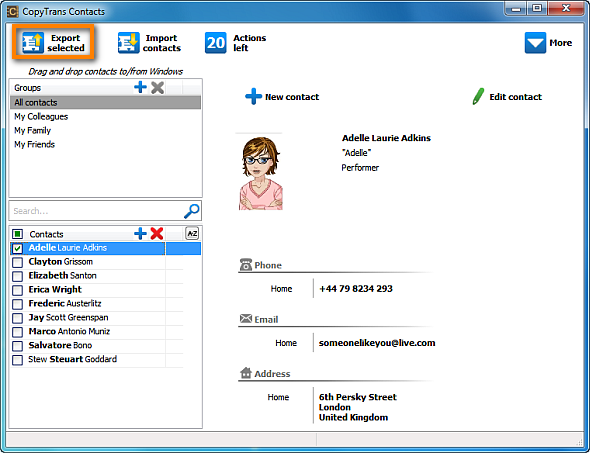
2. Select which of your iPhone contacts to export and hit the "Export contacts" button". Here I have chosen to export a single iPhone contact but you can choose to export all iPhone contacts at once.

iphone contacts export

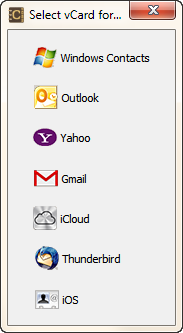
3. A small new window will prompt you in what file format you wish the iPhone contacts exported. I have chosen to export it in Windows Contacts format.

iphone export contacts

You will see the new contact entry appear wherever you wanted it exported to. In my case, I simply exported the contact to my Windows desktop

iphone contacts

Among other functions, I found the following useful as well:

Edit iPhone contacts

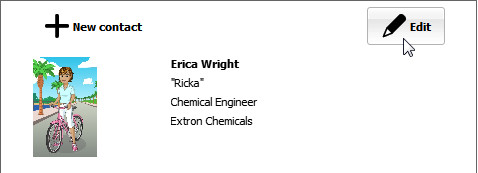
Simply select any iPhone contact from the Contacts pane and hit the "Edit button". You are then able to change/add/remove any of your contact details such as name, address, telephone number, etc.

manage iphone contacts

Group iPhone contacts

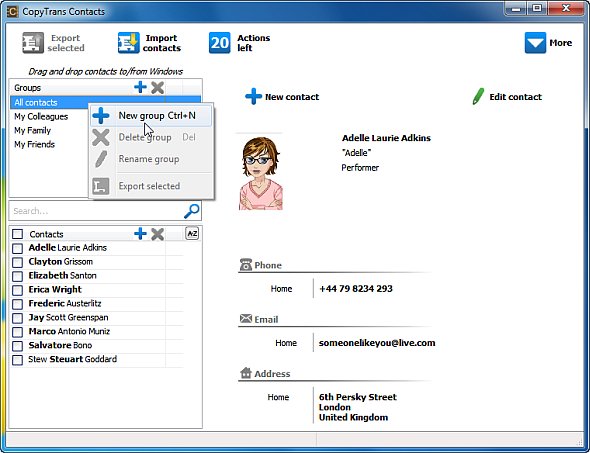
This is a feature of special importance as iPhone's default Contacts app can in theory show iPhone groups, but does not let you create or edit iPhone contact groups.

iphone manage contacts

CopyTrans Contacts makes it especially easy to create new contact groups and add iPhone contacts to groups. Simply right-click within the Group pane and select "New group". Then drag-drop any of your iPhone contacts to the contact group you wish.

System requirements for the program:

Windows 7, Vista, XP

Your iPhone

How to Import Contacts to iPhone With Easy Way

I had been looking for an easy way to import contacts to iPhone and after months of fruitless search, I have found the method described below as useful and quickest.

Requirements:

  • A PC with contacts loaded to computer
  • Your iPhone
  • A small app used to import contacts to iPhone import contacts to iPhone

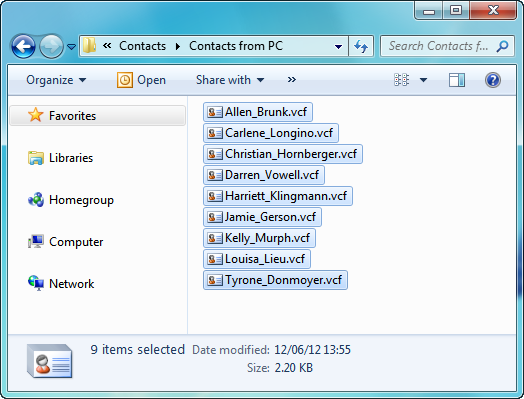
1. Locate where your contact entries are loaded on your PC

import contacts to iphone

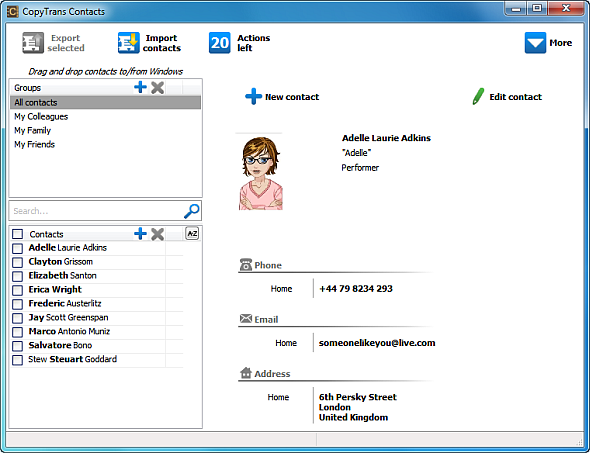
2. Download and run an app named CopyTrans Contacts from the link above, connect your iPhone. Your current iPhone contacts will appear in the program window

import contacts iphone

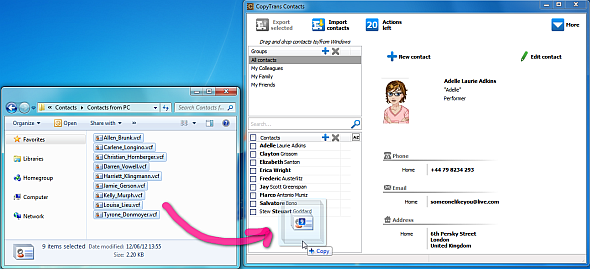
3. Drag and drop the contacts from the folder on your PC to the program’s main window. This will import contacts to iPhone directly

import iphone contacts

4. You can now see the newly imported contacts to iPhone via the program main window

iphone contacts

To double-check, you can go to your iPhone and see the contact list. Contacts have been imported to iPhone successfully.

import contacts to iphone

This is how to import contacts to iPhone from computer in 4 quick steps.

Saturday, 18 August 2012

Unlock and Untethered Jailbreak of iOS 5.1.1 and iOS 5.0.1 with Absinthe 2.0.4 & 1.2.2 for iPhone, iPad & iPod Apple iDevices

Jailbreak of iOS 5.1.1 and iOS 5.0.1 with Absinthe 2.0.4 and Absinthe 1.2.2 for iPhone 4S, iPhone 4, iPhone 3GS, iPad 3, iPad 2, iPad 1, iPod 4G Touch & iPod 3G Touch - Full Tutorial and Guidelines
Good news for Apple iOS and Apple iDevices users all around the world. The iPhone-dev team and Chronic-dev team member p0sixninja has released the new and latest version of Absinthe Tool through which iPhone, iPad and iPod users can Hack, Unlock and Jailbreak their iOS 5.1.1 and iOS 5.0.1 running devices. The new version of Absinthe Tool includes the latest update and the new version is called Greenpoison Absinthe 2.0.4 and Greenpoison Absinthe 1.2.2 to Untethered Jailbreak iOS 5.1.1 and iOS 5.0.1 for iPhone 4S, iPhone 4, iPhone 3GS, iPad 3, iPad 2, iPad 1, iPod 4G Touch & iPod 3G Touch devices. The Greenpoison Absinthe 2.0.4 and Greenpoison Absinthe 1.2.2 are now available for Windows, Mac and Linux for downloading; now users can download Absinthe 2.0.4 and Absinthe 1.2.2 and all Versions of Absinthe to Untethered Jailbreak iOS 5.0.1 and iOS 5.1.1 on all Apple iDevices.


So if you want to know What Greenpoison Absinthe 2.0.4 and Greenpoison Absinthe 1.2.2 Untethered Jailbreak can do to Hack, Unlock and Jailbreak iOS 5.1.1 and iOS 5.0.1 for iPhone 4S, iPhone 4, iPhone 3GS, iPad 3, iPad 2, iPad 1, iPod 4G Touch & iPod 3G Touch Devices and how it gives full access to your all Apple iDevices just follow the following simple steps and guidelines to Untethered Jailbreak your iOS 5.1.1 and iOS 5.0.1 running devices.

Now let’s start the Tutorial and Guidelines to Unlock and Untethered Jailbreak iOS 5.1.1 with Absinthe 2.0.4 for iPhone 4S, iPhone 4, iPhone 3GS, iPad 3, iPad 2, iPad 1, iPod 4G Touch & iPod 3G Touch.

Supportive devices for Greenpoison Absinthe 2.0.4 Untethered iOS 5.1.1 Jailbreak:
  • Apple iPhone 4S
  • Apple iPhone 4
  • Apple iPhone 4 CDMA
  • Apple iPhone 3Gs
  • Apple iPad 1
  • Apple iPad 2
  • Apple iPad 3 Wifi
  • Apple iPad 3 CDMA
  • Apple iPod 3G Touch
  • Apple iPod 4G Touch
Download Requirements for Greenpoison Absinthe 2.0.4 Untethered iOS 5.1.1 Jailbreak:
  • Download Greenpois0n Absinthe v.2.0.4 For [ Windows ]
  • Download Greenpoison Absinthe v.2.0.4 For [ Mac OS X ]
  • Download Greenpois0n Absinthe v.2.0.4 For [ Linux ]
  • Download Apple iOS 5.1.1 IPSW Firmware
How to Unlock and Jailbreak Apple iOS 5.1.1 Untethered with Greenpoison Absinthe 2.0.4?

Download the tool package provided above and then follow the following simple steps to Jailbreak and Unlock Apple iOS 5.1.1 Untethered running on iPhone 4S, iPhone 4, iPhone 3GS, iPad 3, iPad 2, iPad 1, iPod 4G Touch & iPod 3G Touch devices.

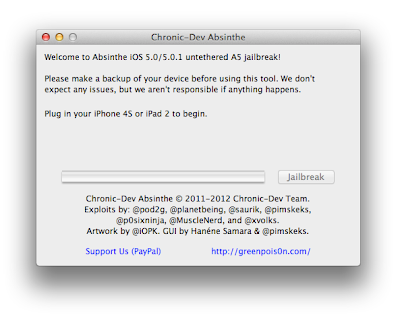
Greenpoison Absinthe 2.0.4 iOS 5.1.1 Untethered Jailbreak

Step 1: Download Absinthe v2.0.4 for Windows, Mac OS X and Linux from the above links.
Step 2: Back up are recommended so it is highly recommended that you connect your iOS device to computer and make a backup before you proceed.
Step 3: Launch Absinthe v2.0.4 which you downloaded in Step 1.
Step 4: Absinthe v2.0.4 will detect your iOS device instantly, click on the Jailbreak button once you device is detected by Absinthe.
Step 5: Absinthe will start jailbreak your iOS device untethered on iOS 5.1.1, just sit back and relax. Congratulations!! You have done it successfully and have Untethered Jailbreak iOS 5.1.1.

If everything goes well, you should now have an untethered jailbreak on your iPhone's, iPad's and iPod's devices or any other iOS devices you were jailbreaking. Remember that this Jailbreak only works with iOS 5.1.1, it won’t work with any other iOS firmware version.


Now let’s start the Tutorial and Guidelines to Unlock and Untethered Jailbreak iOS 5.0.1 with Absinthe 1.2.2 for iPhone 4S (Running iOS 5.0 or 5.0.1 [9A405 and 9A406] ) and iPad 2 (With Wifi/GSM/CDMA running iOS 5.0.1).

Supportive devices for Greenpoison Absinthe 1.2.2 Untethered iOS 5.0.1 Jailbreak:
  • Apple iPhone 4S (Running iOS 5.0 or 5.0.1 [9A405 and 9A406] )
  • Apple iPad 2 (With Wifi/GSM/CDMA running iOS 5.0.1)
Download Requirements for Greenpoison Absinthe 1.2.2 Untethered iOS 5.0.1 Jailbreak:
  • Download Greenpoison Absinthe v.0.4 For [ Windows ]
  • Download Greenpois0n Absinthe v.0.4 For [ Mac ]
  • Download Greenpoison Absinthe v.0.4 For [ Linux ]
  • Download Greenpoison Absinthe v.0.3 For [ Windows ]
  • Download Greenpoison Absinthe v.0.3 For [ Mac ]
  • Download Greenpois0n Absinthe v.0.3 For [ Linux ]
  • Download Greenpois0n Absinthe v.0.2 For [ Windows ]
  • Download Greenpoison Absinthe v.0.2 For [ Mac ]
  • Download Greenpoison Absinthe v.0.1.2.2 For [ Mac ]
  • Download Greenpoison Absinthe v.0.1.2.1 For [ Mac ]
How to Unlock and Jailbreak Apple iOS 5.0.1 Untethered with Greenpoison Absinthe 1.2.2?

Download the tool package provided above and then follow the following simple steps to Jailbreak and Unlock Apple iOS 5.0.1 Untethered running on Apple iPhone 4S and Apple iPad 2 devices.

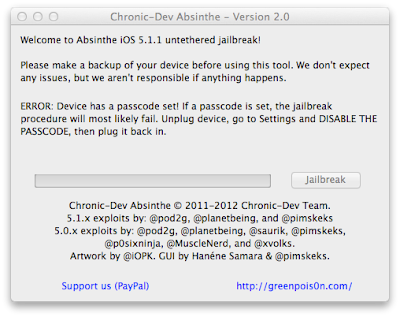
Jailbreak Apple iOS 5.0.1 Untethered with Greenpoison Absinthe 1.2.2

Step 1: Download Greenpois0n Absinthe, then unzip and run the file.
Step 2: Connect your iPhone 4S or iPad 2 with your PC via USB, and open iTunes then Restore to iOS 5.0.1.
Step 3: Connect your iPhone 4S or iPad 2 with your PC via USB.
Step 4: Simply click on "Jailbreak" button follow the steps appear on the greenpois0n screen.
Step 5: Once completed, you should see an Absinthe icon on the Home screen. Tap the Absinthe icon, it will open GreenPois0n site, and will then reboot your device. Once it loads again, the Cydia icon will have replaced the Absinthe icon. Now enjoy your iPhone 4S / iPad 2 5.0.1 untethered jailbreak. Congratulations!! You have done it successfully and have Untethered Jailbreak iOS 5.0.1.

How to Convert WMV to iPad 3 Media

Apple's newest tablet- iPad 3 has shown with a 2048x1536 pixels touch screen which is higher than its previous models, and also countless fans certain that it may creates a totally different visual sense as soon as enjoying WMV video files on newly updated tablet. Do you wonder how can make that happen? OK, simply keep reading!

There are loads of softwares in Mobile app market, with which you can certainly convert WMV video clip files to iPad 3 compatible file formats. And also Video Converter is the most representative one to convert WMV to certain file formats compatible with iPad 3 and also maintain the initial WMV video clip files quality. Here is the step-by-step tutorial guide concerning how to convert WMV to iPad 3 on Windows using Video Converter. If perhaps you are running Mac Operating system, you may convert WMV to iPad 3 efficiently by using Video converter for Mac.

Initially, simply download this kind of WMV to iPad 3 converter on website dependant on your own Operating system variety, and then, do a set up on your personal computer. And this kind of useful tutorial guide is going to divided into 2 sections: basic steps as well as extra functions.

Part 1: Basic steps for coverting WMV to iPad 3

Step 1: Add WMV movie
Immediately after running this kind of WMV movie to iPad 3 converter, you can easily find the movie source on personal pc and pick up those videos you want to delight in iPad 3 for movie addition. You are eligible to add WMV movie just by clicking Add Video tab. The left application window can present your complete imported movie, while the right window is a built-in video player which helps you to preview the imported video clips.

Step 2: Pick up output file format
For playback on iPad 3, it is best to pick up a file format that can easily function on it. Immediately after browsing on Apple's official website, video clip formats recognized by iPad 3 are MP4, M4V, MOV, MPEG-4, and so on. So, you may scan the Profile drop-down window and also pick up any one of them as outputting file format.

Step 3: convert WMV videos to iPad 3
When all earlier mentioned settings have been done, simply push Convert tab to convert your own WMV video clip to picked file format recognized by iPad 3.

Part 2: Extra functions on editing WMV video files

1. Besides coverting WMV movies to iPad 3, this kind of iPad 3 Video Ripper tool also can work as a video clip editor. You may carry out some editing before picking output video format with using the function of Trim, Crop, Effect and also Watermark.

2. You may merge a variety of WMV movies into one file after transformation process by clicking Merge into One File tab.

Simply take some time, your own iPad 3 held video files can be gained. It's simple to add them to your own iTunes library and also sync them to iPad 3 for fun.

Download Apple iOS 6, 5.1.1 Beta IPSW Firmware for iPhone, iPad & iPod - Direct Download Links

Apple has already announced the new and most advanced mobile operating system iOS 6 for iPhone, iPad, iPod, Apple TV and for other Apple iOS products today at Worldwide Developer’s Conference 2012 (WWDC). The features of Apple iOS 6 we had already discussed in our previous post. Click here if you want to know everything, anything and what iOS 6 is offering for users. The next generation of mobile operating system iOS 6 betas is now officially available for general public and for iOS developers. WWDC 2012 is already going on at WWDC 2012 with Apple's CEO Tim Cook so soon the iOS developer betas are likely to be release for general public in the next few hours or so (similar to what happened with iOS 5 released). Download and install iOS 6 beta IPSW Firmware Software Update on your iPhone 4, iPhone 4S, iPhone 3GS, iPad, iPad 2, The New iPad 3, iPod 4G/3G Touch devices, Apple TV, Safari 6 and other iOS 6 softwares for better improvement on your iDevices. (Direct Download Links of iOS 6 IPSW Firmwares are Available). Latest iOS 6 Beta 4 for iPhone, iPad, iPod and Apple TV is now officially available for download.

Apple iOS 6 for iPhone, iPad and iPod

A very well-known and authentic Chinese forum has leaked the Official Links of iOS 6 beta IPSW Firmware Software Update for all iDevices including iPhone 4, iPhone 4S, iPhone 3GS, iPad, iPad 2, The New iPad 3, iPod 4G/3G Touch devices, Apple TV, Safari 6 and other iOS 6 softwares. These iOS 6 leaked links have already spread on internet because after the few hours it will automatically get active for general public and iOS developers and iOS users will be able to download iOS 6 beta IPSW Firmware Software Update files directly from Apple servers. According to sources Apple iOS Developers will have access to the first beta on iOS 6 later this afternoon and iOS customers can expect to see iOS 6 Software Updates directly from Apple iDevices through OTA (Over-the-Air) Wirelessly in Fall of this year or users can also download and install iOS 6 from their PC desktop via iTunes. The whole iOS 6 IPSW Firmware setup files are divided into two separate versions, one is Consumer Version and other is Enterprise Version. iOS Developers can start using and developing iOS 6 from today with the first iOS 6 beta. If you are not an iOS Developer so don’t worry you can still download and install iOS 6 in your Apple iDevices. First get full backup of your recent iOS software version with iTunes, but keep in mind that beta software always has bugs and compatibility issues.

External Download Links of Apple iOS 6 beta IPSW Firmware:

Currently only external unofficial download links are activated and available for iOS 6 beta IPSW Firmwares. iOS users and developers can download iOS 6 setup files from the following external unofficial activated and working mirrors and links, soon you will get official links working and activated on this page. Following download links are also iOS 6 IPSW Firmware setups files leaked directly from Apple's servers in working condition. We have got the following links from here. Apple iOS 6 Beta 1, Beta 2 & Beta 3 has expired and no more working for iOS users and developers, you need to download Latest iOS 6 Beta 4 Firmware for iDevices so please Download and Install Latest Apple iOS 6 Beta 4 IPSW Firmware from this Link.
  • Apple iOS 6 beta for iPhone 4S (Size: 875.89 MB)
  • Apple iOS 6 beta for iPhone 4 CDMA (Size: 846.17 MB)
  • Apple iOS 6 beta for iPhone 4 GSM (Size: 849.44 MB)
  • Apple iOS 6 beta for iPhone 3GS (Size: 761.40 MB)
  • Apple iOS 6 beta for iPod Touch 4G (Size: 807.67 MB)
  • Apple iOS 6 beta for iPad 3 WiFi + Celluar (Size: 1.07 GB)
  • Apple iOS 6 beta for iPad 3 WiFi (Size: 1.04 GB)
  • Apple iOS 6 beta for iPad 2 CDMA (Size: 783.31 MB)
  • Apple iOS 6 beta for iPad 2 GSM (Size: 785.61 MB)
  • Apple iOS 6 beta for iPad 2 WiFi (Size: 769.44 MB)
  • Apple iOS 6 beta for Apple TV 3 (Size: 586.92 MB)
  • Apple iOS 6 beta for Apple TV 2 (Size: 542.22 MB)
Torrent Download Links of Apple iOS 6 beta IPSW Firmware:

Apple iOS users and developers can also download iOS 6 beta IPSW Firmware setups files directly from Torrents server. Following iOS 6 beta Torrents Links are activated and in fully working condition. Get your iOS 6 beta torrent files now. We have got the following links from here. Apple iOS 6 Beta 1, Beta 2 & Beta 3 has expired and no more working for iOS users and developers, you need to download Latest iOS 6 Beta 4 Firmware for iDevices so please Download and Install Latest Apple iOS 6 Beta 4 IPSW Firmware from this Link.
  • Apple iOS 6 beta for iPhone 4S (Size: 875.89 MB) - Torrent Link
  • Apple iOS 6 beta for iPhone 4 CDMA (Size: 846.17 MB) - Torrent Link
  • Apple iOS 6 beta for iPhone 4 GSM (Size: 849.44 MB) - Torrent Link
  • Apple iOS 6 beta for iPhone 3GS (Size: 761.40 MB) - Torrent Link
  • Apple iOS 6 beta for iPod Touch 4G (Size: 807.67 MB) - Torrent Link
  • Apple iOS 6 beta for iPad 3 WiFi + Celluar (AT&T) (Size: 1.07 GB) - Torrent Link
  • Apple iOS 6 beta for iPad 3 WiFi + Cellular (Verizon) (Size: 1.07 GB) - Torrent Link
  • Apple iOS 6 beta for iPad 3 WiFi (Size: 1.04 GB) - Torrent Link
  • Apple iOS 6 beta for iPad 2 Rev A (Size: 769.16 MB) - Torrent Link
  • Apple iOS 6 beta for iPad 2 CDMA (Size: 783.31 MB) - Torrent Link
  • Apple iOS 6 beta for iPad 2 GSM (Size: 785.61 MB) - Torrent Link
  • Apple iOS 6 beta for iPad 2 WiFi (Size: 769.44 MB) - Torrent Link
  • Apple iOS 6 beta for Apple TV 3 (Size: 586.92 MB) - Torrent Link
  • Apple iOS 6 beta for Apple TV 2 (Size: 542.22 MB) - Torrent Link
Official Direct Download Links of Apple iOS 6 IPSW Firmware:

Apple iOS Users and iOS Developers can download iOS 6 beta setups files from the following official mirrors and links directly from Apple's server. Apple iOS 6 Beta 1, Beta 2 & Beta 3 has expired and no more working for iOS users and developers, you need to download Latest iOS 6 Beta 4 Firmware for iDevices so please Download and Install Latest Apple iOS 6 Beta 4 IPSW Firmware from this Link.
make-money-468x60